
Measuring force: load cells
ITLL load cell inventory (note- this isn't updated with what is currently checked out)
Quick start guide:
- Checkout a USB DAQ (6001 etc) from the Electronics Center
- Connect red and black wires to 5V and GND
- Connect other two wires to + and - ports of an analog input channel
- Measure differential voltage from analog input channel and write code/math to convert voltage output to force reading (linear relationship)
If you have questions, or you want to use an Arduino - read on :)
How do we measure force?
Mechanical forces are typically measured using a load cell. Your bathroom scale has load cells. Truck weighing stations use load cells. High quality fishing scales use load cells (cheap ones just measure a spring). The MST downstairs at the ITLL (materials tester) uses load cells to measure force.
Load cells come in various shapes and sizes based on the magnitude, direction, and frequency response of the force you are interested in measuring.
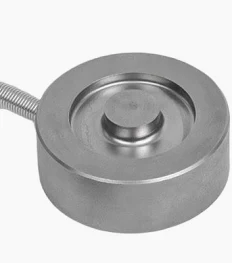
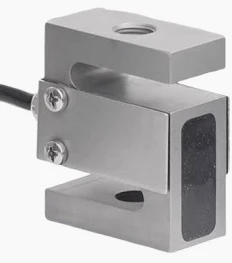
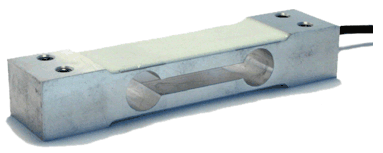
Various types of load cells:

Pre-quiz (test your knowledge!):
- What are each of the type of load cells depicted above called?
- Which are used to measure compressive forces, and which are used to measure tensile forces?
- Which type do you think the MST downstairs uses? (materials tester)
Answers to quiz
- From left to right: button or pancake, S-type, single point, and uniaxial in-line
- Compressive forces: all of them
- Tensile forces: technically all of them except for the button cell. In practice, the uniaxial in-line cell would be the easiest to use due to its threaded mounting points.
- I would guess it uses in-line uniaxial load cells that can measure tension and compression
Consider the following questions regarding your particular application:
What is the maximum force I expect to measure?
Am I measuring a compression or tension force?
Am I measuring a static or dynamic force?
Is one axis of measurement sufficient, or do I need a multi-axis load cell?
Need help answering the questions above?
Compression vs tension
Compression load cells are perhaps more common; they measure a force that is pushed down into the load cell. Think of a bathroom scale.
Tension load cells measure a force that is pulled away from the body of a load cell. Think of a hanging scale for measuring the weight of luggage or a fish.
Static vs dynamic
An unchanging or very slowly changing force is a static force. Once again, the bathroom scale is a good example. A dynamic force is a transient or quickly changing load, such as a force from an impact or a vibration. Typically we use different load cells for static vs dynamic force measurements, and this is because the operational principle underlying each type of load cell differs. Static load cells comprise of strain gauges, which do not have a particularly fast response time, but they give a stable linear signal over time, whereas dynamic load cells often comprise of piezo-resistive elements which are capable of fast responses but offer a tradeoff with linearity over time.
Uniaxial vs multi-axial
If you only need to measure compression or tension along one axis (once again, think of standing on a bathroom scale, the only acceleration we are concerned with here is due to gravity, so F=ma is only along one vector), a standard uniaxial load cell will do just fine. However, if you are interested in measuring forces along multiple axes in a structure or a robot, a multi-axial load cell might eliminate a complicated set-up involving mounting multiple load cells along different axes.
Range
Load cells come in a wide span of ranges, from less than 1lbf (pound force) to over 2,000 lbf! If you use too high of a load cell, all of your data will be compressed down to the lower end of the range of your sensor, and you aren't maximizing the resolution of your DAQ. A good rule of thumb is to choose a sensor whose range is around 10% higher than your maximum expected force.
How a load cell works: Wheatstone Bridge circuit
A load cell is a sensor containing resistors, and as you apply a force on the load cell, the resistance changes. "Cool, so we are measuring resistance", you might be thinking. Not exactly. The resistors that are in load cells are called strain gauges, and their change in resistance to an applied force is on the order of tenths, or even hundredths of ohms for small forces. If we tried to just measure the change in resistance of a single strain gauge, we would need a very good multimeter that can measure very small electrical changes. "What if we just drove up the supply voltage to generate a larger measurable change in resistance?" you might be thinking. Good idea- but the heat generated from supplying more power would cause the sensitive resistor to heat up, which would change its resistance. You would have no way of knowing if the subtle change in resistance you measure is due to an applied force, or a change in temperature. Ahh!
To get around the problem of measuring a tiny resistance that is susceptible to temperature-induced changes, we use a very old but useful circuit called a Wheatstone Bridge. This circuit has stood the test of time and is used in other sensing applications besides load cells, including pressure sensors.
Wheatstone Bridge circuit (image source: link):
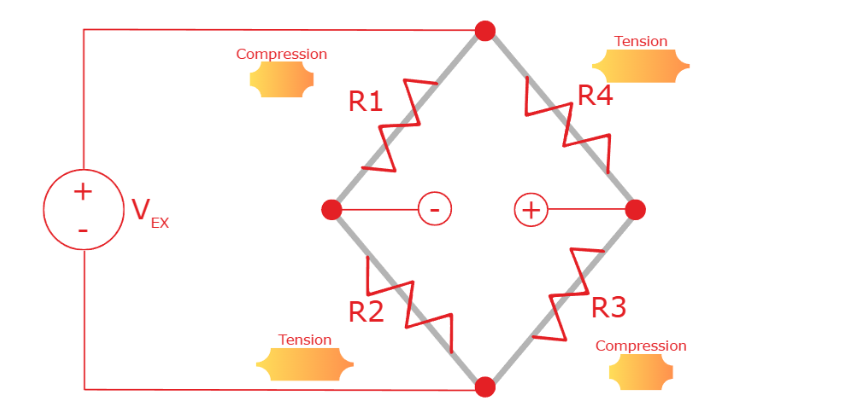
Each of the resistors depicted above (R1, R2, R3, R4) in the Wheatstone Bridge circuit are strain gauges. They are all contained in your load cell, and might even be visible if you have an S-type load cell. Often you can't see the strain gauges, as in the case of a button load cell or in-line cell, but they are there! The working principle is that the resistance values of the strain gauges change in response to an applied force. A change in resistance value is something we can measure electrically, and this electrical response is directly proportional to the applied mechanical force.
Basics:
- You must supply an excitation voltage to the load cell (labeled VEX above)
- You measure the voltage at the nodes labeled "-" and "+" in the diagram above
- The voltage will change in response to applying a load to the load cell, since the relative resistances of R1, R2, R3, and R4 change (when they are compressed, their resistance decreases since their cross sectional area has increased. Vice versa for tension.)
- This circuit is simply two voltage dividers connected in parallel
- The output voltage is typically very small (on the order of micro or millivolts), so we have to amplify it or choose a DAQ with a high resolution ADC
Useful points:
- When the circuit is balanced (all four resistors have the same resistance value), the output voltage measured between the measurement nodes ("-" and "+" in above image) is zero (look at diagram - do you see why that's true?). This is useful - if there is no force applied to your load cell, you will read zero volts. Very logical!
- The arrangement of the strain gauges (alternating in compression/tension) means that for a given force, the measured output voltage will increase for a compressive force, and decrease for a tensile force. If this isn't true for your load cell, try swapping the + and - signal wires
Another definition of the Wheatstone Bridge circuit, from NI
(Source: Pulled straight from NI-MAX by Claire)
Bridge-based sensors operate by correlating a physical phenomena, such as strain, temperature, or force, to a change in resistance in one or more legs of a Wheatstone bridge. The general Wheatstone bridge, shown in the following figure, is a network of four resistive legs with an excitation voltage, VEX, that is applied across the bridge. One or more of these legs can be active sensing elements.

A physical phenomena, such as a temperature shift or a change in strain applied to a specimen, changes the resistance of the sensing elements in the Wheatstone bridge. You can use the Wheatstone bridge configuration to help measure the small variations in resistance that the sensing elements produce corresponding to a physical change in the specimen. [Claire note - when the bridge is "balanced". it reads zero voltage when no load is applied]
[Claire note: the circuit depicted above is a full bridge circuit, where all four resistors (R1-R4) are strain gauges. If only two resistors are strain gauges, that would be a half bridge, and in a quarter bridge configuration only one of the resistors is a strain gauge. In a half or quarter bridge configuration, the remaining resistors are static resistors. Why would we ever do this? Sometimes a load cell isn't practical for our measurement because it is too bulky, for example if we are interested in analyzing strain along the skin of an aircraft]
How to wire up a load cell for data acquisition
Most load cells have four wires. You will need to connect the four wires correctly to a data acquisition (DAQ) module to generate data measured by the load cell.
- Black and red wires: this is where you apply the excitation voltage to VEX+ and VEX - of the Wheatstone bridge circuit shown earlier
- Where you plug in the red and black wires depends on what data acquisition device you are using (Arduino, USB DAQ, NI 9219, NI 9237, etc). I've never seen an exception to the excitation voltage wires being red and black, so if you come across one, please let me know
- 5V is common for many load cells, but check your load cell's datasheet for "Excitation" to verify this value
-
-
- See example below for a real datasheet specifying the recommended excitation voltage (5V in this case):
-
- See example below for a real datasheet specifying the recommended excitation voltage (5V in this case):
-
-
- Where you plug in the red and black wires depends on what data acquisition device you are using (Arduino, USB DAQ, NI 9219, NI 9237, etc). I've never seen an exception to the excitation voltage wires being red and black, so if you come across one, please let me know

- Other two wires: you will use your DAQ/Arduino to measure the voltage across these two wires to determine the force measured by the load cell ( (+/-) nodes in the Wheatstone bridge circuit shown earlier)
- Where you plug in the yellow and white (or other color, depends on your load cell) wires depends on what data acquisition device you are using (Arduino, USB DAQ, NI 9219, NI 9237, etc)
- Check your datasheet to see which is positive/negative. Or apply trial and error, and if the voltage decreases instead of increasing when you apply a load, swap em
But wait! You haven't told me where to connect the wires, just what they do
You're absolutely right. I want you understand how a load cell works, to make you a better engineer. If you can explain how the four wires of a load cell relate to the Wheatstone Bridge circuit, you understand the basic fundamentals of force sensing using a load cell. Congratulations!
At this point you understand that we need to apply an excitation voltage (red and black wires), and measure the voltage difference between the other two wires produced when the load cell experiences strain.
Choosing the right DAQ: Arduino vs other DAQs to read your force data
You have several options for measuring the voltage response from your load cell, but note that the voltage produced by a load cell is small enough (sometimes as low as a single mV for small loads) that we either need to amplify the voltage or use a high enough resolution DAQ to provide meaningful results.
| 1. NI USB DAQ (NI 6001, 6002, 6008, 6009) | Pros: Very easy to wire up. No need to amplify |
Cons: You must know LabVIEW or Python (use nidaqmx library) |
| 2. Arduino | Pros: You might already familiar with Arduino | Cons: You need to amplify the voltage to read it |
| 3. NI 9237 or NI 9219 | Pros: Fairly easy to wire up. No need to amplify | Cons: You must know LabVIEW or Python (use nidaqmx library) |
| 4. TMO-2A signal conditioner | Pros: Dedicated load cell signal conditioner. This will reject low Hz noise and amplify your output to a nice 4-20mA signal. Built in gain/balance pots for calibration. |
Cons: You will need to connect this to something that can read current (I'd recommend an NI-9203, and am happy to show you how to do this) |
| Other GPIO hardware not currently available for checkout from the ITLL | Pros: Presumably there is some good reason why you are using it |
Cons: ITLL staff may or may not be able to help you, certainly worth an ask |
1. NI USB DAQ (NI 6002, 6003, 6008, 6009)
- Available for checkout from Electronics Center
This is the easiest way to go, assuming you know LabVIEW or Python (Python: use nidaqmx library).
Note on sample rate: these USB DAQs sample incredibly fast, making them useful for either static or dynamic force measurements. The USB 6002 measures 50 kS/sec!
Step by step instructions
Step 1: Find the datasheet for your load cell
Step 2: Identify the range of excitation voltages that your load cell accommodates.
Step 3: Verify that 5VDC is within that acceptable range you found in Step 2.
Step 4: Wire the two EX+/EX- (might be labeled as something else on the load cell data sheet, but the leads that correspond to the excitation voltage) leads to the 5V and GND on your USB DAQ. On the datasheet screenshot below, these leads are labeled V+/V-.
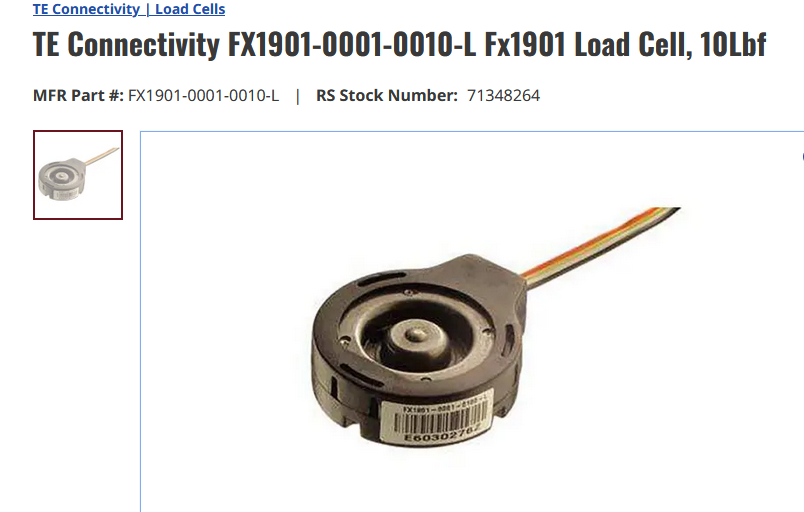
If you're using a FX1901-0001-0010-L , you can follow the color schematic below (V is excitation voltage and O is output voltage):
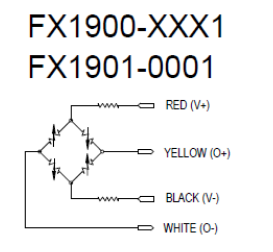
Step 5: Wire the output signal leads (typically white/green or white/yellow) to analog inputs (AI+/-) on your DAQ. The voltage across these wires will change in response to the applied force on your load cell.
Step 6: Launch LabVIEW or NI MAX and click through to "Acquire Signals-->Voltage"; you are measuring a differential voltage across the two inputs on A0 (or whichever channel you chose). This is a differential, not an RSE (reference single ended) measurement. Pick continuous or N samples based on your data acquisition needs.
Step 7: You should be seeing an output voltage that changes when you press on your load cell! To convert voltage to force, you will need to perform the following calculation:
y = mx + b , where y is the force you are measuring
I like seeing equations with units clearly specified. I will use lbs as an example, you could use kg or N:
y [lbs] = m [lbs/mV] * x [mV] + b [lbs]
The slope m is the range of your load cell divided by the span in mV.
Example calculation for slope, m:
m = Range of your load cell [lbs] / (V_EX [volts] * Span [mV/V] )
Span = max voltage (voltage corresponding to max rated load of your load cell)
So for our 10lbf (btw, "lbf" just means "pound force") load cells, the span is 20 mV/V and I applied a 5VDC excitation voltage (V_EX). Therefore, my max voltage is 5V * 20mV/V = 100 mV. My slope is 10 lbf/100mV or 0.1 lbf/mV.
The y-intercept b needs to be solved for - simply record the voltage when nothing is placed on your load cell, and solve y = mx + b, plugging in 0 for y and the value for m that you found in the step above.
Pro tip: If you want to use a 3D printed jig attached to your load cell, this is a good time to attach it and include it in your offset b. Now the mass of that jig is accounted for in the offset, making downstream calculations simplified.
2. Arduino (e.g., Uno, Nano)
- Available for checkout from Electronics Center
You will need to get a load cell amplifier (we have one or two available for checkout at the Electronics Center, or else they are fairly cheap to buy from Sparkfun) or construct your own amplifier circuit so that the voltage is large enough to read on the Arduino.
I bought an amplifier
Step 1: Find the datasheet for your load cell by googling the part number
Step 2: Verify that 5 VDC or 3.3V is an acceptable excitation voltage for your particular load cell
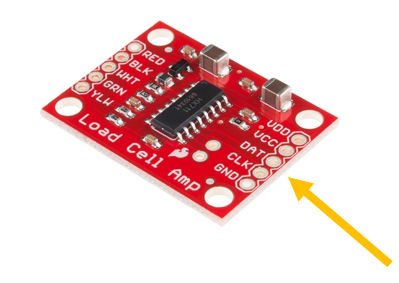
Step 3: Wire the corresponding colors of your load cell wires to the load cell amplifier. You might want to solder in header pins or sockets if the load cell amplifier comes bare like the image below. If you are using a load cell checked out from the Electronics Center, please ask an engineer how to make connections from your load cell to the amplifier (some of our load cells have header pins already soldered on, and some have bare wires for connection to a screw-terminal. Please don't start soldering to our load cells without discussing with us first).

The "YLW" hole is for a shield wire to protect against stray electromagnetic radiation that might influence your measurement; your load cell might have bare foil instead of a yellow wire, or it might have no shield wire at all. If so, that's fine, leave it bare!
Step 4: Wire up the other side of the load cell as follows:
VDD and VCC: 5V (unless your microcontroller operates on 3.3V logic, then use 3.3V for digital data (VDD) and 5V to power your load cell
DAT: Pin 3
CLK: Pin 2
GND: Arduino GND
Step 5: Download Arduino code from here: HX711 arduino library
- There are useful calibration sketches at the link above, which you will want to run in order to get accurate readings from your load cell.
Have fun - and reach out to an engineer in the Electronics Center with any questions you may have!
I want to build the amplifier circuit
IN PROGRESS! Talk to an engineer in the Electronics Center if you choose to go this route
Step 1: Build the amplifier circuit activate this link when tutorial is complete (https://itll-wiki.colorado.edu/bookstack/books/electronics-engineering-tutorials/page/using-an-op-amp-to-amplify-a-signal-eg-from-a-load-cell)
Step 2: Wire up
3. NI 9219 or NI-9237 DAQ
- Available for checkout from Electronics Center
The NI-9219 sample rate is pretty slow (2 Samples/second per channel) so this is ok for static load measurements, but not for dynamic measurements. You can change from High Resolution to High Speed mode for a slight improvement in acquisition speed. This particular DAQ isn't designed for speed; it's a well-rounded workhorse of a DAQ that can measure input from load cells, thermocouples, RTD's, and more on a single DAQ.
The NI-9237 is much faster (50 kS/s per channel) than the NI-9219, but it is dedicated strain/bridge module. Maybe you want to measure other things, like temperature?
NI-9219 instructions (general purpose NI DAQ)
You will need:
- load cell
- a small flathead screwdriver
- NI-9219(DAQ)
- NI cDAQ-9171 (chassis)
- Computer with LabVIEW
- USB A- USB B cable to interface with cDAQ
Step 1: Determine the excitation voltage and bridge resistance for your load cell
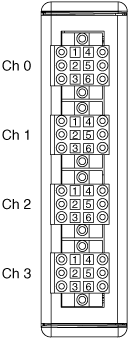
Step 2: Pick a channel. Wire the red and black wires of your load cell into 3 and 5 (respectively) on your selected channel, and V_high and V_low into 4 and 6, respectively. The numbers are on the DAQ, but kind of hard to see.
If you've never used this DAQ before, the way to get the wires into the holes is to insert a small flathead screwdriver into the adjacent square, along the midline of the DAQ. Align the screwdriver so the blade of the screwdriver is parallel with the long (up and down if you're holding it like in the image below) axis of the DAQ. Now, stick the screwdriver directly into the square to release the spring on the adjacent hole, allowing you to slide the wire into the hole. Release the screwdriver, and the spring terminal will clamp down on the wire. Verify that you made a good connection by performing a gentle tug test on the wire. Does it fall out? No? Great! If the wire comes out when you tug on it gently, try the steps again. If you need help, ask an engineer in the Electronics Center. Claire- add a video
Step 3: If you haven't already, install the DAQ into a chassis.
Step 4: Plug the chassis into your computer using a USB cable.
Step 5: Start up a VI and insert a DAQ Assistant block. Double click on the DAQ Assistant and choose Acquire Signals-->Analog--> Force(Bridge)
Step 6: The max excitation voltage you can provide with this DAQ is 2.5 V (Claire- verify) . You will need to check the bridge resistance of your load cell and update the boxed field below. Finally, you will need to click "Configure Scale" and input values relevant for your load cell so that the DAQ outputs force, not just voltage.

Step 7: You should be correctly reading force at this point. This guide assumes that you are already comfortably building VI's in LabVIEW. If you have any issues, please reach out to the DAQ engineer.
Have fun, and happy measuring!
NI-9237 instructions (strain/bridge NI DAQ)
Overview of test setup:

You will need:
- load cell
- NI breakout (RJ-50 [looks like an ethernet but has 10, not 8 pins] to screw terminal)
- RJ-50 cable (see note above about resemblance to ethernet cable)
- NI-9237 (DAQ)
- NI cDAQ-9171 (chassis)
- Computer with LabVIEW
- USB A- USB B cable to interface with cDAQ
Step 1: Determine the excitation voltage and bridge resistance for your load cell
Step 2: Wire the red and black wires of your load cell into 6 and 7 (respectively) of the screw terminal block, and the remaining two wires into 2 and 3. See images below:

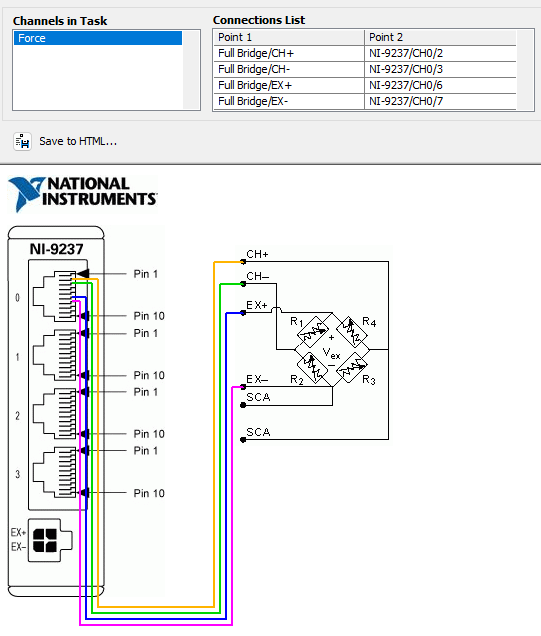
Step 4: Connect DAQ to chassis, and RJ-50 cable between DAQ and screw terminal block. Finally, connect chassis to computer with USB cable
Step 5: Start up a VI and insert a DAQ Assistant block. Double click on the DAQ Assistant and choose Acquire Signals-->Analog--> Force(Bridge)
Step 6: The maximum excitation voltage you can provide with this DAQ is only 2.5 V. You will need to check the bridge resistance of your load cell and update the boxed field below. On the Transducer Technique load cells, I think this corresponds to "Output Resistance". Finally, you will need to click "Configure Scale" and input values relevant for your load cell so that the DAQ outputs force, not just voltage. I leave First Value as 0 for both Electrical and Physical fields, and for the Second Value I put down the span (sometimes labeled "Rated Output") in units of mV/V, and I put the range or capacity of the load cell in the Second Value field under Physical (pay attention to units in the dropdown menu!). Then hit Ok.
Step 7: You should be correctly reading force at this point. This guide assumes that you are already comfortably building VI's in LabVIEW. If you have any issues, please reach out to the DAQ engineer.
Have fun, and happy measuring!
4. TMO-2A signal conditioner (from Transducer Techniques)
- Available for checkout from Electronics Center
This dedicated load cell signal conditioner has a built in calibration function which makes it an excellent choice for applications requiring the utmost accuracy. If you are using a Transducer Techniques load cell, this is a very good choice (since the load cell's data sheet will have a PCT value you can grab and use during calibration).
TMO-2A instructions
Unfortunately, the manual for this signal conditioner contains errors (I have let Tom at Transducer Techniques know) at least as of 7/22/2026 so good thing you are here!
Note: you will need an ammeter. You will also need the TMO-2A (I have 2 available for checkout from the Electronics Center, come talk to me in ECCE 167A). You can use a general purpose DMM set to measure amperage, but even better to use a high resolution DAQ like an NI 9203. Or a benchtop DMM is fine, too. Just something that can measure 4-20 mA.
- Follow the wiring guide as specified in the manual linked above.
- Follow the balance adjustment as instructed in manual linked above.
- For the gain adjustment, the manual is incorrect. Don't measure voltage (this is a 4-20mA conditioner, you are working with current, not voltage), keep your ammeter connected the output leads you had it on for step 2, and perform the following steps:
- Install banana shunt resistor into signal conditioner
- Press down calibration button as you read output current
- Refer to your load cell (if it's a Transducer Techniques load cell) data sheet and multiply the percentage under "PCT load" (make it a percent!) by 20mA.
- While pressing the calibration button, turn the gain knob with a flathead screwdriver until the ammeter reads the current you calculated above
- You are set to measure! The force is a linear function of the mA generated. You'll need to calculate y [lbs]=m [lbs/mA] x [mA] + b [lbs, should be negative] for your load cell.
Photo of my test setup:
Even more load cell resources:
- Available equipment for checkout from the ITLL: ITLL load cell inventory (note- this isn't updated with what is currently checked out)
Great links below for more information on load cells:
nice resource on load cells from Futek
highly technical resource from Texas Instruments on 4-20mA output