
Windows TigerVNC Connection Guide
Introduction
Access to the Cadence server gives you your own Linux desktop that lives in our data center instead of on your laptop. You reach it over an encrypted SSH tunnel, and your session keeps running after you disconnect! Start a design verification check, close the window, reconnect from somewhere else, and it's still there exactly the way you left it.
You don't need to install TigerVNC on your computer to use the Cadence server, you can also connect right from your web browser
(see our guide here). But if you want the most complete remote desktop experience, TigerVNC may be worth the extra setup. It gives you full keyboard control, so all keyboard shortcuts can go to the remote desktop instead of your web browser, full screen on multiple monitors, and a smoother copy and paste clipboard between your computer and the remote desktop.
This guide walks through accessing the server from start to finish and provides troubleshooting tips for common issues. The first time takes multiple steps, mostly figuring out what your remote desktop port is for TigerVNC. After that it's two steps and you're in.
Before you start
- You need access to the server. If you are looking to get access, email itlpithelp@colorado.edu. Include information such as the ECEN Course # you are taking that will be using the Cadence Tools. Researchers – please let us know which research lab you are affiliated with.
- You need to be on the campus network, either connected to CU Secure WiFi or connected to the CU VPN.
- You'll use your identikey username and password – the same credentials you use for other services on campus. There's no separate account for this server.
1. Install TigerVNC
Download the Windows viewer from https://tigervnc.org and grab the latest release.
2. Find out which display is yours
Every person on the server gets their own desktop on their own port, so the first thing to do is find out which one is yours. Open Windows Terminal or PowerShell and log in:
ssh identikey@ecee-cadence.int.colorado.eduThe very first time you connect it'll ask whether you trust the host. Type yes and press Enter. Then enter your identikey password.
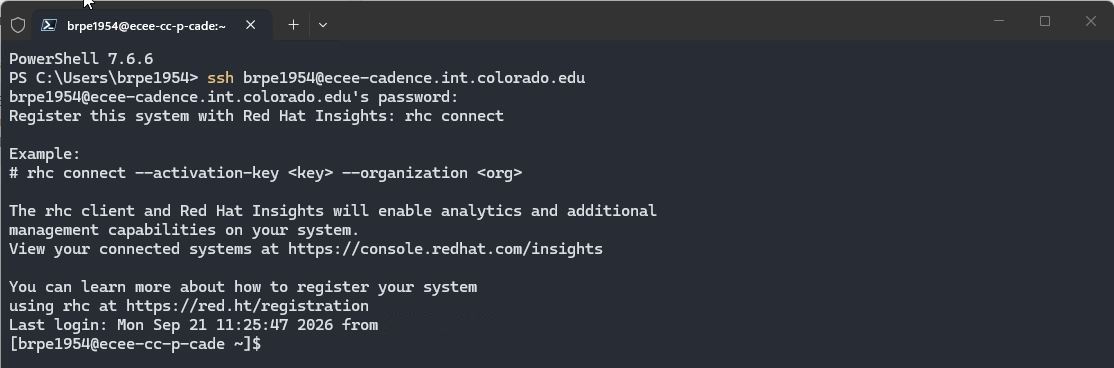
You're logged in when you get a prompt that looks like this.
Now, on the Cadence server run this custom command:
ecee-whats-my-vnc
This tells you everything you need: your display number, your port, and the exact tunnel command for your account.
Write down the port number it gives you. In the screenshot above it's 5902, but yours will be different, that number is specific to you. Now, exit and close this SSH connection. We need to open a new SSH tunnel with port forwarding.
First time logging in? If the command tells you that you don't have a display yet, that can happen sometimes. The server sets up your remote desktop within about half an hour of your access being approved. If it still doesn't work after an hour, email itlpithelp@colorado.edu.
3. Open the SSH tunnel
The Cadence server doesn't accept unencrypted VNC connections from the network. The only way in is through an SSH tunnel (or HTTPS), which is what's protecting your whole session. Now, open a new SSH tunnel that forwards your remote desktop's port number back to your localhost, putting your own port number in both places:
ssh -L 59XX:localhost:59XX identikey@ecee-cadence.int.colorado.edu
The tunnel command. Port 5902 is used in this example, but you'll substitute with whatever ecee-whats-my-vnc told you.
Enter your password and you'll land at a shell prompt again. That's what you want.
Leave this window open. That shell is the tunnel. If you close the shell, the tunnel drops and your VNC window will disconnect. Minimize it, move it off to the side, but don't close it.
4. Point TigerVNC at the tunnel
Launch TigerVNC. In the VNC server box, type localhost:: followed by your port number. And before you click Connect, consider clicking Options... for some additional settings.

The TigerVNC client.
Input: on a laptop trackpad, turn on Emulate middle mouse button. Clicking left and right together then counts as a middle-click, which Virtuoso uses for its popup menu. Leave the clipboard boxes checked.
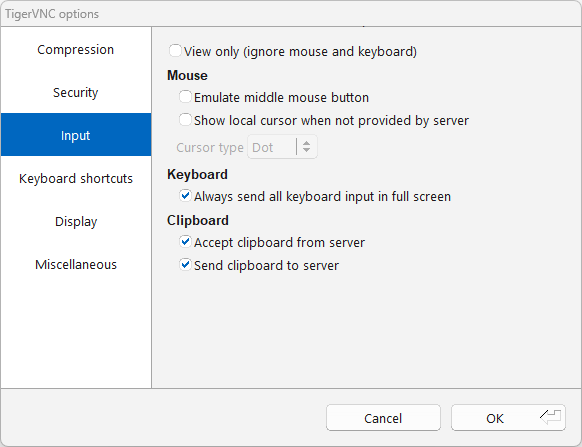
The Input tab.
Keyboard shortcuts: in full screen, every key goes to the remote desktop. Here are shortcuts to get back out.

The Keyboard shortcuts tab.
The two to remember. Ctrl+Alt+Enter toggles full screen. Ctrl+Alt+M opens the TigerVNC menu while you're connected.
Display: configure full screen for one or multiple monitors.
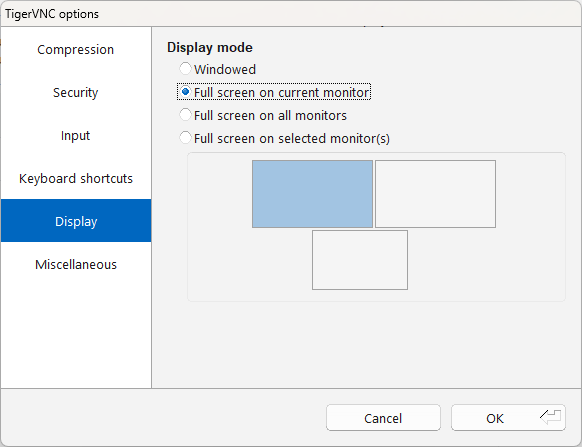
The Display tab.
Click OK, then Connect.
5. Sign in

Your identikey username and password go here.
About that red "This connection is not secure" banner. Please disregard it. Your connection is encrypted. That warning is about the VNC layer not having a certificate of its own to prove its identity. It doesn't need one: you're already inside the SSH tunnel you opened in the previous step, and SSH is doing the encrypting and identity checking.
6. You're in!

Your desktop on the Cadence server.
This is Xfce, a lightweight Linux desktop. The Applications menu is in the top left corner, and there's a dock along the bottom with a terminal, a file manager, and a web browser. Your home directory on the server is yours and it persists i.e. files you leave there will be there next time. But please save a copy of important files in your OneDrive, profiles may be wiped between semesters. You can open the web browser in your Linux desktop and browse to www.onedrive.com for uploads / downloads to your personal cloud storage.
Closing vs. Logging out
It's good to know the difference between closing your VNC window and logging out of it.
| What you do | What happens |
|---|---|
| Close the TigerVNC window (click the X) | Your session keeps running on the server. Applications stay open, design verifications keep going, and when you reconnect later everything is exactly where you left it. |
| Log Out from the Applications menu | Your session ends and everything running in it is closed. You can log back in, but you get a fresh desktop - whatever you had open does not come back. If you know you are done working for the day, go for this option. |
Coming back later
Once you've done the setup once, reconnecting is just two steps:
- Open PowerShell and run your
ssh -Ltunnel command. - Open TigerVNC and connect to
localhost::59XX.
Your port number stays the same, so you can save the tunnel command somewhere handy. TigerVNC will also remember the address in its dropdown, or you can use Save as... in the connection dialog to keep a shortcut on your desktop.
If something ever seems off, log in over plain SSH and run ecee-whats-my-vnc again. It will always be right about your currently assigned port number, and your permissions to access a desktop.
When it doesn't work
| What you're seeing | What to try |
|---|---|
| "Connection refused" in TigerVNC | Usually that means the tunnel isn't up. Check that your ssh -L window is still open and still logged in. Then check you typed two colons in localhost::59XX on the TigerVNC client window, and that the port matches what your ecee-whats-my-vnc output says. |
| "Authentication failed" with a password you know is right | You might be trying to connect to somebody else's port. Each desktop only accepts its own owner, and correct credentials on the wrong port produces the same error message as a wrong password. Re-run ecee-whats-my-vnc and confirm your number. |
| It connects, then the window closes a few seconds after you enter your password | That's probably something on the server side, not you. Email itlpithelp@colorado.edu and we can take a look at it. |
| Your desktop is frozen and won't respond | First try closing the viewer and reconnecting; a dropped connection usually comes back on its own. If it's genuinely stuck, email itlpithelp@colorado.edu and we can restart your desktop session. But be aware that restarting means anything unsaved in that session could be lost, so tell us in your ticket description if you have work in flight. |
| The whole thing worked last week and doesn't now | Check the VPN first if you're off campus, then re-run ecee-whats-my-vnc. If neither explains it, send us the error + screenshot of what you're seeing. |