
Web Browser Connection Guide (start here!)
Introduction
Access to the Cadence server gives you your own Linux desktop that lives in our data center instead of on your computer. You reach it right from your web browser, there's nothing to install, and your session keeps running after you disconnect! Start a design verification check, close the tab, reconnect from somewhere else, and it's still there exactly the way you left it.
This guide walks through accessing the server from start to finish and provides troubleshooting tips for common issues. There's no SSH tunnel to open and no port number to look up. Instead, your connection to the server is encrypted over HTTPS.
Connecting from your web browser is the simplest way to reach your remote desktop, and in a full screen browser tab you'll likely find it performs plenty well. For most people, it is recommended to start with this method. But if you'd like a more fully featured remote desktop experience, installing the TigerVNC client on your computer may be worth the extra setup (see our guides for Windows, macOS, and Linux). It can send all keyboard shortcuts to the remote desktop instead of your browser, go full screen across multiple monitors, better copy/paste clipboard, and renders the display a little faster, which you could notice when working in larger layout files.
Before you start
- You need access to the server. If you are looking to get access, email itlpithelp@colorado.edu. Include information such as the ECEN Course # you are taking that will be using the Cadence Tools. Researchers – please let us know which research lab you are affiliated with.
- You need to be on the campus network, either connected to CU Secure WiFi or connected to the CU VPN.
- You'll use your identikey username and password – the same credentials you use for other services on campus, there's no separate account for this server.
- You need a current web browser. Chrome, Edge, Firefox, and Safari all work.
1. Go to the Cadence server
Every person on the server gets their own desktop, so the first page just asks who you are. Open your web browser and go to:
https://ecee-cadence.int.colorado.edu
Type your identikey and click Connect to my desktop. Only your identikey here, no password, no email.
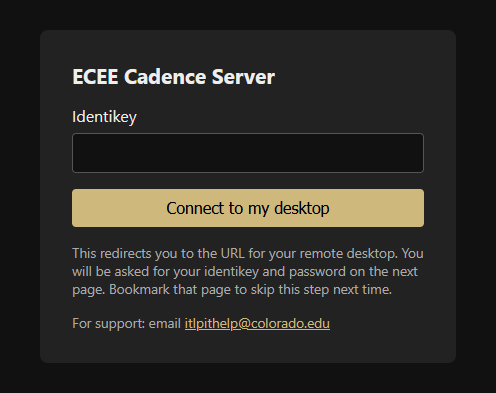
The landing page. It only needs your username so it knows which desktop URL is yours.
Why does it ask for my identikey twice? This first page doesn't log you in. It only redirects you to your own desktop's address. The next page is the one that handles authentication with your username and password. If you already bookmarked the URL of your remote desktop, you don't have to start here.
2. Sign in
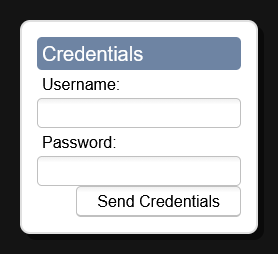
Enter your identikey username and password and click Send Credentials.
Bookmark this page. Check the address bar. That link is yours and always takes you straight to your own desktop, so if you save it as a bookmark, you can skip step 1 entirely.
Just got access? The server sets up your desktop within about half an hour of your access being approved. If you get "Authentication failed" right away and you're sure of your password, give it a little while and try again. If it still doesn't work after an hour, email itlpithelp@colorado.edu.
3. You're in!

Your desktop on the Cadence server, running in a browser tab.
This is Xfce, a lightweight Linux desktop. The Applications menu is in the top left corner, and there's a dock along the bottom with a terminal, a file manager, and a web browser. Your home directory on the server is yours and it persists i.e. files you leave there will be there next time. But please save a copy of important files in your OneDrive, profiles may be wiped between semesters. You can open the web browser in your Linux desktop and browse to www.onedrive.com for uploads / downloads to your personal cloud storage.
The small tab on the left edge of the window opens the noVNC control bar. That's where you'll find full screen, the clipboard, settings, and disconnect.
A note on keys and copy/paste. Some keyboard shortcuts belong to your browser, not the remote desktop. Ctrl-W in particular closes the browser tab instead of a window in the linux desktop. Nothing is lost if that happens, your session keeps running, just open your bookmark again. Full screen mode helps. If copy and paste between your computer and the remote desktop doesn't work directly, use the Clipboard panel in the control bar: paste your text into the box there, then paste it inside the remote desktop.
Mac users: inside the remote desktop it's Ctrl-C / Ctrl-V, not ⌘-C / ⌘-V.
Closing vs. Logging out
It's good to know the difference between closing your browser tab and logging out of your desktop.
| What you do | What happens |
|---|---|
| Close the browser tab (or the whole browser) | Your session keeps running on the server. Applications stay open, design verifications keep going, and when you reconnect later everything is exactly where you left it. |
| Log Out from the Applications menu | Your session ends and everything running in it is closed. You can log back in, but you get a fresh desktop - whatever you had open does not come back. If you know you are done working, please choose this option, so that your session doesn't continue to consume resources on the server. |
Coming back later
Once you've saved your bookmark, reconnecting is just two steps:
- Open your bookmark.
- Enter your identikey username and password.
Your link doesn't change, but if you need to find it again, go back to https://ecee-cadence.int.colorado.edu and start from step 1; it will take you to the same place.
When it doesn't work
| What you're seeing | What to try |
|---|---|
| The page won't load at all | Check that you're on CU Secure WiFi or connected to the CU VPN. The server can't be reached from off-campus networks without the VPN. |
| "Authentication failed" with a password you know is right | Check the identikey you typed on the landing page, or at the end of your bookmark's address. Go back to https://ecee-cadence.int.colorado.edu and enter your identikey again. |
| "502 Bad Gateway" | That's something on the server side, not you. Email itlpithelp@colorado.edu and we can take a look at it. |
| Your browser warns that the connection isn't private or the certificate isn't valid | Don't click past it. That shouldn't happen, email itlpithelp@colorado.edu with a screenshot of the warning. |
| The tab says it disconnected while you were working | Did you open your desktop in TigerVNC, or on another computer? Trying to open multiple connections can bump the browser off. Your session is fine, just reconnect from whichever one you want to use. Otherwise it's usually a network hiccup or your computer going to sleep, reload the page and sign in again. |
| The desktop doesn't fit your window, or looks blurry | Open the control bar on the left edge, click the gear, and set Scaling Mode to Remote Resizing. Or try full screen. |
| Your desktop is frozen and won't respond | First try reloading the page and signing in again; a dropped connection usually comes back on its own. If it's genuinely stuck, email itlpithelp@colorado.edu and we can restart your desktop session. But be aware that restarting means anything unsaved in that session could be lost, so tell us in your ticket description if you have work in flight. |
| The whole thing worked last week and doesn't now | Check the VPN first if you're off campus, then try the landing page at https://ecee-cadence.int.colorado.edu instead of your bookmark. If neither explains it, send us the error + screenshot of what you're seeing. |