
Starting Cadence Virtuoso
Introduction
Once you're connected to the Cadence server, you have your own Linux desktop with Cadence Virtuoso ready to go. This guide picks up where the connection guides leave off. It covers starting Virtuoso, finding your libraries, creating your own library, running a first simulation, and what to do when something doesn't look right.
If you're not connected yet, start with the Web Browser Connection Guide, or the TigerVNC guide for Windows, macOS or Linux.
Instructions
1. Open a terminal
Click the terminal icon in the dock at the bottom of the screen, or go to Applications → Terminal Emulator. A new terminal starts in your home directory, which is where you want to be.

The terminal icon in the dock.
2. Start Virtuoso
In the terminal, type:
cad-virt.shThe terminal prints a few lines while it sets up the Cadence tools and checks out a license, then the Virtuoso main window opens. This window is called the CIW (Command Interpreter Window). It shows messages from Virtuoso, and every other Virtuoso tool is opened from its menus.
Leave the terminal open. Virtuoso runs from that terminal, and closing it can close Virtuoso along with anything you haven't saved. Minimize it or move it aside instead.
Start from your home directory. Virtuoso reads your settings and library list from the folder it was started in, and saves new libraries and log files there. A new terminal already opens in your home directory. Starting Virtuoso from a different folder can make your libraries seem to disappear.
3. Open the Library Manager
In the CIW, go to Tools → Library Manager. The left column lists every library available to you. You'll see a few standard libraries that everyone gets, such as analogLib (sources, passives and other basic analog parts) and basic. Any libraries you create will show up here too.

The Library Manager. Libraries on the left, then cells and views.
4. Create your own library
Keep your designs in a library of your own. In the Library Manager, go to File → New → Library, give it a name, and click OK. If Virtuoso asks about a technology library, use the one your course or lab tells you to use.
Your new library is created in your home directory and added to your personal library list automatically. It will be there the next time you start Virtuoso.

Creating a new library.
To start a schematic, select your library, then File → New → Cell View, give the cell a name and choose the schematic view type.
5. Run a simulation
From an open schematic, go to Launch → ADE Explorer to set up and run simulations with Spectre.
Tick Plot. One thing catches almost everyone the first time: in the Outputs table, make sure the Plot box is ticked for each signal you want to see. If it isn't, the simulation runs fine but no waveform appears.
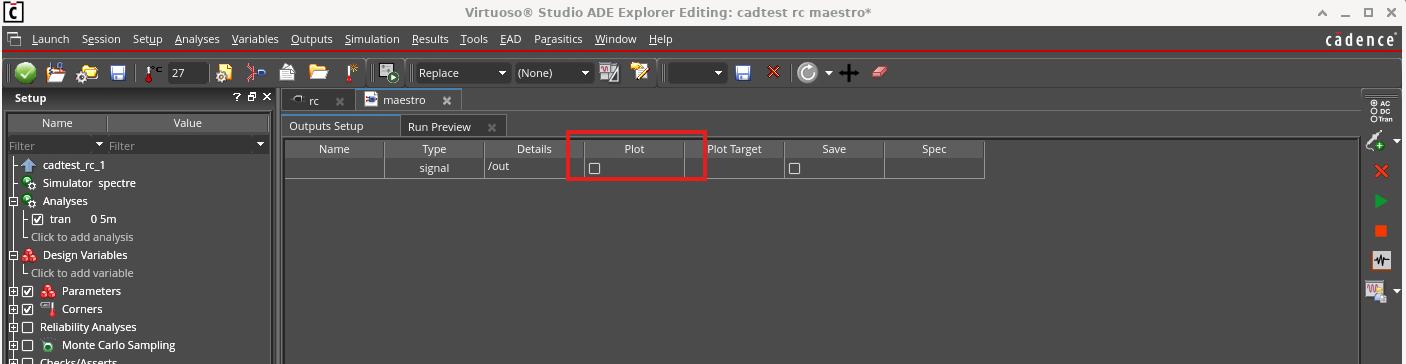
The Plot column in the Outputs table. Tick the box for each output you want to see.

Your first waveform.
Adding your own libraries and design kits
The standard libraries are a baseline for everyone. If your course or research group uses additional libraries or a design kit (PDK), you add them to your own library list. It only affects your account.
- In the CIW, go to Tools → Library Path Editor.
- Edit → Add Library, then point it at the library's folder. If the folder is a valid library, it shows up in the right pane.
- Click OK, then File → Save. If you don't save, the library won't be there next time.
- Open Tools → Library Manager. Your library should now be in the left column.
Only add what you need. Add the libraries your course or research lab tells you to use. Mixing libraries from different design kits in your library list can cause unexpected errors in your designs.
Saving your work and finishing up
- Save often. File → Save in each editor window.
- When you're done, exit Virtuoso with File → Exit in the CIW, then log out from the Applications menu. Closing the browser tab or the VNC window instead leaves your session, and Virtuoso, running.
- Weekly restart. The server restarts every Monday at 4:00 AM for maintenance. Anything unsaved at that time is lost.
- Keep backups. Your home directory persists, but please keep copies of important work in your OneDrive.
When it doesn't work
| What you're seeing | What to try |
|---|---|
cad-virt.sh: command not found |
Open a new terminal and try again. If it still isn't found, log out from the Applications menu and back in. You can also run it by its full path: /usr/cad_tools/cadence/cadscripts/cad-virt.sh |
The Library Manager doesn't show analogLib or the other standard libraries, or you get a "Problem with cds.lib file" message |
Make sure you started Virtuoso from your home directory (type cd ~ first, then cad-virt.sh). Then check that the first line of ~/cds.lib reads SOFTINCLUDE /usr/cad_tools/cadence/setup/cds.lib |
A red ERROR (LMF-02005) about Virtuoso_Schematic_Editor_L when you save a schematic |
Expected, and your schematic still saved. Click Always in the Next License window that follows. See step 4. |
| Virtuoso disappeared | The terminal you started it from was probably closed. Start it again from a new terminal and leave that one open. |
| The simulation finished but no waveform appeared | Tick Plot for your outputs in ADE Explorer and run it again. |
| Virtuoso or ADE hangs while opening a design | Email itlpithelp@colorado.edu with your identikey and the name of the library and cell. Don't keep force-quitting, as it can leave lock files behind. |
Getting help
- For problems with your account, the server or starting Virtuoso, email itlpithelp@colorado.edu. A screenshot of what you're seeing helps a lot.
- For help with design and simulation in Virtuoso, please ask your instructor or research advisor.
- Cadence's own manuals are also on the server. Open the web browser in your Linux desktop and go to
file:///usr/cad_tools/cadence/installs/IC25_1_ISR8_24/doc/