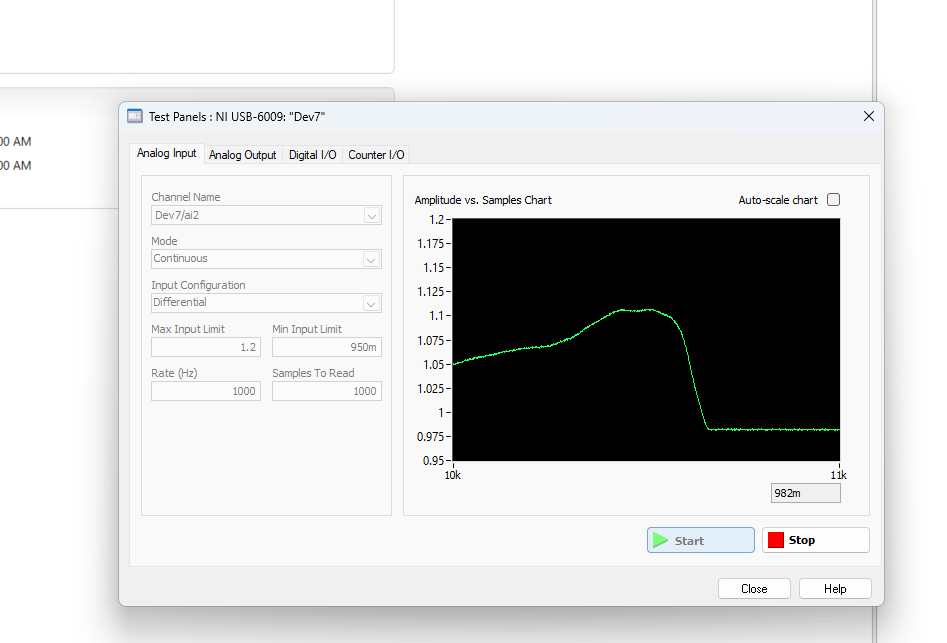
Load cells (force sensors)
ITLL load cell inventory (warning - this isn't updated with what is currently checked out)
Bridge-Based Sensors
How bridge-based load cells work (Source: Pulled straight from NI-MAX):
Bridge-based sensors operate by correlating a physical phenomena, such as strain, temperature, or force, to a change in resistance in one or more legs of a Wheatstone bridge. The general Wheatstone bridge, shown in the following figure, is a network of four resistive legs with an excitation voltage, VEX, that is applied across the bridge. One or more of these legs can be active sensing elements.

A physical phenomena, such as a temperature shift or a change in strain applied to a specimen, changes the resistance of the sensing elements in the Wheatstone bridge. You can use the Wheatstone bridge configuration to help measure the small variations in resistance that the sensing elements produce corresponding to a physical change in the specimen.
There are two ways (and probably more) to measure data from your load cell. I will explain 1) how to use an NI 9237 to read force data, and 2) how to use a USB DAQ e.g., NI 6008. The second way is probably easier.
1. Using an NI-9237 DAQ to read force data
You will need:
- load cell
- NI breakout (RJ-50 [looks like an ethernet but has 10, not 8 pins] to screw terminal)
- RJ-50 cable (see note above about resemblance to ethernet cable)
- NI-9237
- NI cDAQ-9171
- Computer with LabVIEW/NI MAX
- USB A- USB B cable to interface with cDAQ


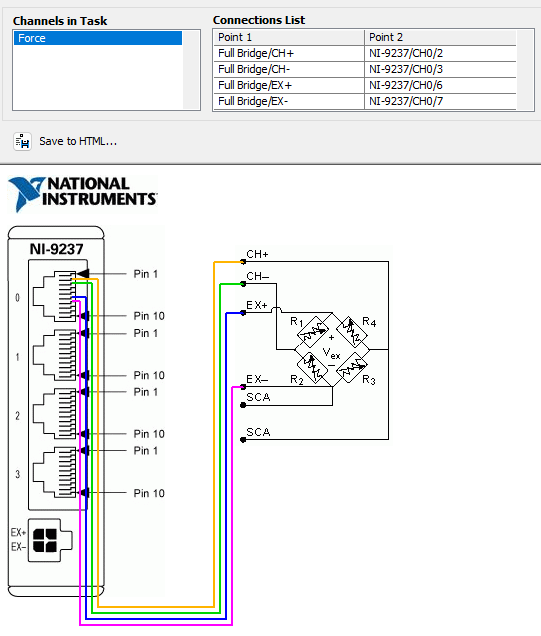
This is the connection diagram:
2. Using a USB DAQ (NI 6008, 6009, or new 6001/2)
This is the easier way to go.
Step 1: Find the datasheet for your load cell
Step 2: Identify the range of excitation voltages that your load cell accommodates.
Step 3: Verify that 5VDC is within that acceptable range you found in Step 2.
Step 4: Wire the two EX+/EX- (might be labeled as something else on the load cell data sheet, but the leads that correspond to the excitation voltage) leads to the 5V and GND on your USB DAQ.
Step 5: Wire the V+/V- leads to analog inputs on your DAQ. For example, you might wire V+ to A0+ and V- to A0-. These wires are where you actually measure the changing voltage generated in response to your applied load; see wires labeled "CH-" and "CH+" in the NI graphic above if you are confused.
Step 6: Launch LabVIEW or NI MAX and click through to "Acquire Signals"; you are simply measuring a voltage from A0 (or whatever channel you chose). This is a differential, not an RSE measurement.
Step 7: To understand your data, you need to perform this calculation:
V_EX * span [mV/V] = max voltage (voltage corresponding to max rated load of your load cell)
So for our cute little 10lbf load cells, the span is 20 mV/V and I applied a 5VDC excitation voltage (V_EX). Therefore, my max voltage should be 0.1 volt, or 5V * 20mV/V = 100 mV.
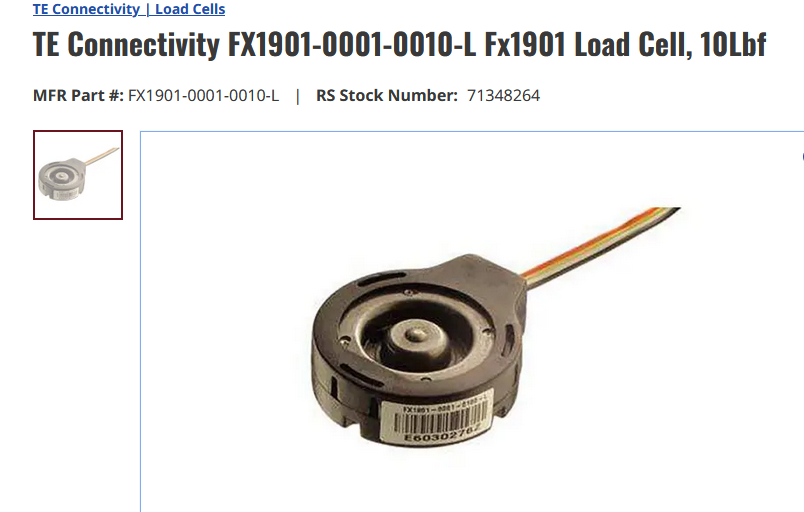
Troubleshooting side note: Check out the screenshot below. The fact that this load cell is clocking in at 1 V and when I release the load (flat line on right side of chart) the value doesn't drop to zero probably means it is probably broken. Let's think about how it broke!