
Truss OBJ files to 3D Print - Class??
OBJ into OnShape and Export STL
Sign into OnShape then press Create -> Import files

You can import the files all at once (make sure to switch the units to Millimeter)

They will show up in your list:
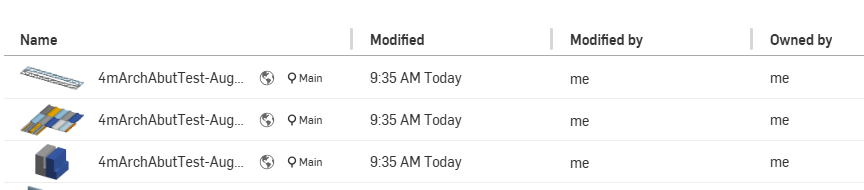
When you click on one you will see a larger version in the workspace:

In the Parts list, highlight all the parts you want to export and single right click to get to the options, click Export:

Make sure Units are Millimeters and Format is STL:

3D Printing your STL file
Take the 3D Printer training
Upload the STLs you just created using OnShape into 3DPrinterOS

Press the Layout Button on the Truss file

You will want to press "On Bed" and "Center" and I recommend Rotating in the Y-direction 45 deg (in some cases this may not be possible and in some cases, you may need to export the STLs as separate files so you can re-arrange them on the bed).
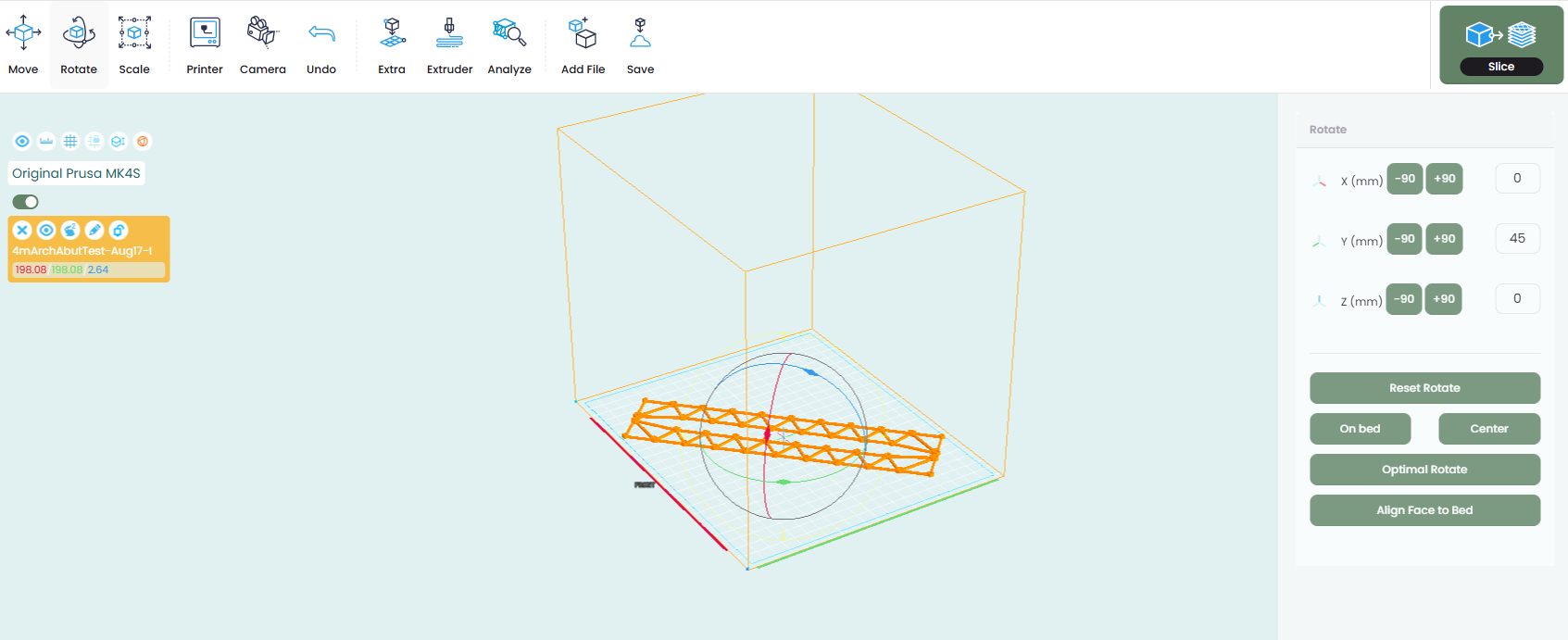
The standard PLA slicer settings are fine so you can just slice it for PLA (no brim, no support)

Do the same for the Abutments
For the Crossmembers pleas add a Brim (outer) and Snug Support.
