Submit a Request
(on this page)
Requests and Request Categories
Request Submissions Lifecycle
How to: Submit a poster print
How to: Submit a 3D print
How to: Respond to request communications
How to: Pay for a request
Requests and Request Categories
Requests are where you can submit forms to make a variety of requests including 3D printing, item fabrication in the Manufacturing Center (such as Printed Circuit Boards), and software licenses. In the ITLL, Request Categories and Forms include:
- Poster Printing
- form(s): Poster Printing
- 3D Printing
- form(s): PETG 3D Printing, Prusa XL Print, Markforged Onyx Print
- PCB Requests
- form(s): Printed Circuit Board (PCB)
- Manufacturing Center
- form(s): Manufacturing Center Fabrication
- Software License Request
- form(s): Software License Request
Request Submissions Lifecycle
- Submitted
- status after the request is initially made
- Customer Action Needed
- status after receiving a question from staff or faculty
- Under Review
- status after sending a response to a question, or Resubmitting the form
- Payment Pending (when applicable)
- status when payment should be made
- In Process
- status after payment is made
- Completed
- status when the request is fulfilled
- Canceled (when applicable)
- status after the request is canceled for a particular reason
How to: Submit a poster print
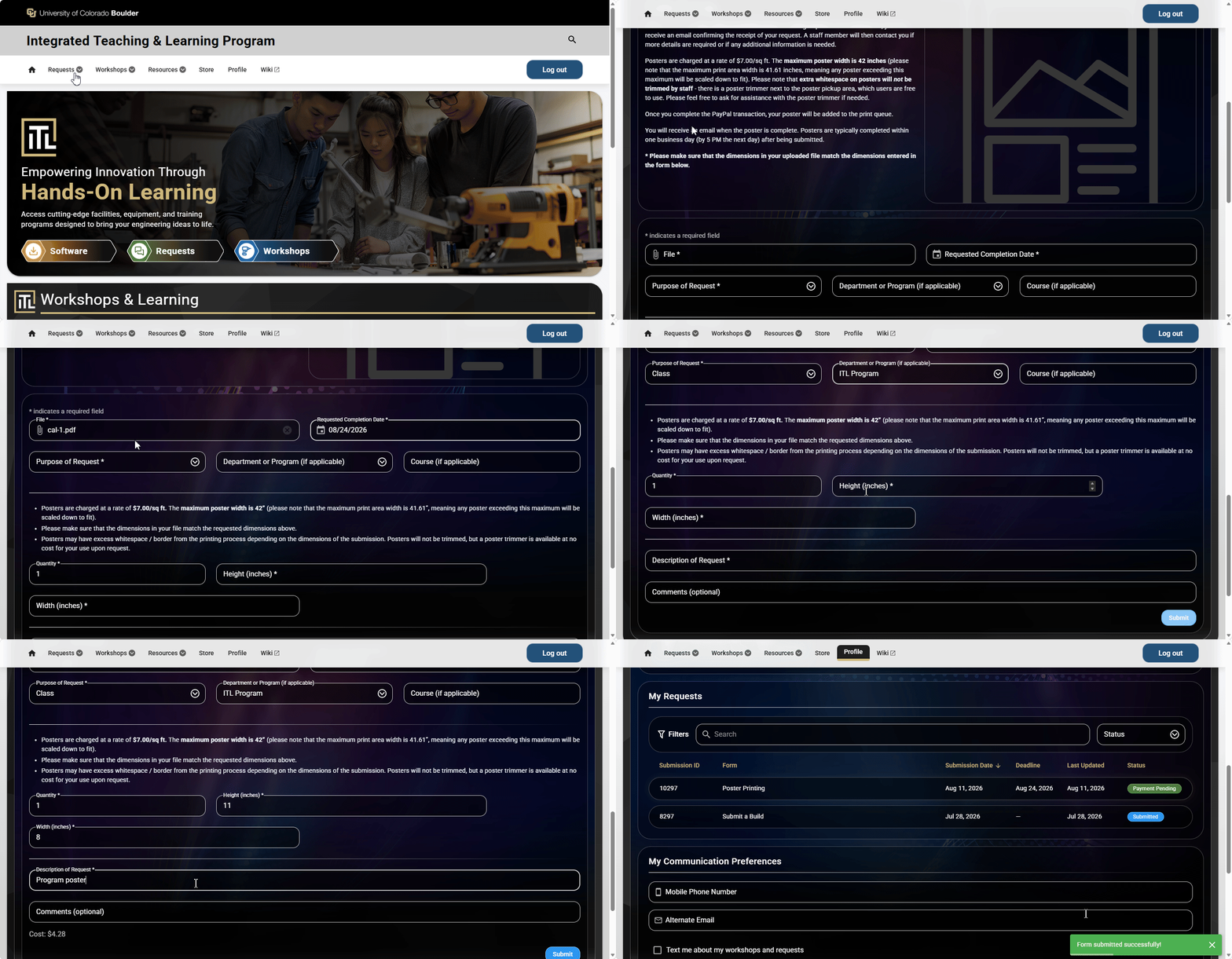
- From anywhere on the ITLL Website, click/tap the Requests menu in the navigation bar or mobile menu, and then Make a Request in the dropdown.
- Under Select a Request Category, click/tap one of the multiple options available. For this example scenario, select Poster Printing.
- Under the next section Select a Request, click/tap Poster Printing.
- Continue scrolling down to carefully read the description and note any special instructions.
- Continue scrolling further down to see the request form (continuing with the form for Poster Printing for this example):
- Click/tap the File input field, and select a file on your device (the file must be in a compatible format such as PDF, JPG, JPEG, or PNG)
- Click/tap the Requested Completion Date input field, and select a target date in the future
- Click/tap the Purpose of Request input field, and choose one of the three options (Class, Research, or Student Club)
- Click/tap the Department or Program input field, and choose an option (an Other option is available if none of the others apply)
- Click/tap the Course input field, and enter a course name if applicable
- Click/tap the Quantity input field to specify desired quantity (can use the up/down arrow buttons inside the input if needed)
- Click/tap the Height and Width input fields and specify a numeric quantity for each
- Click/tap the Description of Request input field and enter a description of sufficient detail
- Click/tap the Comments field to optionally provide any further information
- Click/tap the Submit button to submit and proceed
- You will be redirected to the My Requests section on your Profile page and will briefly see the newly-created submission highlighted with a glow animation
How to: Submit a 3D print
- From anywhere on the ITLL Website, click/tap the Requests menu in the navigation bar or mobile menu, and then Make a Request in the dropdown.
- Under Select a Request Category, click/tap one of the multiple options available. For this example scenario, select 3D Printing.
- Under the next section Select a Request, click/tap Prusa XL Print.
- Continue scrolling down to carefully read the description and note any special instructions.
- Continue scrolling further down to see the request form (continuing with the form for Prusa XL Print for this example):
- Click/tap the Completion Date input field, and select a target date in the future
- Click/tap the File input field, and select a file on your device (the file must be in a compatible format such as STL, ZIP, 3MF, GCODE, or BGCODE)
- Click/tap the Purpose of Request input field, and choose one of the three options (Class, Research, or Student Club)
- Click/tap the Type of Material input field, and choose one or more options from the dropdown
- Click/tap the Size, Quantity, and Comments input fields to provide relevant information
- Checkmark the "I have consulted with an ITLL staff engineer" box to confirm that you have in fact completed that step
- Click/tap the Submit button to submit and proceed
- You will be redirected to the My Requests section on your Profile page and will briefly see the newly-created submission highlighted with a glow animation

How to: Respond to request communications
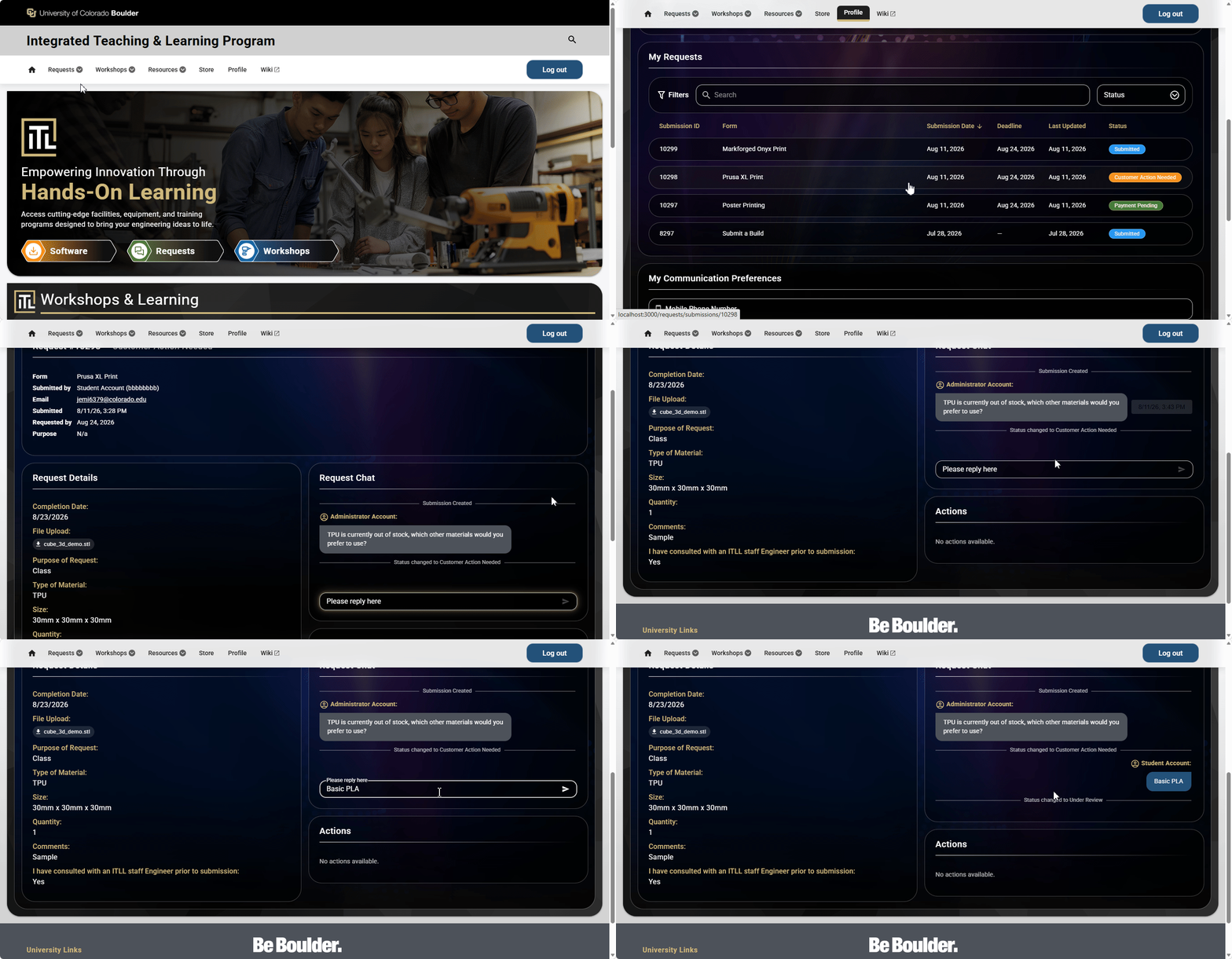
Once you have submitted a request and it appears in your Profile under My Requests with a Status of Submitted, you can then click/tap the submission to open it and view its details at anytime.
- After you submit a request, you can expect to receive communication from a staff member at anytime. As soon as communication is sent by a staff member, you will receive a notification according to the Communication Preferences that are set on your Profile page (default notification is an email to your CU-managed email address).
- Notification emails will always contain a "View Submission" link to the submission for quick reference, and also include the form name and submission ID number, so you can use that information to locate the submission in your history under My Requests
- When you receive your first communication from a staff member, the status of the submission will change - this will typically be Customer Action Needed, but you may see another status displayed instead.
- To respond to staff communication when the submission has a status of Customer Action Needed, click/tap on your submission (or open it from an email) to view it in Details mode.
- Scroll down to find both the Request Chat and Actions sections.
- In the Request Chat section, you can provide your response as needed (method of input will vary depending on the type of question, and may be either a text input field or yes/no buttons).
- You might or might not receive additional staff communication, so continue to monitor your emails (or text messages) as appropriate. Every time a new communication is sent by you or received from staff, you will see the activity recorded in the Actions section.
- When you receive a notification that the submission is In Process, you will no longer need to answer questions and can expect to stand by and wait until you receive another notification that the submission is Complete.
- When you receive a notification that the submission is Complete, you should expect to receive details on Pickup soon afterwards.
How to: Pay for a request
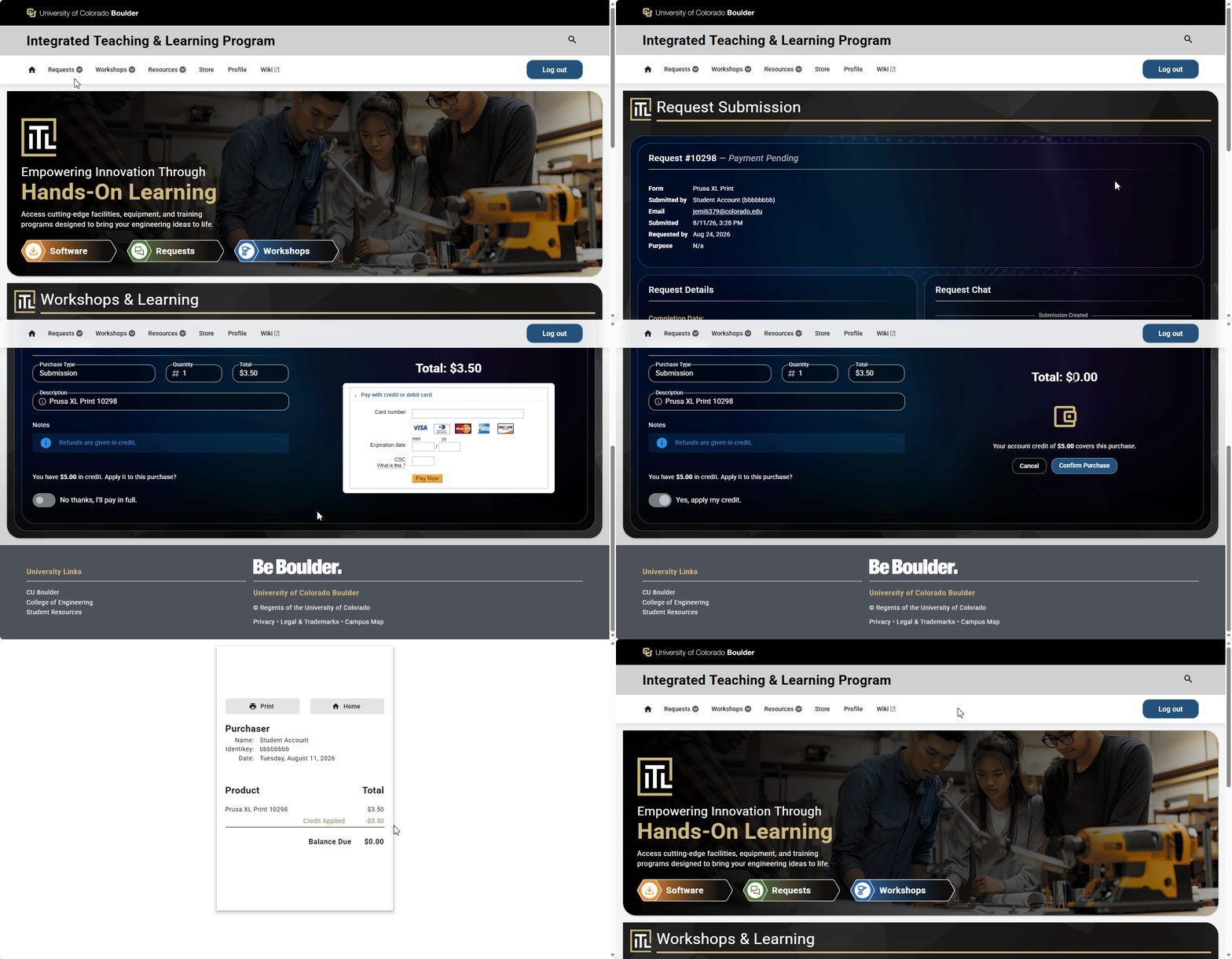
After you have submitted a request, you may receive a notification to provide payment, and the submission will have a status of Payment Pending. To pay for the submission:
- Click/tap on your submission from the My Requests section in your Profile (or alternately open it from the View Submission link within a notification email).
- Scroll down to find the Actions section, where you will see a Proceed to Payment button.
- On the next screen, your Name and Email will be prefilled, along with the Purchase Info.
- If you have credit on your individual balance, you can either opt to have it applied to the purchase, or pay the total amount with a credit or debit card, using the toggle switch. If your balance completely covers the purchase, you will see a Confirm Purchase button instead of a credit/debit card payment form.
- Enter your credit or debit card info into the payment form (if applicable), then click the Pay Now button.
- You will be redirected to a screen containing a confirmation receipt, which you can save for your records.
- Click the Home button on the screen to return to the ITLL Website homepage.
- If you purchased an item that requires a pickup, stand by and wait to receive a notification email when the item is ready for pickup, which will provide information on where to pick the item up.