
FAQ - Prusa MK4s/Self Service Printers - Ready for Review
How do I reduce print time?
The three ways you can reduce print time is by changing the scale/size, infill, or print quality of your part.
To reduce the size of your part, you can go to the "Layout" button on the original uploaded .stl file, then go to the "scale" tab. (Make sure you are clicked onto the part, otherwise, the move, rotate, and scale buttons will be greyed out.) Make sure the "keep proportions" toggle on the right is enabled, and then you can either click and drag your mouse or input measurements or scaling percentages to reduce the size of the part. 
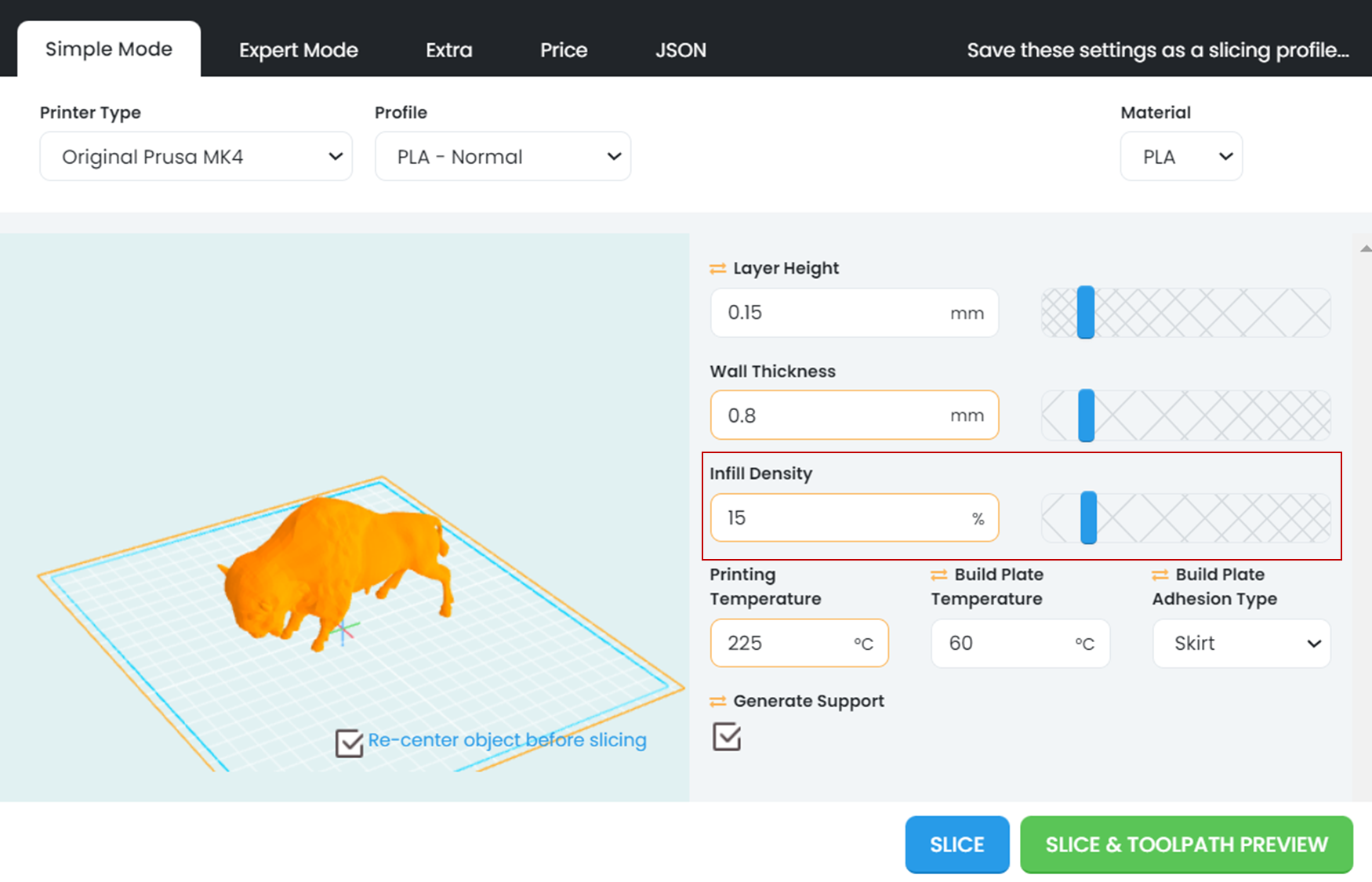
To change infill, you will need to hit the "Slice" button on your part to pull up the slicing settings menu. Depending on the part, infill should never be below 5-15%.
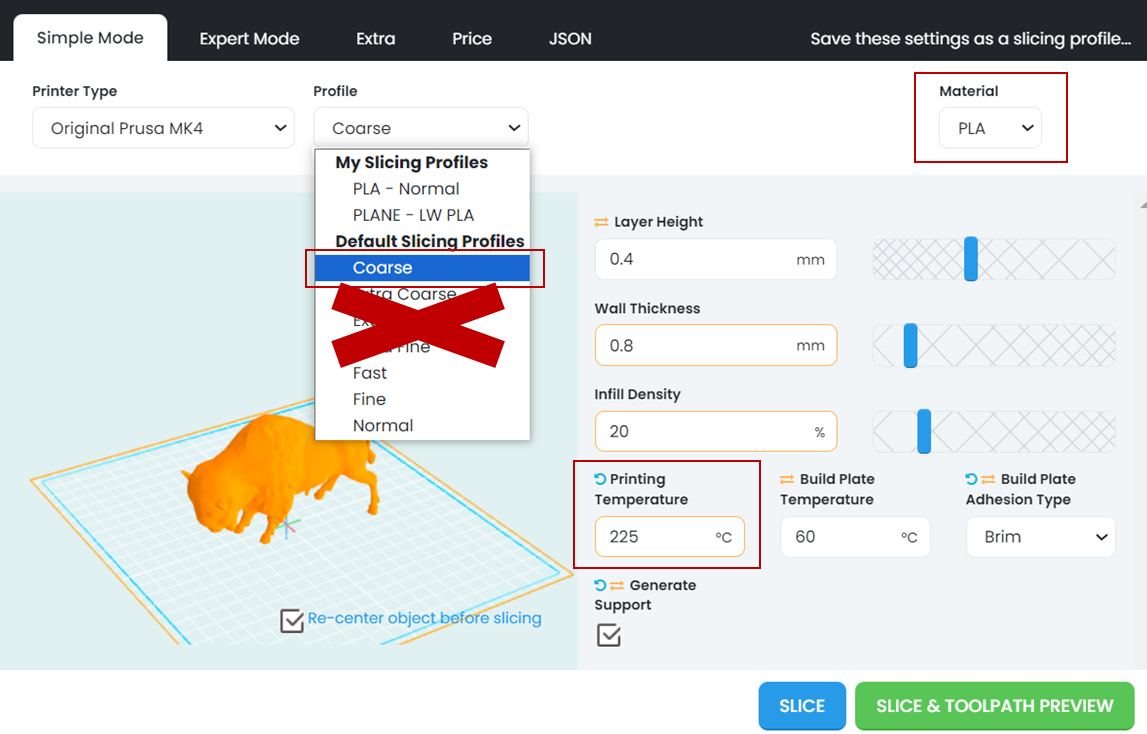
You can also change the printing profile to "Course", which will dramatically decrease print time. To to do this, go to the slicing settings on your part, click the drop down menu underneath "Profile" and select "Course". NOTE: DO NO select the Extra Course, Extra Fast, or Extra Fine printer profiles, those settings exceed the limits of our printers and will cause your part to fail. (To learn more about why those profiles don't work well with our printers, go to the Layer Heights page on the 3DPOS Slicer Settings page.) Link to that page
Ally: Add screenshots of the print time of the same part under the PLA - Normal, Fast, Fine, and Course profiles. Ideally a buffalo or something CU/ITLP themed.
What printers can I use at the ITLP?
Once you take a workshop, you can use any of our self service Prusa MK4 3D printers anytime our building is open. See here for building hours and access to extended hours. (Link this)
You can also use our fabrication request system to order a part using one of our two high definition printers: https://itlp.colorado.edu/fabrication-requests/
Are there other places on campus I can 3D print?
Each campus makerspace has their own policies and procedure. Be sure to contact them to see if and how you can gain access to their rspaces. Here are some nearby:
Some free off campus resources include:
Paid Makerspace Access:
SolidState Depot (student discounts available)
Paid 3D Printing Services:
ExBuild (for higher definition printing)
I took the workshop, but I can't see any active printers. Help?
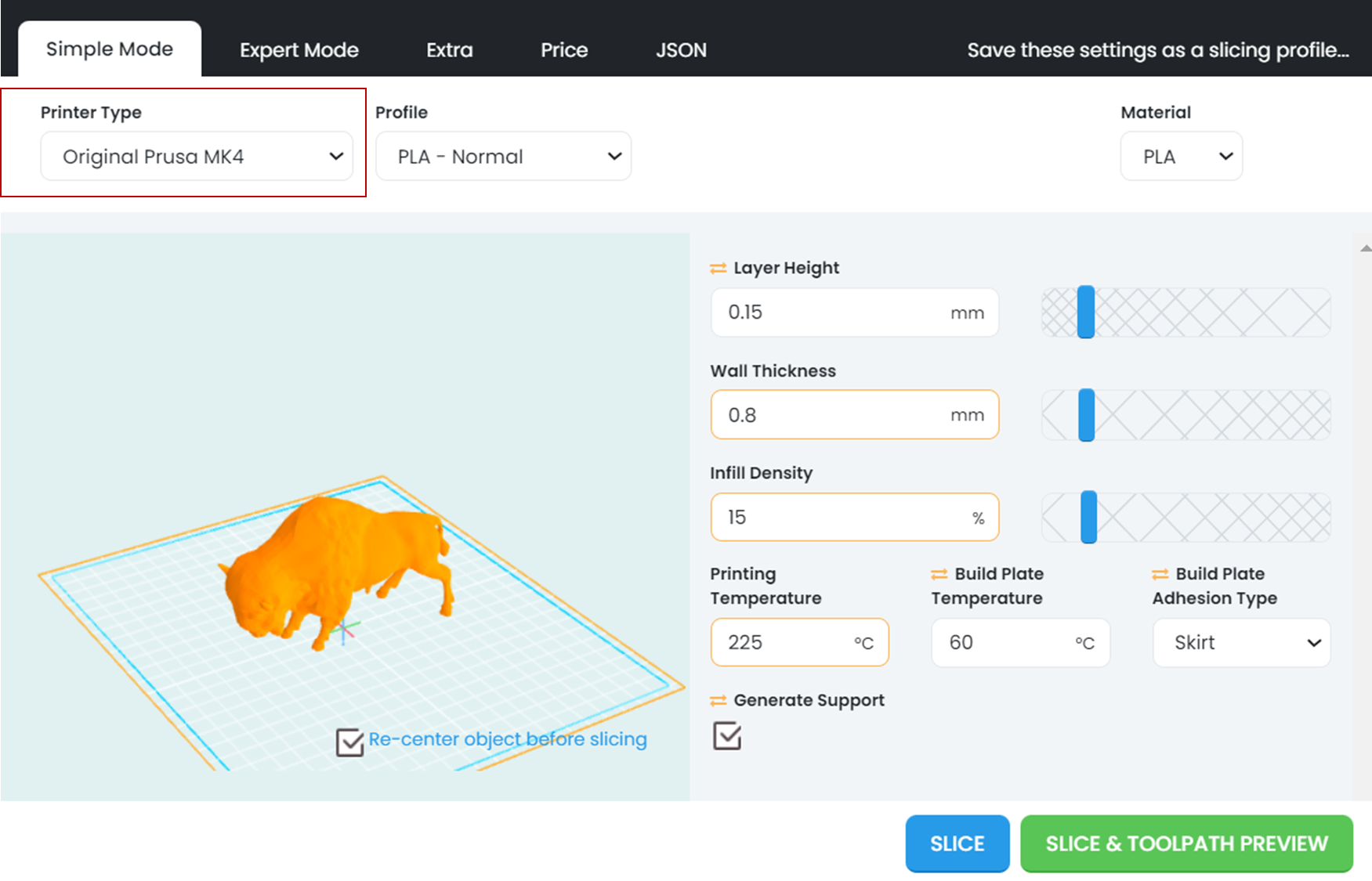
On the layout of the part that you want to use, make sure the printer type is set to "Original Prusa MK4" in the upper left corner of the slicer settings.
If that doesn't work, talk to the 3DP engineer, NAME.
All the printers are in use, can I put my name on a waitlist for the next available printer?
Our printers are strictly first come, first serve due to their high demand. (We've tried waitlists/queues in the past, it doesn't work.) The printers are most busy during the month leading up to the end of semester, with students often having to wait several hours to get onto a printers. We advise students to plan the 3D printed parts of their projects accordingly around equipment bottlenecks. In general, printers are most available when our building opens.
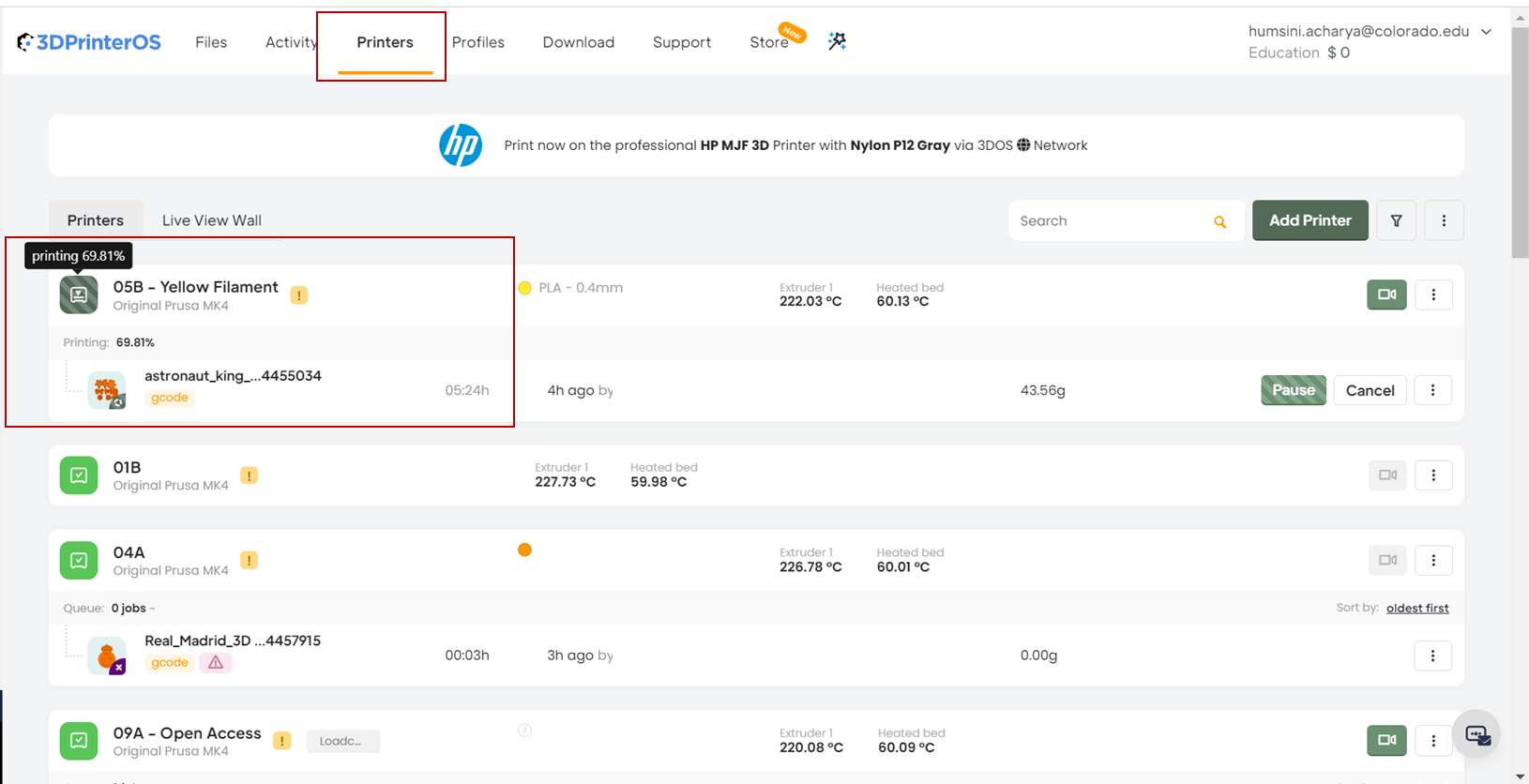
On 3DPOS, you can check when printers will be close to finishing by hovering your mouse over the printer icon on the "Printers" tab in your 3DPOS account.
Why is there an 8 hour print limit?
We automatically limit print time to 8 hours to allow for more equal access to the printers. If you would like to print something over 8 hours, you can talk to an ESS or to an ITLP engineer. They will review your design, then help you start a print over night or over the weekend.
I have a print that is going to take more than 8 hours, can I still print it?
Absolutely! Just talk to an ESS or ITLP engineer to complete a quick design review, and they will help you print it over night or over the weekend.
When I upload my file to 3DPOS, I can't view the layout or it fails and shows a black square in the part icon. How do I fix it?
Most commonly, this is because of a corrupted file. Make sure any parts that were downloaded were extracted successfully from a compressed or zipped folder. If a compressed folder or .stl file is uploaded to 3DPOS, it won't upload properly and will continually crash. If you don't know how to unzip a folder, you can use this link to learn more.
If the file is not .stl or .gcode you will also get errors.
How do I export a part as a .stl in OnShape? In Solidworks?
Link to Solidworks Documentation
How do I submit a print request to the HD3DP system?
You can submit a print request on our website here. Please note that we only accept .stl files. You can indicate printer type and approximate size on the submission form.
I'm having issues logging into 3DPOS, who do I talk to?
If you have taken the workshop, you can talk to our ITLP engineer NAME.
If you have not taken the 3D printing workshop, you will need to take it it to get access to the printers and 3DPOS system.
I have questions about 3D printing and/or designing for 3D printing, who do I talk to?
Talk to Printy McPrinterson (update this with new hire or Sa'Von), our ITLP engineer that leads our 3DP ecosystem.
How do I print with TPU?
Talk with an ITLP Engineer or ESS to use this material.
How do I print with PETG?
Talk with an ITLP Engineer or ESS to use this material.
Can I use my own filament?
I’ve already taken the 3D printing workshop with the old Lulzbot printers. (i.e. before AY23/24). Do I need to take it again?
If you have taken the workshops over 5 years ago, please stop by the ITLL administration office and they can manually add you to an upcoming workshop.