Software Troubleshooting
- EAGLE stops working after splash screen or after Autodesk logon
- Solidworks Activation Error
- Windows on MacOS
EAGLE stops working after splash screen or after Autodesk logon
Issue
EAGLE stops working after the splash screen is displayed or after I logon with my Autodesk account
Symptoms
When launching EAGLE, you might observe that the application appears to crash after the splash screen is displayed. Or, you might observe that after attempting to logon with your Autodesk credentials, the application appears to crash.
In Task Manager, Details, you might also observe the WerFault.exe process run briefly during this issue.
In the Windows Event Viewer, Windows Logs, Application, you'll observe an Application Error stating Faulting application name: eagle.exe ... Faulting module name: LIBEAY32.dll
Cause
The issue is that Autodesk is no longer updating the EAGLE application. Version 9.6.2 is the last revision and was last updated in 2018. The LIBEAY32.dll file is an OpenSSL library related to authentication to Autodesk's servers during application launch or Autodesk logon. The LIBEAY32.dll file is simply out of date and no longer compatible with Autodesk's servers. The solution or workaround is to replace the LIBEAY32.dll file with a newer copy from another Autodesk application, such as Autodesk Fusion 360. We have obtained a copy of this library from Fusion 360 installed on the ITLP Labstations. A copy of the file will be provided in this article. Simply download the file and replace the outdated file in the EAGLE installation folder.
Solution/Workaround
- Download a zip file containing an updated copy of the LIBEAY32.dll file here: LIBEAY32.zip
- Extract the zip file, locate the extracted LIBEAY32.dll file
- Open Windows Explorer, browse to C:\Program Files\EAGLE 9.6.2\
- Locate the file libeay32.dll and rename it to libeay32.dll.backup
- Copy and paste the newer version of the LIBEAY32.dll file into C:\Program Files\EAGLE 9.6.2\
- Launch EAGLE, and now you should be able to logon using your Autodesk account without issue!
Solidworks Activation Error
Issue
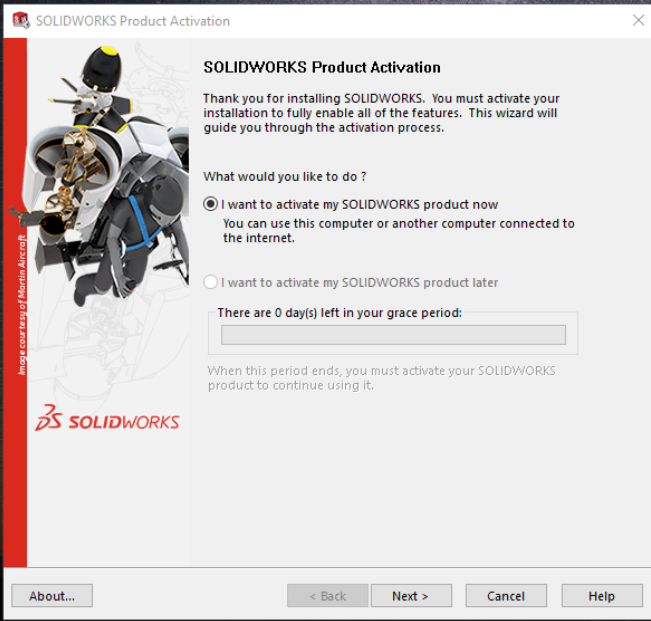
I have installed the student edition of SOLIDWORKS on my personal computer. When I try to launch SOLIDWORKS, a message is displayed indicating there are 0 days left in my grace period.
Symptoms
You may see a window similar to this:
Cause
SOLIDWORKS occasionally needs network access to "phone home" to SOLIDWORKS's licensing servers.
Solution
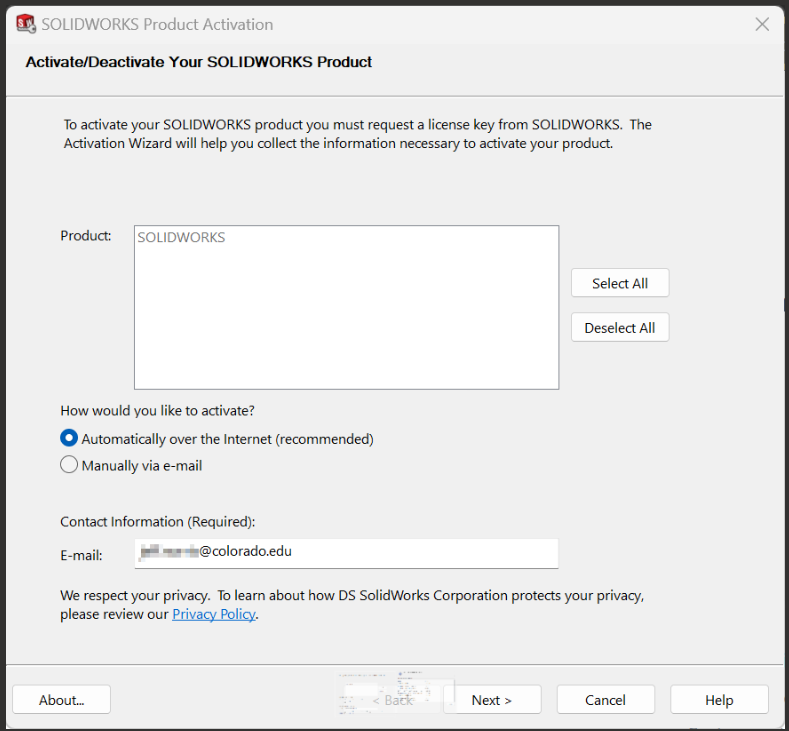
To reactive SOLIDWORKS, make sure you have an active network connection, such as by launching a web browser and ensuring you can navigate to https://www.google.com. Then, in the SOLIDWORKS Product Activation window, click Next, select activate "Automatically over the Internet", type in your @colorado.edu email address, then click Next.
If activation was successful, you should see a message similar to this:
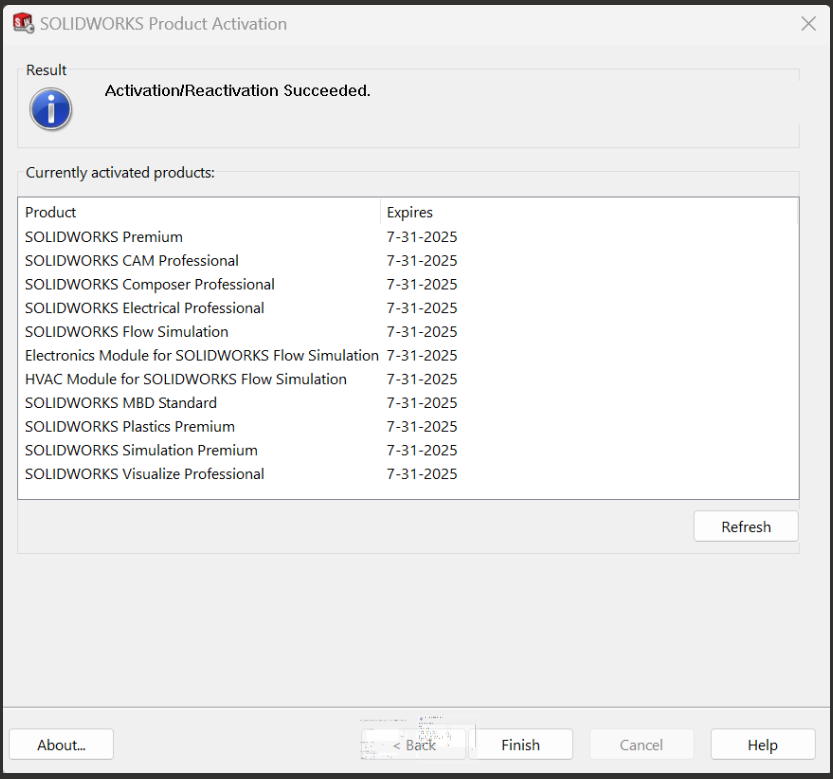
Click "Finish" to complete the product activation.
Windows on MacOS
Windows on MacOS Overview - READ FIRST
tl;dr
While x86/x64 emulation on modern Macbooks have made leaps and bounds since their initial release in 2020, the experience with traditional engineering applications in a 2020+ macOS virtualized Windows instance is extremely inconsistent and depending on application you may spend more time trying to troubleshoot compatibility issues than you will need to complete your homework assignment.
Using a Windows laptop, a legacy Intel-based Macbook, a campus computer lab, or CEAS Cloud Computing will be your easiest paths forward.
If you choose to pursue installing these applications through a virtual machine on macOS, it is at your own risk. No support can be provided by the ITLP or OIT for any documentation provided within these guides.
Overview
Starting with the MacBook M1, which released in November 2020, Apple computers converted from the common x86/x64 architecture Intel processors to ARM. While this made great advances in things like power consumption and performance, it came at the cost of leaving behind applications that were written for the architecture most commonly associated with PCs.
Many of the engineering applications used today such as ANSYS, LabVIEW, and Solidworks are slow moving behemoths whose development is unlikely to take any significant turns in support due to the inertia of their products. Of these three examples, only LabVIEW offers a native version for macOS and it is generally considered feature incomplete versus its Windows equivalent.
Virtualization Options
- Parallels (website)
- The most well known and supported way to run a virtual instance of Windows. At time of writing for students it is $49.99/yr to use the standard version (8GB RAM, 4vCPU limit) or $59.99/yr for the professional edition.
- VMWare Fusion (website)
- At time of writing, VMWare Fusion is free to download after signup. It is unclear if support will be provided long term.
- Others
- Outside of the big two, the most common mention we've heard is for Whiskey, an emulation tool meant for use in playing Windows games on a Macbook. This application stopped receiving updates in April 2025, but the site and its documentation still exist.
General Expectations
- Virtualization is only viable for applications that do not integrate with connected devices such as arduinos, DAQs, etc.
- The more straightfoward the application is, the more likely you are likely to see success.
- EES, for example, has had some known successes with students.
- Larger suite type software such as ANSYS, LabVIEW, or Solidworks are likely to have complications and require more GPU and memory than would typically be available on a lower end Air or Macbook Pro.
Is there a full list?
No, due to the extensive time and hardware needed to test out these applications there is not a full list of software and their compatibility potential. Some specific applications we tested enough to have some comments on are listed below.
- Software Comments
- ESS - In both our and student testing there was evidence that this may be a viable application to use in a VM.
- NI LabVIEW - Not viable for the lack of stable connectivity for USB devices, but also has noted that installing the drivers with it has a history of immediately breaking its Windows desktop.
- Solidworks - While we were able to reliably install this successfully, the stress testing we performed through performance testing intermittently caused the application to lock up. We did not attempt to isolate what specifically was causing the lockups during the test. Performance benchmarks, when they did complete, were suboptimal as Solidworks could not properly take advantage of the vGPU.
EES on Whisky Emulator
Installation Instructions
Note that the below instructions are provided as a reference only, no support is available. Whisky is no longer actively maintained since April 2025.
- Download and install Whisky:
- Download and install Whisky from https://getwhisky.app/.
- Create a new Bottle:
- Open Whisky and create a new Bottle.
- Name the Bottle anything you like (e.g., "Calumet").
- Select "Windows 11" as the operating system.
- Allow Whisky to download any necessary dependencies. Wait for the setup process to complete.
- Download the EES installer:
- Download the EES installer (setup_ees_acad.exe) from the ITLP software page.
- Unzip the downloaded file.
- Run the EES installer:
- In the bottom right corner of the Whisky window, click "Run. . . ".
- Navigate to and open the setup_ees_acad.exe file.
- Follow the on-screen installation steps to install EES.
- Pin EES to Whisky:
- EES should be automatically pinned to Whisky.
- If it is not, click "Installed Programs" and then click the pin icon next to "EES.exe" to manually pin it.
- Move the ees.dft *file:*
- You will need to move the ees.dft file to a the directory where you installed EES. By default, this is a hidden directory.
- Open Finder and press Cmd + Shift + Period (.) to show hidden files and folders.
- Navigate to the EES install path. On my computer this was: /Users/xxxxx/Library/Containers/com.isaacmarovitz.Whisky/Bottles/302B3817-C0B6-4723-AA71-EE1FBB97101F/drive_c/EES32.
- Move the ees.dft file into this EES32 folder.
- Launch and Configure EES:
- To launch EES, right-click on it in the Whisky application and select "Run. . . ".
- To make text sharper and more readable, you may need to take additional steps within the Windows environment created by Whisky.
- To make a shortcut on your desktop, right-click on EES in Whisky, click "Config", and then click "Create Shortcut" in the bottom right corner.