Sensors Equipment
- Measuring force: load cells
- Measuring Temperature
- Remote Sensing
- New sensors for Fall 2026
- Measuring distance/proximity
- Passive Infrared (PIR) Sensors
- Ultrasonic Sensor
- Measuring distance/proximity
- IR LED & transceiver
- Hall Sensor (AH1815, from Treston)
- Strain gauges
Measuring force: load cells
ITLL load cell inventory (note- this isn't updated with what is currently checked out)
Quick start guide:
- Checkout a USB DAQ (6001 etc) from the Electronics Center
- Connect red and black wires to 5V and GND
- Connect other two wires to + and - ports of an analog input channel
- Measure differential voltage from analog input channel and write code/math to convert voltage output to force reading (linear relationship)
If you have questions, or you want to use an Arduino - read on :)
How do we measure force?
Mechanical forces are typically measured using a load cell. Your bathroom scale has load cells. Truck weighing stations use load cells. High quality fishing scales use load cells (cheap ones just measure a spring). The MST downstairs at the ITLL (materials tester) uses load cells to measure force.
Load cells come in various shapes and sizes based on the magnitude, direction, and frequency response of the force you are interested in measuring.
Various types of load cells:
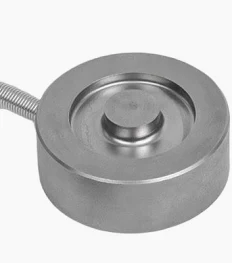
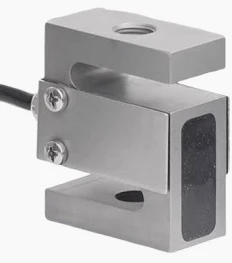
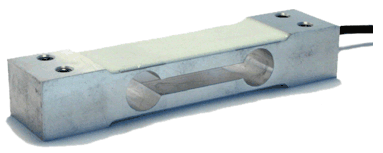

Pre-quiz (test your knowledge!):
- What are each of the type of load cells depicted above called?
- Which are used to measure compressive forces, and which are used to measure tensile forces?
- Which type do you think the MST downstairs uses? (materials tester)
Answers to quiz
- From left to right: button or pancake, S-type, single point, and uniaxial in-line
- Compressive forces: all of them
- Tensile forces: technically all of them except for the button cell. In practice, the uniaxial in-line cell would be the easiest to use due to its threaded mounting points.
- I would guess it uses in-line uniaxial load cells that can measure tension and compression
Consider the following questions regarding your particular application:
What is the maximum force I expect to measure?
Am I measuring a compression or tension force?
Am I measuring a static or dynamic force?
Is one axis of measurement sufficient, or do I need a multi-axis load cell?
Need help answering the questions above?
Compression vs tension
Compression load cells are perhaps more common; they measure a force that is pushed down into the load cell. Think of a bathroom scale.
Tension load cells measure a force that is pulled away from the body of a load cell. Think of a hanging scale for measuring the weight of luggage or a fish.
Static vs dynamic
An unchanging or very slowly changing force is a static force. Once again, the bathroom scale is a good example. A dynamic force is a transient or quickly changing load, such as a force from an impact or a vibration. Typically we use different load cells for static vs dynamic force measurements, and this is because the operational principle underlying each type of load cell differs. Static load cells comprise of strain gauges, which do not have a particularly fast response time, but they give a stable linear signal over time, whereas dynamic load cells often comprise of piezo-resistive elements which are capable of fast responses but offer a tradeoff with linearity over time.
Uniaxial vs multi-axial
If you only need to measure compression or tension along one axis (once again, think of standing on a bathroom scale, the only acceleration we are concerned with here is due to gravity, so F=ma is only along one vector), a standard uniaxial load cell will do just fine. However, if you are interested in measuring forces along multiple axes in a structure or a robot, a multi-axial load cell might eliminate a complicated set-up involving mounting multiple load cells along different axes.
Range
Load cells come in a wide span of ranges, from less than 1lbf (pound force) to over 2,000 lbf! If you use too high of a load cell, all of your data will be compressed down to the lower end of the range of your sensor, and you aren't maximizing the resolution of your DAQ. A good rule of thumb is to choose a sensor whose range is around 10% higher than your maximum expected force.
How a load cell works: Wheatstone Bridge circuit
A load cell is a sensor containing resistors, and as you apply a force on the load cell, the resistance changes. "Cool, so we are measuring resistance", you might be thinking. Not exactly. The resistors that are in load cells are called strain gauges, and their change in resistance to an applied force is on the order of tenths, or even hundredths of ohms for small forces. If we tried to just measure the change in resistance of a single strain gauge, we would need a very good multimeter that can measure very small electrical changes. "What if we just drove up the supply voltage to generate a larger measurable change in resistance?" you might be thinking. Good idea- but the heat generated from supplying more power would cause the sensitive resistor to heat up, which would change its resistance. You would have no way of knowing if the subtle change in resistance you measure is due to an applied force, or a change in temperature. Ahh!
To get around the problem of measuring a tiny resistance that is susceptible to temperature-induced changes, we use a very old but useful circuit called a Wheatstone Bridge. This circuit has stood the test of time and is used in other sensing applications besides load cells, including pressure sensors.
Wheatstone Bridge circuit (image source: link):
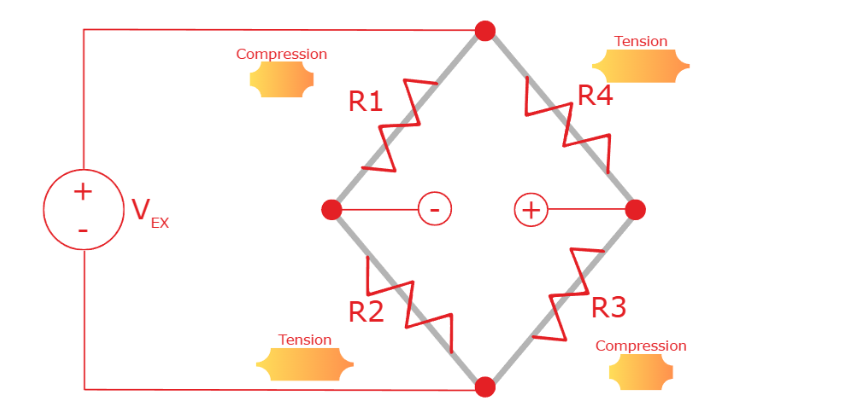
Each of the resistors depicted above (R1, R2, R3, R4) in the Wheatstone Bridge circuit are strain gauges. They are all contained in your load cell, and might even be visible if you have an S-type load cell. Often you can't see the strain gauges, as in the case of a button load cell or in-line cell, but they are there! The working principle is that the resistance values of the strain gauges change in response to an applied force. A change in resistance value is something we can measure electrically, and this electrical response is directly proportional to the applied mechanical force.
Basics:
- You must supply an excitation voltage to the load cell (labeled VEX above)
- You measure the voltage at the nodes labeled "-" and "+" in the diagram above
- The voltage will change in response to applying a load to the load cell, since the relative resistances of R1, R2, R3, and R4 change (when they are compressed, their resistance decreases since their cross sectional area has increased. Vice versa for tension.)
- This circuit is simply two voltage dividers connected in parallel
- The output voltage is typically very small (on the order of micro or millivolts), so we have to amplify it or choose a DAQ with a high resolution ADC
Useful points:
- When the circuit is balanced (all four resistors have the same resistance value), the output voltage measured between the measurement nodes ("-" and "+" in above image) is zero (look at diagram - do you see why that's true?). This is useful - if there is no force applied to your load cell, you will read zero volts. Very logical!
- The arrangement of the strain gauges (alternating in compression/tension) means that for a given force, the measured output voltage will increase for a compressive force, and decrease for a tensile force. If this isn't true for your load cell, try swapping the + and - signal wires
Another definition of the Wheatstone Bridge circuit, from NI
(Source: Pulled straight from NI-MAX by Claire)
Bridge-based sensors operate by correlating a physical phenomena, such as strain, temperature, or force, to a change in resistance in one or more legs of a Wheatstone bridge. The general Wheatstone bridge, shown in the following figure, is a network of four resistive legs with an excitation voltage, VEX, that is applied across the bridge. One or more of these legs can be active sensing elements.

A physical phenomena, such as a temperature shift or a change in strain applied to a specimen, changes the resistance of the sensing elements in the Wheatstone bridge. You can use the Wheatstone bridge configuration to help measure the small variations in resistance that the sensing elements produce corresponding to a physical change in the specimen. [Claire note - when the bridge is "balanced". it reads zero voltage when no load is applied]
[Claire note: the circuit depicted above is a full bridge circuit, where all four resistors (R1-R4) are strain gauges. If only two resistors are strain gauges, that would be a half bridge, and in a quarter bridge configuration only one of the resistors is a strain gauge. In a half or quarter bridge configuration, the remaining resistors are static resistors. Why would we ever do this? Sometimes a load cell isn't practical for our measurement because it is too bulky, for example if we are interested in analyzing strain along the skin of an aircraft]
How to wire up a load cell for data acquisition
Most load cells have four wires. You will need to connect the four wires correctly to a data acquisition (DAQ) module to generate data measured by the load cell.
- Black and red wires: this is where you apply the excitation voltage to VEX+ and VEX - of the Wheatstone bridge circuit shown earlier
- Where you plug in the red and black wires depends on what data acquisition device you are using (Arduino, USB DAQ, NI 9219, NI 9237, etc). I've never seen an exception to the excitation voltage wires being red and black, so if you come across one, please let me know
- 5V is common for many load cells, but check your load cell's datasheet for "Excitation" to verify this value
-
-
- See example below for a real datasheet specifying the recommended excitation voltage (5V in this case):
-
- See example below for a real datasheet specifying the recommended excitation voltage (5V in this case):
-
-
- Where you plug in the red and black wires depends on what data acquisition device you are using (Arduino, USB DAQ, NI 9219, NI 9237, etc). I've never seen an exception to the excitation voltage wires being red and black, so if you come across one, please let me know

- Other two wires: you will use your DAQ/Arduino to measure the voltage across these two wires to determine the force measured by the load cell ( (+/-) nodes in the Wheatstone bridge circuit shown earlier)
- Where you plug in the yellow and white (or other color, depends on your load cell) wires depends on what data acquisition device you are using (Arduino, USB DAQ, NI 9219, NI 9237, etc)
- Check your datasheet to see which is positive/negative. Or apply trial and error, and if the voltage decreases instead of increasing when you apply a load, swap em
But wait! You haven't told me where to connect the wires, just what they do
You're absolutely right. I want you understand how a load cell works, to make you a better engineer. If you can explain how the four wires of a load cell relate to the Wheatstone Bridge circuit, you understand the basic fundamentals of force sensing using a load cell. Congratulations!
At this point you understand that we need to apply an excitation voltage (red and black wires), and measure the voltage difference between the other two wires produced when the load cell experiences strain.
Choosing the right DAQ: Arduino vs other DAQs to read your force data
You have several options for measuring the voltage response from your load cell, but note that the voltage produced by a load cell is small enough (sometimes as low as a single mV for small loads) that we either need to amplify the voltage or use a high enough resolution DAQ to provide meaningful results.
| 1. NI USB DAQ (NI 6001, 6002, 6008, 6009) | Pros: Very easy to wire up. No need to amplify |
Cons: You must know LabVIEW or Python (use nidaqmx library) |
| 2. Arduino | Pros: You might already familiar with Arduino | Cons: You need to amplify the voltage to read it |
| 3. NI 9237 or NI 9219 | Pros: Fairly easy to wire up. No need to amplify | Cons: You must know LabVIEW or Python (use nidaqmx library) |
| 4. TMO-2A signal conditioner | Pros: Dedicated load cell signal conditioner. This will reject low Hz noise and amplify your output to a nice 4-20mA signal. Built in gain/balance pots for calibration. |
Cons: You will need to connect this to something that can read current (I'd recommend an NI-9203, and am happy to show you how to do this) |
| Other GPIO hardware not currently available for checkout from the ITLL | Pros: Presumably there is some good reason why you are using it |
Cons: ITLL staff may or may not be able to help you, certainly worth an ask |
1. NI USB DAQ (NI 6002, 6003, 6008, 6009)
- Available for checkout from Electronics Center
This is the easiest way to go, assuming you know LabVIEW or Python (Python: use nidaqmx library).
Note on sample rate: these USB DAQs sample incredibly fast, making them useful for either static or dynamic force measurements. The USB 6002 measures 50 kS/sec!
Step by step instructions
Step 1: Find the datasheet for your load cell
Step 2: Identify the range of excitation voltages that your load cell accommodates.
Step 3: Verify that 5VDC is within that acceptable range you found in Step 2.
Step 4: Wire the two EX+/EX- (might be labeled as something else on the load cell data sheet, but the leads that correspond to the excitation voltage) leads to the 5V and GND on your USB DAQ. On the datasheet screenshot below, these leads are labeled V+/V-.
If you're using a FX1901-0001-0010-L , you can follow the color schematic below (V is excitation voltage and O is output voltage):
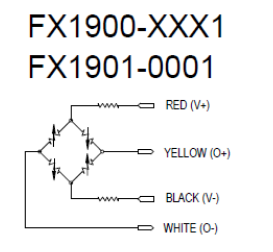
Step 5: Wire the output signal leads (typically white/green or white/yellow) to analog inputs (AI+/-) on your DAQ. The voltage across these wires will change in response to the applied force on your load cell.
Step 6: Launch LabVIEW or NI MAX and click through to "Acquire Signals-->Voltage"; you are measuring a differential voltage across the two inputs on A0 (or whichever channel you chose). This is a differential, not an RSE (reference single ended) measurement. Pick continuous or N samples based on your data acquisition needs.
Step 7: You should be seeing an output voltage that changes when you press on your load cell! To convert voltage to force, you will need to perform the following calculation:
y = mx + b , where y is the force you are measuring
I like seeing equations with units clearly specified. I will use lbs as an example, you could use kg or N:
y [lbs] = m [lbs/mV] * x [mV] + b [lbs]
The slope m is the range of your load cell divided by the span in mV.
Example calculation for slope, m:
m = Range of your load cell [lbs] / (V_EX [volts] * Span [mV/V] )
Span = max voltage (voltage corresponding to max rated load of your load cell)
So for our 10lbf (btw, "lbf" just means "pound force") load cells, the span is 20 mV/V and I applied a 5VDC excitation voltage (V_EX). Therefore, my max voltage is 5V * 20mV/V = 100 mV. My slope is 10 lbf/100mV or 0.1 lbf/mV.
The y-intercept b needs to be solved for - simply record the voltage when nothing is placed on your load cell, and solve y = mx + b, plugging in 0 for y and the value for m that you found in the step above.
Pro tip: If you want to use a 3D printed jig attached to your load cell, this is a good time to attach it and include it in your offset b. Now the mass of that jig is accounted for in the offset, making downstream calculations simplified.

2. Arduino (e.g., Uno, Nano)
- Available for checkout from Electronics Center
You will need to get a load cell amplifier (we have one or two available for checkout at the Electronics Center, or else they are fairly cheap to buy from Sparkfun) or construct your own amplifier circuit so that the voltage is large enough to read on the Arduino.
I bought an amplifier
Step 1: Find the datasheet for your load cell by googling the part number
Step 2: Verify that 5 VDC or 3.3V is an acceptable excitation voltage for your particular load cell
Step 3: Wire the corresponding colors of your load cell wires to the load cell amplifier. You might want to solder in header pins or sockets if the load cell amplifier comes bare like the image below. If you are using a load cell checked out from the Electronics Center, please ask an engineer how to make connections from your load cell to the amplifier (some of our load cells have header pins already soldered on, and some have bare wires for connection to a screw-terminal. Please don't start soldering to our load cells without discussing with us first).

The "YLW" hole is for a shield wire to protect against stray electromagnetic radiation that might influence your measurement; your load cell might have bare foil instead of a yellow wire, or it might have no shield wire at all. If so, that's fine, leave it bare!
Step 4: Wire up the other side of the load cell as follows:
VDD and VCC: 5V (unless your microcontroller operates on 3.3V logic, then use 3.3V for digital data (VDD) and 5V to power your load cell
DAT: Pin 3
CLK: Pin 2
GND: Arduino GND
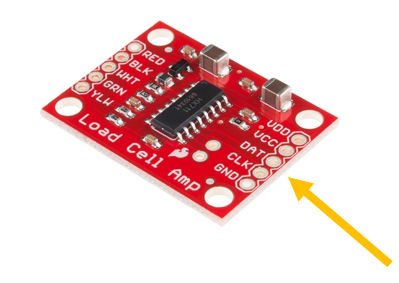
Step 5: Download Arduino code from here: HX711 arduino library
- There are useful calibration sketches at the link above, which you will want to run in order to get accurate readings from your load cell.
Have fun - and reach out to an engineer in the Electronics Center with any questions you may have!
I want to build the amplifier circuit
IN PROGRESS! Talk to an engineer in the Electronics Center if you choose to go this route
Step 1: Build the amplifier circuit activate this link when tutorial is complete (https://itll-wiki.colorado.edu/bookstack/books/electronics-engineering-tutorials/page/using-an-op-amp-to-amplify-a-signal-eg-from-a-load-cell)
Step 2: Wire up
3. NI 9219 or NI-9237 DAQ
- Available for checkout from Electronics Center
The NI-9219 sample rate is pretty slow (2 Samples/second per channel) so this is ok for static load measurements, but not for dynamic measurements. You can change from High Resolution to High Speed mode for a slight improvement in acquisition speed. This particular DAQ isn't designed for speed; it's a well-rounded workhorse of a DAQ that can measure input from load cells, thermocouples, RTD's, and more on a single DAQ.
The NI-9237 is much faster (50 kS/s per channel) than the NI-9219, but it is dedicated strain/bridge module. Maybe you want to measure other things, like temperature?
NI-9219 instructions (general purpose NI DAQ)
You will need:
- load cell
- a small flathead screwdriver
- NI-9219(DAQ)
- NI cDAQ-9171 (chassis)
- Computer with LabVIEW
- USB A- USB B cable to interface with cDAQ
Step 1: Determine the excitation voltage and bridge resistance for your load cell
Step 2: Pick a channel. Wire the red and black wires of your load cell into 3 and 5 (respectively) on your selected channel, and V_high and V_low into 4 and 6, respectively. The numbers are on the DAQ, but kind of hard to see.
If you've never used this DAQ before, the way to get the wires into the holes is to insert a small flathead screwdriver into the adjacent square, along the midline of the DAQ. Align the screwdriver so the blade of the screwdriver is parallel with the long (up and down if you're holding it like in the image below) axis of the DAQ. Now, stick the screwdriver directly into the square to release the spring on the adjacent hole, allowing you to slide the wire into the hole. Release the screwdriver, and the spring terminal will clamp down on the wire. Verify that you made a good connection by performing a gentle tug test on the wire. Does it fall out? No? Great! If the wire comes out when you tug on it gently, try the steps again. If you need help, ask an engineer in the Electronics Center. Claire- add a video
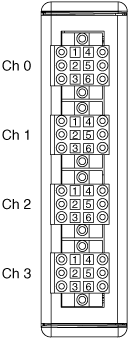
Step 3: If you haven't already, install the DAQ into a chassis.
Step 4: Plug the chassis into your computer using a USB cable.
Step 5: Start up a VI and insert a DAQ Assistant block. Double click on the DAQ Assistant and choose Acquire Signals-->Analog--> Force(Bridge)
Step 6: The max excitation voltage you can provide with this DAQ is 2.5 V (Claire- verify) . You will need to check the bridge resistance of your load cell and update the boxed field below. Finally, you will need to click "Configure Scale" and input values relevant for your load cell so that the DAQ outputs force, not just voltage.

Step 7: You should be correctly reading force at this point. This guide assumes that you are already comfortably building VI's in LabVIEW. If you have any issues, please reach out to the DAQ engineer.
Have fun, and happy measuring!
NI-9237 instructions (strain/bridge NI DAQ)
Overview of test setup:

You will need:
- load cell
- NI breakout (RJ-50 [looks like an ethernet but has 10, not 8 pins] to screw terminal)
- RJ-50 cable (see note above about resemblance to ethernet cable)
- NI-9237 (DAQ)
- NI cDAQ-9171 (chassis)
- Computer with LabVIEW
- USB A- USB B cable to interface with cDAQ
Step 1: Determine the excitation voltage and bridge resistance for your load cell
Step 2: Wire the red and black wires of your load cell into 6 and 7 (respectively) of the screw terminal block, and the remaining two wires into 2 and 3. See images below:

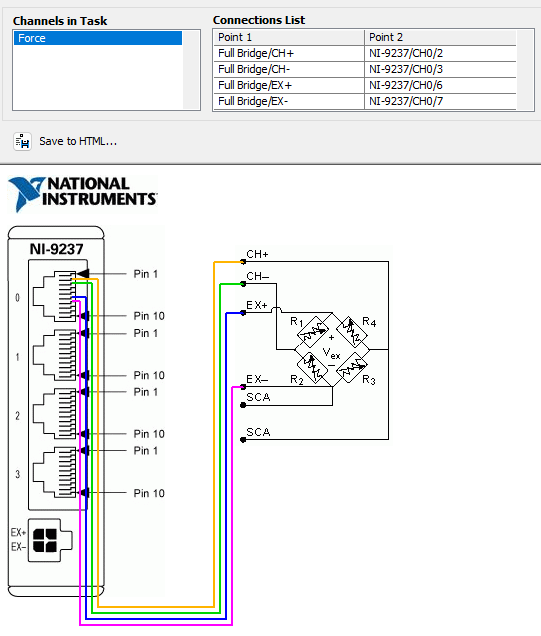
Step 4: Connect DAQ to chassis, and RJ-50 cable between DAQ and screw terminal block. Finally, connect chassis to computer with USB cable
Step 5: Start up a VI and insert a DAQ Assistant block. Double click on the DAQ Assistant and choose Acquire Signals-->Analog--> Force(Bridge)
Step 6: The maximum excitation voltage you can provide with this DAQ is only 2.5 V. You will need to check the bridge resistance of your load cell and update the boxed field below. On the Transducer Technique load cells, I think this corresponds to "Output Resistance". Finally, you will need to click "Configure Scale" and input values relevant for your load cell so that the DAQ outputs force, not just voltage. I leave First Value as 0 for both Electrical and Physical fields, and for the Second Value I put down the span (sometimes labeled "Rated Output") in units of mV/V, and I put the range or capacity of the load cell in the Second Value field under Physical (pay attention to units in the dropdown menu!). Then hit Ok.
Step 7: You should be correctly reading force at this point. This guide assumes that you are already comfortably building VI's in LabVIEW. If you have any issues, please reach out to the DAQ engineer.
Have fun, and happy measuring!
4. TMO-2A signal conditioner (from Transducer Techniques)
- Available for checkout from Electronics Center
This dedicated load cell signal conditioner has a built in calibration function which makes it an excellent choice for applications requiring the utmost accuracy. If you are using a Transducer Techniques load cell, this is a very good choice (since the load cell's data sheet will have a PCT value you can grab and use during calibration).
TMO-2A instructions
Unfortunately, the manual for this signal conditioner contains errors (I have let Tom at Transducer Techniques know) at least as of 7/22/2026 so good thing you are here!
Note: you will need an ammeter. You will also need the TMO-2A (I have 2 available for checkout from the Electronics Center, come talk to me in ECCE 167A). You can use a general purpose DMM set to measure amperage, but even better to use a high resolution DAQ like an NI 9203. Or a benchtop DMM is fine, too. Just something that can measure 4-20 mA.
- Follow the wiring guide as specified in the manual linked above.
- Follow the balance adjustment as instructed in manual linked above.
- For the gain adjustment, the manual is incorrect. Don't measure voltage (this is a 4-20mA conditioner, you are working with current, not voltage), keep your ammeter connected the output leads you had it on for step 2, and perform the following steps:
- Install banana shunt resistor into signal conditioner
- Press down calibration button as you read output current
- Refer to your load cell (if it's a Transducer Techniques load cell) data sheet and multiply the percentage under "PCT load" (make it a percent!) by 20mA.
- While pressing the calibration button, turn the gain knob with a flathead screwdriver until the ammeter reads the current you calculated above
- You are set to measure! The force is a linear function of the mA generated. You'll need to calculate y [lbs]=m [lbs/mA] x [mA] + b [lbs, should be negative] for your load cell.
Photo of my test setup:
Even more load cell resources:
- Available equipment for checkout from the ITLL: ITLL load cell inventory (note- this isn't updated with what is currently checked out)
Great links below for more information on load cells:
nice resource on load cells from Futek
highly technical resource from Texas Instruments on 4-20mA output
Measuring Temperature
Covers various ways to measure temperature (e.g., thermocouples, RTD's, thermistors, etc)
Which temperature sensor do I use?
So you want to sense temperature. There are several things to consider as you decide between the various options. For most (room temperature +/- 50 degrees) applications, you could use any of the options below. So how do you decide?! Read on.
________________________________________________________
Claire's quick start guide:
For temperatures above 1000°C : use a thermocouple (Type K, or check other types for their temp range)
Easiest to put on a breadboard (least wiring, doesn't require considering fancy concepts like "cold junction compensation"): TMP36GZ
Fast response time and cheap (maybe you need 100 of them): Thermistor
__________________________________________________________
Claire's more complete table:
| Method | How it works | Electrical requirements | DAQ requirements | Temp range | Accuracy |
|
|
As temp increases, voltage across diode's base and emitter (V_be) decreases at a known rate. This voltage is amplified, and voila.
To convert the voltage to temperature, simply use the basic formula: Temp in °C = [(Vout in mV) - 500] / 10 |
Requires a current
1- 2.7 - 5.5 VCC (0.05 mA current draw) 2 - analog V_out 3- GND
(1-2-3 left to right, part number facing you) |
Analog voltage input up to 2 V |
-40 - 150 °C
(-40 - 302 °F) |
+/- 0.2°C;
|
| Thermocouple | Two different metals form a junction (where we sense temperature), and when a change in temperature occurs, a voltage is generated via the Seebeck effect. This voltage is measured by the DAQ and interpreted to give a temperature. | Self powered | Analog voltage input |
(typical, depends on type [K, J, T etc]); 200 - 1750°C |
(typical) 0.5 - 5 °C;
0.10 - 10 sec |
| Thermistor | Semiconductor typically combined with binders and stabilizers with a negative or positive temperature coefficient. Basically, temperature increases, and resistance of sensing element increases (PTC) or decreases (NTC) | Requires a current | Analog voltage input |
(typical) -100 - 325°C |
as low as +/- 0.05 °C;
0.12 - 10 seconds |
| RTD (resistance temperature detector) | Resistance of a sensing element (usually a pure metal like platinum protected in a sheath/embedded in ceramic) increases as temperature increases | Requires a current | Analog voltage input |
(typical) -200 - 650 °C |
+/- 0.1 to 1 °C;
1 - 50 sec |
Nice overview of different temperature sensors from Omega (temperature probe manufacturer)
____________________________________________________________________________________________
TMP36GZ (image from Adafruit)

_______________________________________________________________________________________________
RTD vs thermistor (nice guide from Omega)

_______________________________________________________________________________________________
RTD vs Thermocouple (nice guide from McMaster)

_______________________________________________________________________________________________
RTD vs thermistor

Comparing thermocouple types
This is a nice link: link
Type T thermocouples (Cu/constantan or blue/red) have an accuracy of $/pm$ 1 degree C, whereas Type K thermocouples have an accuracy of $/pm$ 2.2C.
Remote Sensing
We will cover ways to remotely sense data including WiFi, LoRa, and Bluetooth.
New sensors for Fall 2026
Thanks to the Engineering Excellence Fund, we acquired over 50 new sensors the summer of 2026 that are inventoried, tested, and ready for student checkout Fall 2026.
Here's what's new for Fall 2026!
Everything below is available for checkout from the ITLL Electronics Center (ECCE 167)!
Incremental Rotary Encoders (QTY 2)

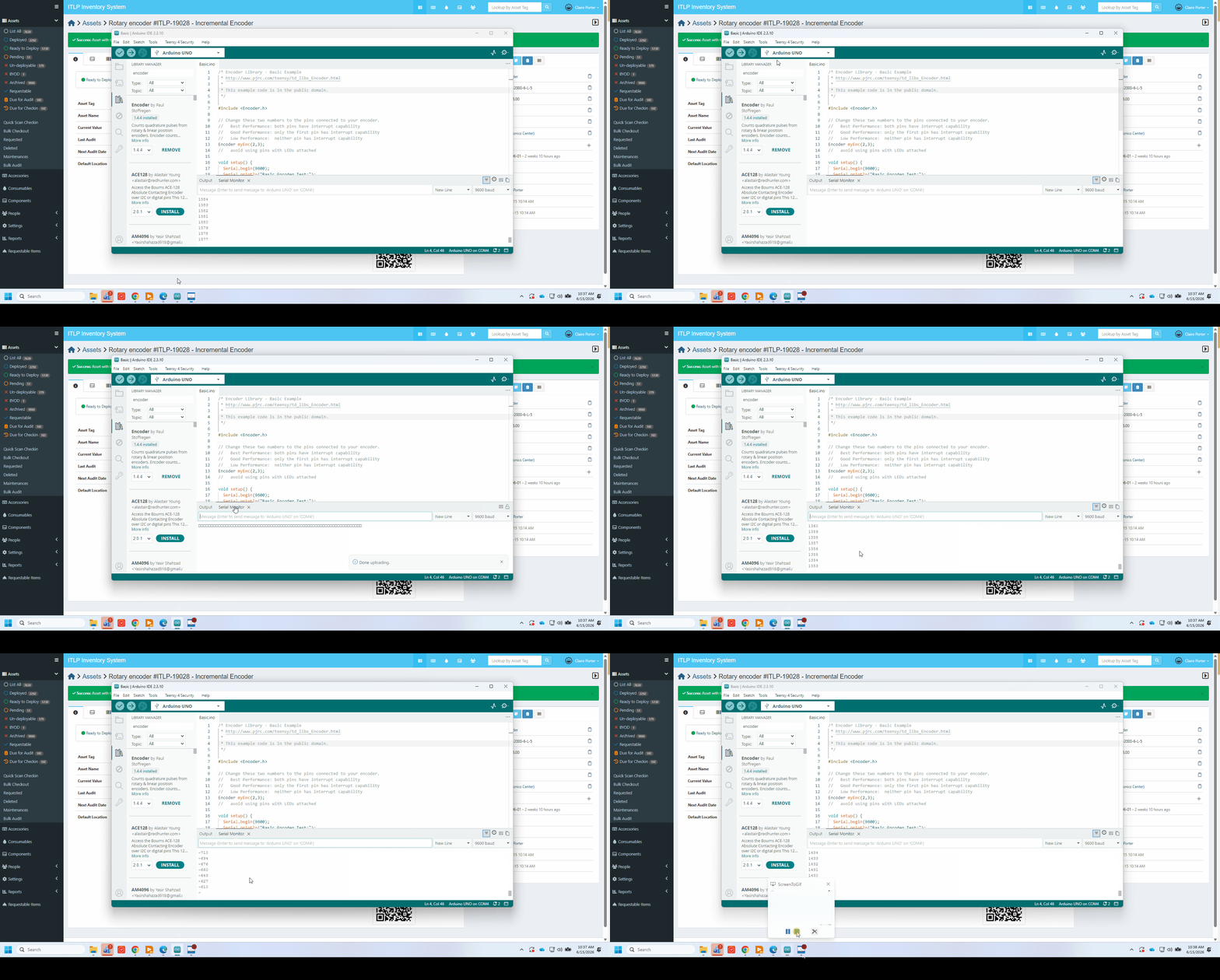

Description above from: https://www.pjrc.com/teensy/td_libs_Encoder.html?#
GIF made by yours truly (Claire Porter). I'm turning the encoder shaft CW, then CCW, and you can see the output increment, then decrease.
CODE (Arduino)
I used this library on an Arduino Uno:

I gave the encoder 5V via brown (5V) and blue (GND) wires, and plugged black (OUT A) and white (OUT B) into digital pins 5 and 6. I also tested other pins (2 and 3). I plugged the orange wire (OUT Z) into a random digital pin (8), but did not call it in my code.
TROUBLESHOOTING
1. Initially I couldn't get Basic.ino to run. I got the following errors:
direct_pin_read.h:8:56: note: in definition of macro 'DIRECT_PIN_READ' #define DIRECT_PIN_READ(base, mask) (((*(base)) & (mask)) ? 1 : 0)
FIX: I uninstalled and installed the library.
2. I thought 2000 pulses = 1 revolution, but I'm finding that 1 revolution ~ 8000 pulses. I'm using pins 2 and 3 for black and white wires. Even weirder - when I switch to different pins, I find that 1 revolution ~ 70 pulses. I thought that the resolution of this encoder was 2000 pulses per revolution. HALP!
FIX: It turns out that on an Arduino Uno, pins 2 and 3 are dedicated interrupt pins, which is a good thing for counting pulses as quickly as possible. You want to use these pins (and if you aren't using an Arduino Uno, check and see which are the hardware interrupt pins for your board). The code is just incrementing when the signals read on either pin 2 or 3 change, and since A and B (output from this quadrature encoder) change 4 times per change in position (the laser shines through a new window on the internal wheel). This is because the waveform generated by A is 90 degrees offset from B, or equivocally, the the phase offset of B relative to A is 1/4 the period of A. Talk to Claire or Nora if you are confused and would like a whiteboard demonstration of how a quadrature encoder works.
When I tested other pins:, such as 5 and 6, and 11 and 10, I found ~70 PPR. Note that if you switch the white and black wire, this just switches whether CW or CCW rotation corresponds to the encoder count increasing. Don't use pin 13 (built in LED); the counter misses pulses likely due to hardware conflicts.
Linear Actuators (QTY 4)
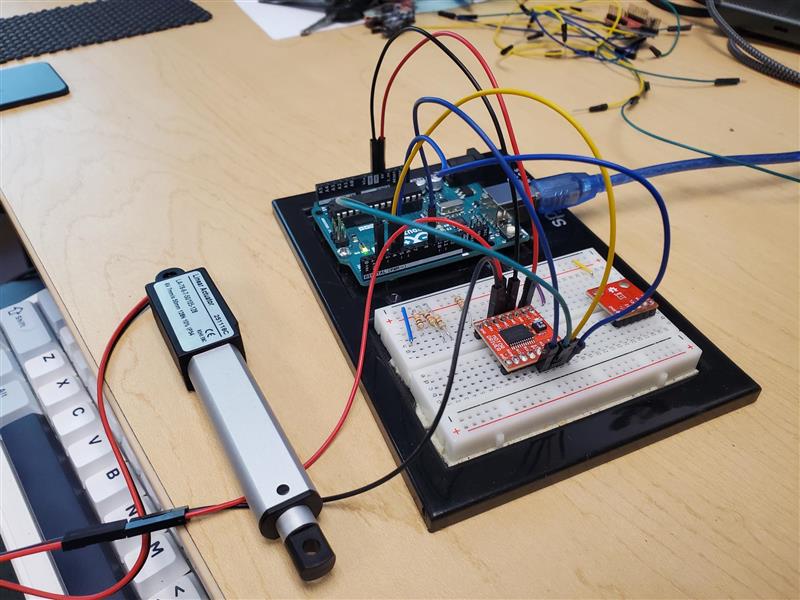
These little 50mm linear actuators are from DF Robot will be a great asset to a project requiring controlled linear movement. Although they nominally take 6V, I was able to run them using 5V on an Arduino Uno. I interfaced with a Sparkfun DC Motor driver, and was impressed at the force they delivered. Even when pushing fairly hard with my finger, the actuator was able to extend fully. These are awesome. Note that you will need to use a driver, or else construct your own H-bridge circuit to retract them after they've extended.
SENSOR
(ADD PHOTO)
PM2.5 Air Quality Sensor and Breadboard Adapter Kit
Link to sensor:
Code link:
Arduino Code | PM2.5 Air Quality Sensor | Adafruit Learning System
Use case, any helpful tips?
The PM2.5 Air Quality Sensor provides real-time, reliable measurement of PM2.5 dust concentrations! (PM2.5 refers to particles that are 2.5 microns or smaller in diameter.) This sensor uses laser scattering to radiate suspending particles in the air, then collects scattering light to obtain the curve of scattering light change with time. The microprocessor calculates equivalent particle diameter and the number of particles with different diameter per unit volume.
Troubleshooting (document any issues you ran into and their resolution):
Issue: The code provided in the link is set up to be able to handle both hardware and software serial communication.
Fix: Due to this when using that code, the user needs to uncomment out a few commented-out lines. These lines are the pin set ups and the serial communication lines. User needs to make sure to comment / uncomment a few lines according to what type of serial communication they are using.
SENSOR
(ADD PHOTO)
Adafruit 9-DOF Orientation IMU Fusion Breakout - BNO085
Link to sensor:
Code link:
Overview | Adafruit 9-DOF Orientation IMU Fusion Breakout - BNO085 | Adafruit Learning System
Use case, any helpful tips?
- Acceleration Vector / Accelerometer
Three axes of acceleration (gravity + linear motion) in m/s^2 - Angular Velocity Vector / Gyro
Three axes of 'rotation speed' in rad/s - Magnetic Field Strength Vector / Magnetometer
Three axes of magnetic field sensing in micro Tesla (uT) - Linear Acceleration Vector
Three axes of linear acceleration data (acceleration minus gravity) in m/s^2 - Gravity Vector
Three axes of gravitational acceleration (minus any movement) in m/s^2 - Absolute Orientation/ Rotation Vector
Four-point quaternion output for accurate data manipulation - Application Optimized Rotation Vectors
For AR/VR, low latency, and low power consumption - Additional Base Sensor Reports
Separate and simultaneous outputs of Calibrated, Uncalibrated + Correction, and Raw ADC outputs for the Accelerometer, Gyro, and Magnetometer - Detection and Classification reports:
- Stability Detection and Classification
- Significant Motion Detector
- Tap, Step, and Shake Detectors
- Activity Classification
I2C Wiring:
- Connect board VIN (red wire) to Board 3V
- Connect board GND (black wire) to Board GND
- Connect board SCL (yellow wire) to Board SCL
- Connect board SDA (blue wire) to Board SDA
Troubleshooting (document any issues you ran into and their resolution):
Issue: When using I2C communication, the library needed to use the IMU is too large and complex to fit onto the Arduino Uno.
Fix: To use this sensor with an Arduino Uno you are to use UART communication. This means you cannot use the nice I2C chord provided with the sensor. Instead, you have to plug the header pins into a breadboard and manually set up each pin.
PINOUTS FOR UART
VIN ---> 5V
GND ---> GND
SDA ---> Digital Pin 2
P0 ---> 5V
No other pins need to be connected
CODE FOR UART
#include <SoftwareSerial.h>
#include <Adafruit_BNO08x_RVC.h>
// Connect Arduino Pin 2 to BNO085 SDA (TX Out)
SoftwareSerial softwareSerial(2, 3);
Adafruit_BNO08x_RVC rvc;
void setup() {
Serial.begin(115200);
while (!Serial) delay(10);
Serial.println("Adafruit BNO08x RVC Test!");
softwareSerial.begin(115200);
// Pass our software serial port to the RVC library
if (!rvc.begin(&softwareSerial)) {
Serial.println("Could not find sensor. Check wiring and P0 pin!");
while (1) delay(10);
}
Serial.println("Sensor Found! Starting stream...");
}
void loop() {
BNO08x_RVC_Data heading;
// Read the incoming continuous data stream
if (rvc.read(&heading)) {
Serial.print("Yaw: ");
Serial.print(heading.yaw);
Serial.print(" Pitch: ");
Serial.print(heading.pitch);
Serial.print(" Roll: ");
Serial.println(heading.roll);
}
}
Note: When using UART with an Arduino Uno you can only utilize the gyroscopic features of the unit, you cannot access any of those advanced features (like step counting, shake detection, activity tracking, or alternative heading vectors) as long as you are using the UART-RVC with an Arduino Uno.
Adafruit Ultimate GPS PA1616S
Link to sensor page: https://www.adafruit.com/product/746
*add photo
Use case, any helpful tips?:
The Adafruit Ultimate GPS module gives any microcontroller project access to location, time, date, speed and heading data---pulled directly from GPS satellites.
Common Uses:
- asset/vehicle trackers
- data loggers with timestamps
- geotag sensor readings
- drones/robotics needing position feedback
Very Helpful Documentation I referenced
I particularly found the direct computer wiring, computer Arduino wiring and, computer Arduino parsing helpful. Each section tests three stages of working with the GPS module and each have a distinct purpose:
Direct Computer Wiring
This bypasses the Arduino's microcontroller entirely and routes the GPS straight to the USB-to-serial chip (using a blank sketch) --> RAW VERIFICATION
* add wiring photo
* add blank sketch
Troubleshooting
- Issue: Serial monitor shows garbled serial output instead of readable NMEA sentences
Becuase the data looks crazy here but nothing is actually introduced to the wiring we know the problem is the GPS hardwire or our wiring and NOT the code.
ex) :
AI5 ⸮235953.800,V,,,,,0.00,0.00,050180,,,N*42
⸮⸮⸮⸮⸮⸮⸮⸮⸮⸮⸮⸮⸮⸮$GPGGA,000518.800,,,,,0,0,,,M,,M,,*4C
instead of
$GPGSA,A,1,,,,,,,,,,,,,,,*1E
$GPRMC,000518.800,V,,,,,0.00,0.00,050180,,,N*45
$GPGGA,000519.800,,,,,0,0,,,M,,M,,*4D
$GPGSA,A,1,,,,,,,,,,,,,,,*1E
$GPRMC,000519.800,V,,,,,0.00,0.00,050180,,,N*44
- Fix:
- confirm correct sketch is uploaded (empty sketch, push arrow on arduino uno sketch page to upload)
- confirm serial monitor baud is set to 9600
- check for incorrect or loose wiring of TX/RX on the microcontroller as well as the sensor
Breakout Arduino Wiring
Now that we have completed a sanity check that the sensor works as expected without other software variables, breakout Arduino wiring will test the Arduino's own microcontroller reads the incoming serial stream. This will prove that the full data path works.
GPS --> Arduino --> USB --> Computer
I used this library on an Arduino Uno and the example sketch GPS_SoftwareSerial_ECHO:
* add photo of library name and example sketch
* add photo of wiring
Troubleshooting
- Issue: Serial monitor doesn't output readable NMEA sentences
ex) : ?????????????????????????????????
instead of
Software3*30
$PMTK705,AXN_2.51_3339_17112000,0004,1616S,1.0*56
⸮Software Serial GPS Test Echo Test
Get version!
$GPGGA,000016.799,,,,,0,0,,,M,,M,,*48
$GPGLL,,,,,000016.799,V,$PMTK705,AXN_2.51_3339_17112000,0004,1616S,1.0*56
$GPGGA,000018.799,,,,,0,0,,,M,,M,,*46
$GPGLL,,,,,000018.799,V,N*74
$GPGSA,A,1,,,,,,,,,,,,,,,*1E
$GPGSV,1,1,00*79
$GPRMC,000018.799,V,,,,,0.00,0.00,050180,,,N*4F
1. Fix:
- There is a rate mismatch between SoftwareSerial and teh GPS module
- confirm serial monitor baud is set to 115200
- confirm RX and TX are not switched and your code initializations match your physical wiring
Breakout Arduino Parsing
Up until now, we have just been displaying raw text. This is where we will use a library to interpret the NMEA sentences into usable variables like latitude, longitude, speed, time, fix status etc.
I used the same library and wiring as the previous wiring section on an Arduino Uno but now we will use the example sketch GPS_SoftwareSerial_Parsing:
* add photo of library name and example sketch
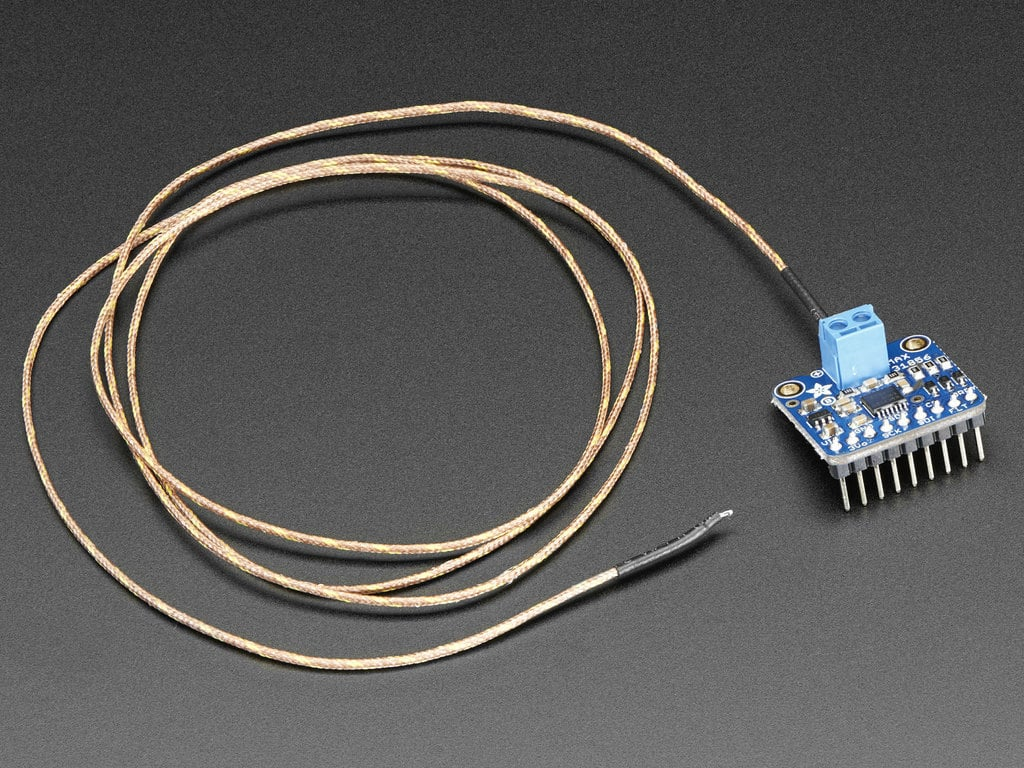
Thermocouple amplifier (MAX31856)
Code:
Use the Adafruit Max31856 library for Arduino.

Make sure you either use the hardware SPI pins for your microcontroller, or use software SPI and then you can use whatever pins you want but you must specify which pins you are using in the line: Adafruit_MAX31856 maxthermo = Adafruit_MAX31856(9, 10, 11, 12);. Also make sure to wire the positive thermocouple lead to the + terminal, which for a type K thermocouple is yellow (negative is red). For a Type T thermocouple, blue is + and red is negative. Red is always negative for these two, and you can remember that because red is an angry, negative emotion. Forget your intuition about red being positive from DC circuits. Type T and K thermocouples comprise 99% of the thermocouples available for checkout from the ITLL.
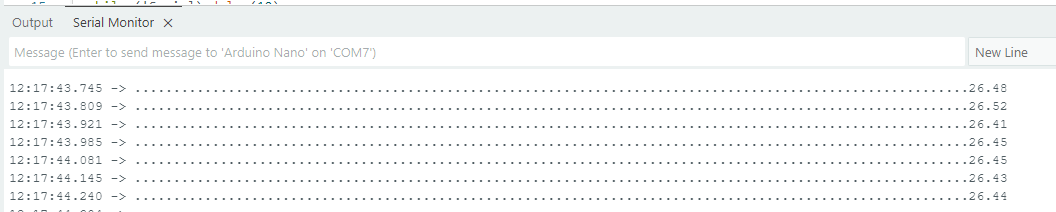
You should see this output (data are in Celsius):
You can also open Serial Plotter (ARD IDE 2.x: upper right corner, plot icon, ARD IDE 1.x: Tools-->Serial Plotter), which is nice (If you don't see data, comment out the "Serial.print(".") function so that you are only printing out numbers):

Troubleshooting
Problem 1: The output looked like this:

Solution 1: Change from hardware SPI to software SPI and specify the correct pins for CS, DI, DO, and CLK. And DRDY ("data ready" - this is the pin that is pulled low when the amplifier completes its operation and the chip is ready with temperature data for you).
Comment out line 11 and comment in line 9 (remember ctrl + ? is the hot key for commenting in/out one or multiple lines of code):

Change to:

Problem 2: When trying to upload edits, I got this annoying error (at least with an Arduino Nano)

Solution 2: Close Serial Monitor and try again. If that doesn't fix the problem, close and restart Arduino IDE.
Problem 3: Everything worked one day, then the next day, on the same computer, etc - the code wouldn't upload and I got this nasty long error message (open dropdown):
yikes
C:\Users\clpo1571\AppData\Local\arduino\sketches\20A885DA607E1CD1BE80325411DFD77C\libraries\Adafruit_BusIO\Adafruit_BusIO_Register.cpp.o (symbol from plugin): In function `Adafruit_BusIO_Register::Adafruit_BusIO_Register(Adafruit_I2CDevice*, unsigned int, unsigned char, unsigned char, unsigned char)':
(.text+0x0): multiple definition of `Adafruit_BusIO_Register::Adafruit_BusIO_Register(Adafruit_I2CDevice*, unsigned int, unsigned char, unsigned char, unsigned char)'
C:\Users\clpo1571\AppData\Local\arduino\sketches\20A885DA607E1CD1BE80325411DFD77C\libraries\Adafruit_BusIO\Adafruit_BusIO_Register - Copy.cpp.o (symbol from plugin):(.text+0x0): first defined here
C:\Users\clpo1571\AppData\Local\arduino\sketches\20A885DA607E1CD1BE80325411DFD77C\libraries\Adafruit_BusIO\Adafruit_BusIO_Register.cpp.o (symbol from plugin): In function `Adafruit_BusIO_Register::Adafruit_BusIO_Register(Adafruit_I2CDevice*, unsigned int, unsigned char, unsigned char, unsigned char)':
(.text+0x0): multiple definition of `Adafruit_BusIO_Register::Adafruit_BusIO_Register(Adafruit_I2CDevice*, unsigned int, unsigned char, unsigned char, unsigned char)'
C:\Users\clpo1571\AppData\Local\arduino\sketches\20A885DA607E1CD1BE80325411DFD77C\libraries\Adafruit_BusIO\Adafruit_BusIO_Register - Copy.cpp.o (symbol from plugin):(.text+0x0): first defined here
C:\Users\clpo1571\AppData\Local\arduino\sketches\20A885DA607E1CD1BE80325411DFD77C\libraries\Adafruit_BusIO\Adafruit_BusIO_Register.cpp.o (symbol from plugin): In function `Adafruit_BusIO_Register::Adafruit_BusIO_Register(Adafruit_I2CDevice*, unsigned int, unsigned char, unsigned char, unsigned char)':
(.text+0x0): multiple definition of `Adafruit_BusIO_Register::Adafruit_BusIO_Register(Adafruit_SPIDevice*, unsigned int, _Adafruit_BusIO_SPIRegType, unsigned char, unsigned char, unsigned char)'
C:\Users\clpo1571\AppData\Local\arduino\sketches\20A885DA607E1CD1BE80325411DFD77C\libraries\Adafruit_BusIO\Adafruit_BusIO_Register - Copy.cpp.o (symbol from plugin):(.text+0x0): first defined here
C:\Users\clpo1571\AppData\Local\arduino\sketches\20A885DA607E1CD1BE80325411DFD77C\libraries\Adafruit_BusIO\Adafruit_BusIO_Register.cpp.o (symbol from plugin): In function `Adafruit_BusIO_Register::Adafruit_BusIO_Register(Adafruit_I2CDevice*, unsigned int, unsigned char, unsigned char, unsigned char)':
(.text+0x0): multiple definition of `Adafruit_BusIO_Register::Adafruit_BusIO_Register(Adafruit_SPIDevice*, unsigned int, _Adafruit_BusIO_SPIRegType, unsigned char, unsigned char, unsigned char)'
C:\Users\clpo1571\AppData\Local\arduino\sketches\20A885DA607E1CD1BE80325411DFD77C\libraries\Adafruit_BusIO\Adafruit_BusIO_Register - Copy.cpp.o (symbol from plugin):(.text+0x0): first defined here
C:\Users\clpo1571\AppData\Local\arduino\sketches\20A885DA607E1CD1BE80325411DFD77C\libraries\Adafruit_BusIO\Adafruit_BusIO_Register.cpp.o (symbol from plugin): In function `Adafruit_BusIO_Register::Adafruit_BusIO_Register(Adafruit_I2CDevice*, unsigned int, unsigned char, unsigned char, unsigned char)':
(.text+0x0): multiple definition of `Adafruit_BusIO_Register::Adafruit_BusIO_Register(Adafruit_I2CDevice*, Adafruit_SPIDevice*, _Adafruit_BusIO_SPIRegType, unsigned int, unsigned char, unsigned char, unsigned char)'
C:\Users\clpo1571\AppData\Local\arduino\sketches\20A885DA607E1CD1BE80325411DFD77C\libraries\Adafruit_BusIO\Adafruit_BusIO_Register - Copy.cpp.o (symbol from plugin):(.text+0x0): first defined here
C:\Users\clpo1571\AppData\Local\arduino\sketches\20A885DA607E1CD1BE80325411DFD77C\libraries\Adafruit_BusIO\Adafruit_BusIO_Register.cpp.o (symbol from plugin): In function `Adafruit_BusIO_Register::Adafruit_BusIO_Register(Adafruit_I2CDevice*, unsigned int, unsigned char, unsigned char, unsigned char)':
(.text+0x0): multiple definition of `Adafruit_BusIO_Register::Adafruit_BusIO_Register(Adafruit_I2CDevice*, Adafruit_SPIDevice*, _Adafruit_BusIO_SPIRegType, unsigned int, unsigned char, unsigned char, unsigned char)'
C:\Users\clpo1571\AppData\Local\arduino\sketches\20A885DA607E1CD1BE80325411DFD77C\libraries\Adafruit_BusIO\Adafruit_BusIO_Register - Copy.cpp.o (symbol from plugin):(.text+0x0): first defined here
C:\Users\clpo1571\AppData\Local\arduino\sketches\20A885DA607E1CD1BE80325411DFD77C\libraries\Adafruit_BusIO\Adafruit_BusIO_Register.cpp.o (symbol from plugin): In function `Adafruit_BusIO_Register::Adafruit_BusIO_Register(Adafruit_I2CDevice*, unsigned int, unsigned char, unsigned char, unsigned char)':
(.text+0x0): multiple definition of `Adafruit_BusIO_Register::Adafruit_BusIO_Register(Adafruit_GenericDevice*, unsigned int, unsigned char, unsigned char, unsigned char)'
C:\Users\clpo1571\AppData\Local\arduino\sketches\20A885DA607E1CD1BE80325411DFD77C\libraries\Adafruit_BusIO\Adafruit_BusIO_Register - Copy.cpp.o (symbol from plugin):(.text+0x0): first defined here
C:\Users\clpo1571\AppData\Local\arduino\sketches\20A885DA607E1CD1BE80325411DFD77C\libraries\Adafruit_BusIO\Adafruit_BusIO_Register.cpp.o (symbol from plugin): In function `Adafruit_BusIO_Register::Adafruit_BusIO_Register(Adafruit_I2CDevice*, unsigned int, unsigned char, unsigned char, unsigned char)':
(.text+0x0): multiple definition of `Adafruit_BusIO_Register::Adafruit_BusIO_Register(Adafruit_GenericDevice*, unsigned int, unsigned char, unsigned char, unsigned char)'
C:\Users\clpo1571\AppData\Local\arduino\sketches\20A885DA607E1CD1BE80325411DFD77C\libraries\Adafruit_BusIO\Adafruit_BusIO_Register - Copy.cpp.o (symbol from plugin):(.text+0x0): first defined here
C:\Users\clpo1571\AppData\Local\arduino\sketches\20A885DA607E1CD1BE80325411DFD77C\libraries\Adafruit_BusIO\Adafruit_BusIO_Register.cpp.o (symbol from plugin): In function `Adafruit_BusIO_Register::Adafruit_BusIO_Register(Adafruit_I2CDevice*, unsigned int, unsigned char, unsigned char, unsigned char)':
(.text+0x0): multiple definition of `Adafruit_BusIO_Register::write(unsigned char*, unsigned char)'
C:\Users\clpo1571\AppData\Local\arduino\sketches\20A885DA607E1CD1BE80325411DFD77C\libraries\Adafruit_BusIO\Adafruit_BusIO_Register - Copy.cpp.o (symbol from plugin):(.text+0x0): first defined here
C:\Users\clpo1571\AppData\Local\arduino\sketches\20A885DA607E1CD1BE80325411DFD77C\libraries\Adafruit_BusIO\Adafruit_BusIO_Register.cpp.o (symbol from plugin): In function `Adafruit_BusIO_Register::Adafruit_BusIO_Register(Adafruit_I2CDevice*, unsigned int, unsigned char, unsigned char, unsigned char)':
(.text+0x0): multiple definition of `Adafruit_BusIO_Register::write(unsigned long, unsigned char)'
C:\Users\clpo1571\AppData\Local\arduino\sketches\20A885DA607E1CD1BE80325411DFD77C\libraries\Adafruit_BusIO\Adafruit_BusIO_Register - Copy.cpp.o (symbol from plugin):(.text+0x0): first defined here
C:\Users\clpo1571\AppData\Local\arduino\sketches\20A885DA607E1CD1BE80325411DFD77C\libraries\Adafruit_BusIO\Adafruit_BusIO_Register.cpp.o (symbol from plugin): In function `Adafruit_BusIO_Register::Adafruit_BusIO_Register(Adafruit_I2CDevice*, unsigned int, unsigned char, unsigned char, unsigned char)':
(.text+0x0): multiple definition of `Adafruit_BusIO_Register::readCached()'
C:\Users\clpo1571\AppData\Local\arduino\sketches\20A885DA607E1CD1BE80325411DFD77C\libraries\Adafruit_BusIO\Adafruit_BusIO_Register - Copy.cpp.o (symbol from plugin):(.text+0x0): first defined here
C:\Users\clpo1571\AppData\Local\arduino\sketches\20A885DA607E1CD1BE80325411DFD77C\libraries\Adafruit_BusIO\Adafruit_BusIO_Register.cpp.o (symbol from plugin): In function `Adafruit_BusIO_Register::Adafruit_BusIO_Register(Adafruit_I2CDevice*, unsigned int, unsigned char, unsigned char, unsigned char)':
(.text+0x0): multiple definition of `Adafruit_BusIO_Register::read(unsigned char*, unsigned char)'
C:\Users\clpo1571\AppData\Local\arduino\sketches\20A885DA607E1CD1BE80325411DFD77C\libraries\Adafruit_BusIO\Adafruit_BusIO_Register - Copy.cpp.o (symbol from plugin):(.text+0x0): first defined here
C:\Users\clpo1571\AppData\Local\arduino\sketches\20A885DA607E1CD1BE80325411DFD77C\libraries\Adafruit_BusIO\Adafruit_BusIO_Register.cpp.o (symbol from plugin): In function `Adafruit_BusIO_Register::Adafruit_BusIO_Register(Adafruit_I2CDevice*, unsigned int, unsigned char, unsigned char, unsigned char)':
(.text+0x0): multiple definition of `Adafruit_BusIO_Register::read()'
C:\Users\clpo1571\AppData\Local\arduino\sketches\20A885DA607E1CD1BE80325411DFD77C\libraries\Adafruit_BusIO\Adafruit_BusIO_Register - Copy.cpp.o (symbol from plugin):(.text+0x0): first defined here
C:\Users\clpo1571\AppData\Local\arduino\sketches\20A885DA607E1CD1BE80325411DFD77C\libraries\Adafruit_BusIO\Adafruit_BusIO_Register.cpp.o (symbol from plugin): In function `Adafruit_BusIO_Register::Adafruit_BusIO_Register(Adafruit_I2CDevice*, unsigned int, unsigned char, unsigned char, unsigned char)':
(.text+0x0): multiple definition of `Adafruit_BusIO_Register::read(unsigned int*)'
C:\Users\clpo1571\AppData\Local\arduino\sketches\20A885DA607E1CD1BE80325411DFD77C\libraries\Adafruit_BusIO\Adafruit_BusIO_Register - Copy.cpp.o (symbol from plugin):(.text+0x0): first defined here
C:\Users\clpo1571\AppData\Local\arduino\sketches\20A885DA607E1CD1BE80325411DFD77C\libraries\Adafruit_BusIO\Adafruit_BusIO_Register.cpp.o (symbol from plugin): In function `Adafruit_BusIO_Register::Adafruit_BusIO_Register(Adafruit_I2CDevice*, unsigned int, unsigned char, unsigned char, unsigned char)':
(.text+0x0): multiple definition of `Adafruit_BusIO_Register::read(unsigned char*)'
C:\Users\clpo1571\AppData\Local\arduino\sketches\20A885DA607E1CD1BE80325411DFD77C\libraries\Adafruit_BusIO\Adafruit_BusIO_Register - Copy.cpp.o (symbol from plugin):(.text+0x0): first defined here
C:\Users\clpo1571\AppData\Local\arduino\sketches\20A885DA607E1CD1BE80325411DFD77C\libraries\Adafruit_BusIO\Adafruit_BusIO_Register.cpp.o (symbol from plugin): In function `Adafruit_BusIO_Register::Adafruit_BusIO_Register(Adafruit_I2CDevice*, unsigned int, unsigned char, unsigned char, unsigned char)':
(.text+0x0): multiple definition of `Adafruit_BusIO_Register::print(Stream*)'
C:\Users\clpo1571\AppData\Local\arduino\sketches\20A885DA607E1CD1BE80325411DFD77C\libraries\Adafruit_BusIO\Adafruit_BusIO_Register - Copy.cpp.o (symbol from plugin):(.text+0x0): first defined here
C:\Users\clpo1571\AppData\Local\arduino\sketches\20A885DA607E1CD1BE80325411DFD77C\libraries\Adafruit_BusIO\Adafruit_BusIO_Register.cpp.o (symbol from plugin): In function `Adafruit_BusIO_Register::Adafruit_BusIO_Register(Adafruit_I2CDevice*, unsigned int, unsigned char, unsigned char, unsigned char)':
(.text+0x0): multiple definition of `Adafruit_BusIO_Register::println(Stream*)'
C:\Users\clpo1571\AppData\Local\arduino\sketches\20A885DA607E1CD1BE80325411DFD77C\libraries\Adafruit_BusIO\Adafruit_BusIO_Register - Copy.cpp.o (symbol from plugin):(.text+0x0): first defined here
C:\Users\clpo1571\AppData\Local\arduino\sketches\20A885DA607E1CD1BE80325411DFD77C\libraries\Adafruit_BusIO\Adafruit_BusIO_Register.cpp.o (symbol from plugin): In function `Adafruit_BusIO_Register::Adafruit_BusIO_Register(Adafruit_I2CDevice*, unsigned int, unsigned char, unsigned char, unsigned char)':
(.text+0x0): multiple definition of `Adafruit_BusIO_RegisterBits::Adafruit_BusIO_RegisterBits(Adafruit_BusIO_Register*, unsigned char, unsigned char)'
C:\Users\clpo1571\AppData\Local\arduino\sketches\20A885DA607E1CD1BE80325411DFD77C\libraries\Adafruit_BusIO\Adafruit_BusIO_Register - Copy.cpp.o (symbol from plugin):(.text+0x0): first defined here
C:\Users\clpo1571\AppData\Local\arduino\sketches\20A885DA607E1CD1BE80325411DFD77C\libraries\Adafruit_BusIO\Adafruit_BusIO_Register.cpp.o (symbol from plugin): In function `Adafruit_BusIO_Register::Adafruit_BusIO_Register(Adafruit_I2CDevice*, unsigned int, unsigned char, unsigned char, unsigned char)':
(.text+0x0): multiple definition of `Adafruit_BusIO_RegisterBits::Adafruit_BusIO_RegisterBits(Adafruit_BusIO_Register*, unsigned char, unsigned char)'
C:\Users\clpo1571\AppData\Local\arduino\sketches\20A885DA607E1CD1BE80325411DFD77C\libraries\Adafruit_BusIO\Adafruit_BusIO_Register - Copy.cpp.o (symbol from plugin):(.text+0x0): first defined here
C:\Users\clpo1571\AppData\Local\arduino\sketches\20A885DA607E1CD1BE80325411DFD77C\libraries\Adafruit_BusIO\Adafruit_BusIO_Register.cpp.o (symbol from plugin): In function `Adafruit_BusIO_Register::Adafruit_BusIO_Register(Adafruit_I2CDevice*, unsigned int, unsigned char, unsigned char, unsigned char)':
(.text+0x0): multiple definition of `Adafruit_BusIO_RegisterBits::read()'
C:\Users\clpo1571\AppData\Local\arduino\sketches\20A885DA607E1CD1BE80325411DFD77C\libraries\Adafruit_BusIO\Adafruit_BusIO_Register - Copy.cpp.o (symbol from plugin):(.text+0x0): first defined here
C:\Users\clpo1571\AppData\Local\arduino\sketches\20A885DA607E1CD1BE80325411DFD77C\libraries\Adafruit_BusIO\Adafruit_BusIO_Register.cpp.o (symbol from plugin): In function `Adafruit_BusIO_Register::Adafruit_BusIO_Register(Adafruit_I2CDevice*, unsigned int, unsigned char, unsigned char, unsigned char)':
(.text+0x0): multiple definition of `Adafruit_BusIO_RegisterBits::write(unsigned long)'
C:\Users\clpo1571\AppData\Local\arduino\sketches\20A885DA607E1CD1BE80325411DFD77C\libraries\Adafruit_BusIO\Adafruit_BusIO_Register - Copy.cpp.o (symbol from plugin):(.text+0x0): first defined here
C:\Users\clpo1571\AppData\Local\arduino\sketches\20A885DA607E1CD1BE80325411DFD77C\libraries\Adafruit_BusIO\Adafruit_BusIO_Register.cpp.o (symbol from plugin): In function `Adafruit_BusIO_Register::Adafruit_BusIO_Register(Adafruit_I2CDevice*, unsigned int, unsigned char, unsigned char, unsigned char)':
(.text+0x0): multiple definition of `Adafruit_BusIO_Register::width()'
C:\Users\clpo1571\AppData\Local\arduino\sketches\20A885DA607E1CD1BE80325411DFD77C\libraries\Adafruit_BusIO\Adafruit_BusIO_Register - Copy.cpp.o (symbol from plugin):(.text+0x0): first defined here
C:\Users\clpo1571\AppData\Local\arduino\sketches\20A885DA607E1CD1BE80325411DFD77C\libraries\Adafruit_BusIO\Adafruit_BusIO_Register.cpp.o (symbol from plugin): In function `Adafruit_BusIO_Register::Adafruit_BusIO_Register(Adafruit_I2CDevice*, unsigned int, unsigned char, unsigned char, unsigned char)':
(.text+0x0): multiple definition of `Adafruit_BusIO_Register::setWidth(unsigned char)'
C:\Users\clpo1571\AppData\Local\arduino\sketches\20A885DA607E1CD1BE80325411DFD77C\libraries\Adafruit_BusIO\Adafruit_BusIO_Register - Copy.cpp.o (symbol from plugin):(.text+0x0): first defined here
C:\Users\clpo1571\AppData\Local\arduino\sketches\20A885DA607E1CD1BE80325411DFD77C\libraries\Adafruit_BusIO\Adafruit_BusIO_Register.cpp.o (symbol from plugin): In function `Adafruit_BusIO_Register::Adafruit_BusIO_Register(Adafruit_I2CDevice*, unsigned int, unsigned char, unsigned char, unsigned char)':
(.text+0x0): multiple definition of `Adafruit_BusIO_Register::setAddress(unsigned int)'
C:\Users\clpo1571\AppData\Local\arduino\sketches\20A885DA607E1CD1BE80325411DFD77C\libraries\Adafruit_BusIO\Adafruit_BusIO_Register - Copy.cpp.o (symbol from plugin):(.text+0x0): first defined here
C:\Users\clpo1571\AppData\Local\arduino\sketches\20A885DA607E1CD1BE80325411DFD77C\libraries\Adafruit_BusIO\Adafruit_BusIO_Register.cpp.o (symbol from plugin): In function `Adafruit_BusIO_Register::Adafruit_BusIO_Register(Adafruit_I2CDevice*, unsigned int, unsigned char, unsigned char, unsigned char)':
(.text+0x0): multiple definition of `Adafruit_BusIO_Register::setAddressWidth(unsigned int)'
C:\Users\clpo1571\AppData\Local\arduino\sketches\20A885DA607E1CD1BE80325411DFD77C\libraries\Adafruit_BusIO\Adafruit_BusIO_Register - Copy.cpp.o (symbol from plugin):(.text+0x0): first defined here
C:\Users\clpo1571\AppData\Local\arduino\sketches\20A885DA607E1CD1BE80325411DFD77C\libraries\Adafruit_BusIO\Adafruit_GenericDevice.cpp.o (symbol from plugin): In function `Adafruit_GenericDevice::Adafruit_GenericDevice(void*, bool (*)(void*, unsigned char*, unsigned int), bool (*)(void*, unsigned char const*, unsigned int), bool (*)(void*, unsigned char*, unsigned char, unsigned char*, unsigned int), bool (*)(void*, unsigned char*, unsigned char, unsigned char const*, unsigned int))':
(.text+0x0): multiple definition of `Adafruit_GenericDevice::Adafruit_GenericDevice(void*, bool (*)(void*, unsigned char*, unsigned int), bool (*)(void*, unsigned char const*, unsigned int), bool (*)(void*, unsigned char*, unsigned char, unsigned char*, unsigned int), bool (*)(void*, unsigned char*, unsigned char, unsigned char const*, unsigned int))'
C:\Users\clpo1571\AppData\Local\arduino\sketches\20A885DA607E1CD1BE80325411DFD77C\libraries\Adafruit_BusIO\Adafruit_GenericDevice - Copy.cpp.o (symbol from plugin):(.text+0x0): first defined here
C:\Users\clpo1571\AppData\Local\arduino\sketches\20A885DA607E1CD1BE80325411DFD77C\libraries\Adafruit_BusIO\Adafruit_GenericDevice.cpp.o (symbol from plugin): In function `Adafruit_GenericDevice::Adafruit_GenericDevice(void*, bool (*)(void*, unsigned char*, unsigned int), bool (*)(void*, unsigned char const*, unsigned int), bool (*)(void*, unsigned char*, unsigned char, unsigned char*, unsigned int), bool (*)(void*, unsigned char*, unsigned char, unsigned char const*, unsigned int))':
(.text+0x0): multiple definition of `Adafruit_GenericDevice::Adafruit_GenericDevice(void*, bool (*)(void*, unsigned char*, unsigned int), bool (*)(void*, unsigned char const*, unsigned int), bool (*)(void*, unsigned char*, unsigned char, unsigned char*, unsigned int), bool (*)(void*, unsigned char*, unsigned char, unsigned char const*, unsigned int))'
C:\Users\clpo1571\AppData\Local\arduino\sketches\20A885DA607E1CD1BE80325411DFD77C\libraries\Adafruit_BusIO\Adafruit_GenericDevice - Copy.cpp.o (symbol from plugin):(.text+0x0): first defined here
C:\Users\clpo1571\AppData\Local\arduino\sketches\20A885DA607E1CD1BE80325411DFD77C\libraries\Adafruit_BusIO\Adafruit_GenericDevice.cpp.o (symbol from plugin): In function `Adafruit_GenericDevice::Adafruit_GenericDevice(void*, bool (*)(void*, unsigned char*, unsigned int), bool (*)(void*, unsigned char const*, unsigned int), bool (*)(void*, unsigned char*, unsigned char, unsigned char*, unsigned int), bool (*)(void*, unsigned char*, unsigned char, unsigned char const*, unsigned int))':
(.text+0x0): multiple definition of `Adafruit_GenericDevice::begin()'
C:\Users\clpo1571\AppData\Local\arduino\sketches\20A885DA607E1CD1BE80325411DFD77C\libraries\Adafruit_BusIO\Adafruit_GenericDevice - Copy.cpp.o (symbol from plugin):(.text+0x0): first defined here
C:\Users\clpo1571\AppData\Local\arduino\sketches\20A885DA607E1CD1BE80325411DFD77C\libraries\Adafruit_BusIO\Adafruit_GenericDevice.cpp.o (symbol from plugin): In function `Adafruit_GenericDevice::Adafruit_GenericDevice(void*, bool (*)(void*, unsigned char*, unsigned int), bool (*)(void*, unsigned char const*, unsigned int), bool (*)(void*, unsigned char*, unsigned char, unsigned char*, unsigned int), bool (*)(void*, unsigned char*, unsigned char, unsigned char const*, unsigned int))':
(.text+0x0): multiple definition of `Adafruit_GenericDevice::end()'
C:\Users\clpo1571\AppData\Local\arduino\sketches\20A885DA607E1CD1BE80325411DFD77C\libraries\Adafruit_BusIO\Adafruit_GenericDevice - Copy.cpp.o (symbol from plugin):(.text+0x0): first defined here
C:\Users\clpo1571\AppData\Local\arduino\sketches\20A885DA607E1CD1BE80325411DFD77C\libraries\Adafruit_BusIO\Adafruit_GenericDevice.cpp.o (symbol from plugin): In function `Adafruit_GenericDevice::Adafruit_GenericDevice(void*, bool (*)(void*, unsigned char*, unsigned int), bool (*)(void*, unsigned char const*, unsigned int), bool (*)(void*, unsigned char*, unsigned char, unsigned char*, unsigned int), bool (*)(void*, unsigned char*, unsigned char, unsigned char const*, unsigned int))':
(.text+0x0): multiple definition of `Adafruit_GenericDevice::write(unsigned char const*, unsigned int)'
C:\Users\clpo1571\AppData\Local\arduino\sketches\20A885DA607E1CD1BE80325411DFD77C\libraries\Adafruit_BusIO\Adafruit_GenericDevice - Copy.cpp.o (symbol from plugin):(.text+0x0): first defined here
C:\Users\clpo1571\AppData\Local\arduino\sketches\20A885DA607E1CD1BE80325411DFD77C\libraries\Adafruit_BusIO\Adafruit_GenericDevice.cpp.o (symbol from plugin): In function `Adafruit_GenericDevice::Adafruit_GenericDevice(void*, bool (*)(void*, unsigned char*, unsigned int), bool (*)(void*, unsigned char const*, unsigned int), bool (*)(void*, unsigned char*, unsigned char, unsigned char*, unsigned int), bool (*)(void*, unsigned char*, unsigned char, unsigned char const*, unsigned int))':
(.text+0x0): multiple definition of `Adafruit_GenericDevice::read(unsigned char*, unsigned int)'
C:\Users\clpo1571\AppData\Local\arduino\sketches\20A885DA607E1CD1BE80325411DFD77C\libraries\Adafruit_BusIO\Adafruit_GenericDevice - Copy.cpp.o (symbol from plugin):(.text+0x0): first defined here
C:\Users\clpo1571\AppData\Local\arduino\sketches\20A885DA607E1CD1BE80325411DFD77C\libraries\Adafruit_BusIO\Adafruit_GenericDevice.cpp.o (symbol from plugin): In function `Adafruit_GenericDevice::Adafruit_GenericDevice(void*, bool (*)(void*, unsigned char*, unsigned int), bool (*)(void*, unsigned char const*, unsigned int), bool (*)(void*, unsigned char*, unsigned char, unsigned char*, unsigned int), bool (*)(void*, unsigned char*, unsigned char, unsigned char const*, unsigned int))':
(.text+0x0): multiple definition of `Adafruit_GenericDevice::readRegister(unsigned char*, unsigned char, unsigned char*, unsigned int)'
C:\Users\clpo1571\AppData\Local\arduino\sketches\20A885DA607E1CD1BE80325411DFD77C\libraries\Adafruit_BusIO\Adafruit_GenericDevice - Copy.cpp.o (symbol from plugin):(.text+0x0): first defined here
C:\Users\clpo1571\AppData\Local\arduino\sketches\20A885DA607E1CD1BE80325411DFD77C\libraries\Adafruit_BusIO\Adafruit_GenericDevice.cpp.o (symbol from plugin): In function `Adafruit_GenericDevice::Adafruit_GenericDevice(void*, bool (*)(void*, unsigned char*, unsigned int), bool (*)(void*, unsigned char const*, unsigned int), bool (*)(void*, unsigned char*, unsigned char, unsigned char*, unsigned int), bool (*)(void*, unsigned char*, unsigned char, unsigned char const*, unsigned int))':
(.text+0x0): multiple definition of `Adafruit_GenericDevice::writeRegister(unsigned char*, unsigned char, unsigned char const*, unsigned int)'
C:\Users\clpo1571\AppData\Local\arduino\sketches\20A885DA607E1CD1BE80325411DFD77C\libraries\Adafruit_BusIO\Adafruit_GenericDevice - Copy.cpp.o (symbol from plugin):(.text+0x0): first defined here
C:\Users\clpo1571\AppData\Local\arduino\sketches\20A885DA607E1CD1BE80325411DFD77C\libraries\Adafruit_BusIO\Adafruit_I2CDevice.cpp.o (symbol from plugin): In function `Adafruit_I2CDevice::Adafruit_I2CDevice(unsigned char, TwoWire*)':
(.text+0x0): multiple definition of `Adafruit_I2CDevice::Adafruit_I2CDevice(unsigned char, TwoWire*)'
C:\Users\clpo1571\AppData\Local\arduino\sketches\20A885DA607E1CD1BE80325411DFD77C\libraries\Adafruit_BusIO\Adafruit_I2CDevice - Copy.cpp.o (symbol from plugin):(.text+0x0): first defined here
C:\Users\clpo1571\AppData\Local\arduino\sketches\20A885DA607E1CD1BE80325411DFD77C\libraries\Adafruit_BusIO\Adafruit_I2CDevice.cpp.o (symbol from plugin): In function `Adafruit_I2CDevice::Adafruit_I2CDevice(unsigned char, TwoWire*)':
(.text+0x0): multiple definition of `Adafruit_I2CDevice::Adafruit_I2CDevice(unsigned char, TwoWire*)'
C:\Users\clpo1571\AppData\Local\arduino\sketches\20A885DA607E1CD1BE80325411DFD77C\libraries\Adafruit_BusIO\Adafruit_I2CDevice - Copy.cpp.o (symbol from plugin):(.text+0x0): first defined here
C:\Users\clpo1571\AppData\Local\arduino\sketches\20A885DA607E1CD1BE80325411DFD77C\libraries\Adafruit_BusIO\Adafruit_I2CDevice.cpp.o (symbol from plugin): In function `Adafruit_I2CDevice::Adafruit_I2CDevice(unsigned char, TwoWire*)':
(.text+0x0): multiple definition of `Adafruit_I2CDevice::end()'
C:\Users\clpo1571\AppData\Local\arduino\sketches\20A885DA607E1CD1BE80325411DFD77C\libraries\Adafruit_BusIO\Adafruit_I2CDevice - Copy.cpp.o (symbol from plugin):(.text+0x0): first defined here
C:\Users\clpo1571\AppData\Local\arduino\sketches\20A885DA607E1CD1BE80325411DFD77C\libraries\Adafruit_BusIO\Adafruit_I2CDevice.cpp.o (symbol from plugin): In function `Adafruit_I2CDevice::Adafruit_I2CDevice(unsigned char, TwoWire*)':
(.text+0x0): multiple definition of `Adafruit_I2CDevice::detected()'
C:\Users\clpo1571\AppData\Local\arduino\sketches\20A885DA607E1CD1BE80325411DFD77C\libraries\Adafruit_BusIO\Adafruit_I2CDevice - Copy.cpp.o (symbol from plugin):(.text+0x0): first defined here
C:\Users\clpo1571\AppData\Local\arduino\sketches\20A885DA607E1CD1BE80325411DFD77C\libraries\Adafruit_BusIO\Adafruit_I2CDevice.cpp.o (symbol from plugin): In function `Adafruit_I2CDevice::Adafruit_I2CDevice(unsigned char, TwoWire*)':
(.text+0x0): multiple definition of `Adafruit_I2CDevice::begin(bool)'
C:\Users\clpo1571\AppData\Local\arduino\sketches\20A885DA607E1CD1BE80325411DFD77C\libraries\Adafruit_BusIO\Adafruit_I2CDevice - Copy.cpp.o (symbol from plugin):(.text+0x0): first defined here
C:\Users\clpo1571\AppData\Local\arduino\sketches\20A885DA607E1CD1BE80325411DFD77C\libraries\Adafruit_BusIO\Adafruit_I2CDevice.cpp.o (symbol from plugin): In function `Adafruit_I2CDevice::Adafruit_I2CDevice(unsigned char, TwoWire*)':
(.text+0x0): multiple definition of `Adafruit_I2CDevice::write(unsigned char const*, unsigned int, bool, unsigned char const*, unsigned int)'
C:\Users\clpo1571\AppData\Local\arduino\sketches\20A885DA607E1CD1BE80325411DFD77C\libraries\Adafruit_BusIO\Adafruit_I2CDevice - Copy.cpp.o (symbol from plugin):(.text+0x0): first defined here
C:\Users\clpo1571\AppData\Local\arduino\sketches\20A885DA607E1CD1BE80325411DFD77C\libraries\Adafruit_BusIO\Adafruit_I2CDevice.cpp.o (symbol from plugin): In function `Adafruit_I2CDevice::Adafruit_I2CDevice(unsigned char, TwoWire*)':
(.text+0x0): multiple definition of `Adafruit_I2CDevice::_read(unsigned char*, unsigned int, bool)'
C:\Users\clpo1571\AppData\Local\arduino\sketches\20A885DA607E1CD1BE80325411DFD77C\libraries\Adafruit_BusIO\Adafruit_I2CDevice - Copy.cpp.o (symbol from plugin):(.text+0x0): first defined here
C:\Users\clpo1571\AppData\Local\arduino\sketches\20A885DA607E1CD1BE80325411DFD77C\libraries\Adafruit_BusIO\Adafruit_I2CDevice.cpp.o (symbol from plugin): In function `Adafruit_I2CDevice::Adafruit_I2CDevice(unsigned char, TwoWire*)':
(.text+0x0): multiple definition of `Adafruit_I2CDevice::read(unsigned char*, unsigned int, bool)'
C:\Users\clpo1571\AppData\Local\arduino\sketches\20A885DA607E1CD1BE80325411DFD77C\libraries\Adafruit_BusIO\Adafruit_I2CDevice - Copy.cpp.o (symbol from plugin):(.text+0x0): first defined here
C:\Users\clpo1571\AppData\Local\arduino\sketches\20A885DA607E1CD1BE80325411DFD77C\libraries\Adafruit_BusIO\Adafruit_I2CDevice.cpp.o (symbol from plugin): In function `Adafruit_I2CDevice::Adafruit_I2CDevice(unsigned char, TwoWire*)':
(.text+0x0): multiple definition of `Adafruit_I2CDevice::write_then_read(unsigned char const*, unsigned int, unsigned char*, unsigned int, bool)'
C:\Users\clpo1571\AppData\Local\arduino\sketches\20A885DA607E1CD1BE80325411DFD77C\libraries\Adafruit_BusIO\Adafruit_I2CDevice - Copy.cpp.o (symbol from plugin):(.text+0x0): first defined here
C:\Users\clpo1571\AppData\Local\arduino\sketches\20A885DA607E1CD1BE80325411DFD77C\libraries\Adafruit_BusIO\Adafruit_I2CDevice.cpp.o (symbol from plugin): In function `Adafruit_I2CDevice::Adafruit_I2CDevice(unsigned char, TwoWire*)':
(.text+0x0): multiple definition of `Adafruit_I2CDevice::address()'
C:\Users\clpo1571\AppData\Local\arduino\sketches\20A885DA607E1CD1BE80325411DFD77C\libraries\Adafruit_BusIO\Adafruit_I2CDevice - Copy.cpp.o (symbol from plugin):(.text+0x0): first defined here
C:\Users\clpo1571\AppData\Local\arduino\sketches\20A885DA607E1CD1BE80325411DFD77C\libraries\Adafruit_BusIO\Adafruit_I2CDevice.cpp.o (symbol from plugin): In function `Adafruit_I2CDevice::Adafruit_I2CDevice(unsigned char, TwoWire*)':
(.text+0x0): multiple definition of `Adafruit_I2CDevice::setSpeed(unsigned long)'
C:\Users\clpo1571\AppData\Local\arduino\sketches\20A885DA607E1CD1BE80325411DFD77C\libraries\Adafruit_BusIO\Adafruit_I2CDevice - Copy.cpp.o (symbol from plugin):(.text+0x0): first defined here
C:\Users\clpo1571\AppData\Local\arduino\sketches\20A885DA607E1CD1BE80325411DFD77C\libraries\Adafruit_BusIO\Adafruit_SPIDevice.cpp.o (symbol from plugin): In function `Adafruit_SPIDevice::Adafruit_SPIDevice(signed char, unsigned long, _BitOrder, unsigned char, SPIClass*)':
(.text+0x0): multiple definition of `Adafruit_SPIDevice::Adafruit_SPIDevice(signed char, unsigned long, _BitOrder, unsigned char, SPIClass*)'
C:\Users\clpo1571\AppData\Local\arduino\sketches\20A885DA607E1CD1BE80325411DFD77C\libraries\Adafruit_BusIO\Adafruit_SPIDevice - Copy.cpp.o (symbol from plugin):(.text+0x0): first defined here
C:\Users\clpo1571\AppData\Local\arduino\sketches\20A885DA607E1CD1BE80325411DFD77C\libraries\Adafruit_BusIO\Adafruit_SPIDevice.cpp.o (symbol from plugin): In function `Adafruit_SPIDevice::Adafruit_SPIDevice(signed char, unsigned long, _BitOrder, unsigned char, SPIClass*)':
(.text+0x0): multiple definition of `Adafruit_SPIDevice::Adafruit_SPIDevice(signed char, unsigned long, _BitOrder, unsigned char, SPIClass*)'
C:\Users\clpo1571\AppData\Local\arduino\sketches\20A885DA607E1CD1BE80325411DFD77C\libraries\Adafruit_BusIO\Adafruit_SPIDevice - Copy.cpp.o (symbol from plugin):(.text+0x0): first defined here
C:\Users\clpo1571\AppData\Local\arduino\sketches\20A885DA607E1CD1BE80325411DFD77C\libraries\Adafruit_BusIO\Adafruit_SPIDevice.cpp.o (symbol from plugin): In function `Adafruit_SPIDevice::Adafruit_SPIDevice(signed char, unsigned long, _BitOrder, unsigned char, SPIClass*)':
(.text+0x0): multiple definition of `Adafruit_SPIDevice::Adafruit_SPIDevice(signed char, signed char, signed char, signed char, unsigned long, _BitOrder, unsigned char)'
C:\Users\clpo1571\AppData\Local\arduino\sketches\20A885DA607E1CD1BE80325411DFD77C\libraries\Adafruit_BusIO\Adafruit_SPIDevice - Copy.cpp.o (symbol from plugin):(.text+0x0): first defined here
C:\Users\clpo1571\AppData\Local\arduino\sketches\20A885DA607E1CD1BE80325411DFD77C\libraries\Adafruit_BusIO\Adafruit_SPIDevice.cpp.o (symbol from plugin): In function `Adafruit_SPIDevice::Adafruit_SPIDevice(signed char, unsigned long, _BitOrder, unsigned char, SPIClass*)':
(.text+0x0): multiple definition of `Adafruit_SPIDevice::Adafruit_SPIDevice(signed char, signed char, signed char, signed char, unsigned long, _BitOrder, unsigned char)'
C:\Users\clpo1571\AppData\Local\arduino\sketches\20A885DA607E1CD1BE80325411DFD77C\libraries\Adafruit_BusIO\Adafruit_SPIDevice - Copy.cpp.o (symbol from plugin):(.text+0x0): first defined here
C:\Users\clpo1571\AppData\Local\arduino\sketches\20A885DA607E1CD1BE80325411DFD77C\libraries\Adafruit_BusIO\Adafruit_SPIDevice.cpp.o (symbol from plugin): In function `Adafruit_SPIDevice::Adafruit_SPIDevice(signed char, unsigned long, _BitOrder, unsigned char, SPIClass*)':
(.text+0x0): multiple definition of `Adafruit_SPIDevice::~Adafruit_SPIDevice()'
C:\Users\clpo1571\AppData\Local\arduino\sketches\20A885DA607E1CD1BE80325411DFD77C\libraries\Adafruit_BusIO\Adafruit_SPIDevice - Copy.cpp.o (symbol from plugin):(.text+0x0): first defined here
C:\Users\clpo1571\AppData\Local\arduino\sketches\20A885DA607E1CD1BE80325411DFD77C\libraries\Adafruit_BusIO\Adafruit_SPIDevice.cpp.o (symbol from plugin): In function `Adafruit_SPIDevice::Adafruit_SPIDevice(signed char, unsigned long, _BitOrder, unsigned char, SPIClass*)':
(.text+0x0): multiple definition of `Adafruit_SPIDevice::~Adafruit_SPIDevice()'
C:\Users\clpo1571\AppData\Local\arduino\sketches\20A885DA607E1CD1BE80325411DFD77C\libraries\Adafruit_BusIO\Adafruit_SPIDevice - Copy.cpp.o (symbol from plugin):(.text+0x0): first defined here
C:\Users\clpo1571\AppData\Local\arduino\sketches\20A885DA607E1CD1BE80325411DFD77C\libraries\Adafruit_BusIO\Adafruit_SPIDevice.cpp.o (symbol from plugin): In function `Adafruit_SPIDevice::Adafruit_SPIDevice(signed char, unsigned long, _BitOrder, unsigned char, SPIClass*)':
(.text+0x0): multiple definition of `Adafruit_SPIDevice::begin()'
C:\Users\clpo1571\AppData\Local\arduino\sketches\20A885DA607E1CD1BE80325411DFD77C\libraries\Adafruit_BusIO\Adafruit_SPIDevice - Copy.cpp.o (symbol from plugin):(.text+0x0): first defined here
C:\Users\clpo1571\AppData\Local\arduino\sketches\20A885DA607E1CD1BE80325411DFD77C\libraries\Adafruit_BusIO\Adafruit_SPIDevice.cpp.o (symbol from plugin): In function `Adafruit_SPIDevice::Adafruit_SPIDevice(signed char, unsigned long, _BitOrder, unsigned char, SPIClass*)':
(.text+0x0): multiple definition of `Adafruit_SPIDevice::transfer(unsigned char*, unsigned int)'
C:\Users\clpo1571\AppData\Local\arduino\sketches\20A885DA607E1CD1BE80325411DFD77C\libraries\Adafruit_BusIO\Adafruit_SPIDevice - Copy.cpp.o (symbol from plugin):(.text+0x0): first defined here
C:\Users\clpo1571\AppData\Local\arduino\sketches\20A885DA607E1CD1BE80325411DFD77C\libraries\Adafruit_BusIO\Adafruit_SPIDevice.cpp.o (symbol from plugin): In function `Adafruit_SPIDevice::Adafruit_SPIDevice(signed char, unsigned long, _BitOrder, unsigned char, SPIClass*)':
(.text+0x0): multiple definition of `Adafruit_SPIDevice::transfer(unsigned char)'
C:\Users\clpo1571\AppData\Local\arduino\sketches\20A885DA607E1CD1BE80325411DFD77C\libraries\Adafruit_BusIO\Adafruit_SPIDevice - Copy.cpp.o (symbol from plugin):(.text+0x0): first defined here
C:\Users\clpo1571\AppData\Local\arduino\sketches\20A885DA607E1CD1BE80325411DFD77C\libraries\Adafruit_BusIO\Adafruit_SPIDevice.cpp.o (symbol from plugin): In function `Adafruit_SPIDevice::Adafruit_SPIDevice(signed char, unsigned long, _BitOrder, unsigned char, SPIClass*)':
(.text+0x0): multiple definition of `Adafruit_SPIDevice::beginTransaction()'
C:\Users\clpo1571\AppData\Local\arduino\sketches\20A885DA607E1CD1BE80325411DFD77C\libraries\Adafruit_BusIO\Adafruit_SPIDevice - Copy.cpp.o (symbol from plugin):(.text+0x0): first defined here
C:\Users\clpo1571\AppData\Local\arduino\sketches\20A885DA607E1CD1BE80325411DFD77C\libraries\Adafruit_BusIO\Adafruit_SPIDevice.cpp.o (symbol from plugin): In function `Adafruit_SPIDevice::Adafruit_SPIDevice(signed char, unsigned long, _BitOrder, unsigned char, SPIClass*)':
(.text+0x0): multiple definition of `Adafruit_SPIDevice::endTransaction()'
C:\Users\clpo1571\AppData\Local\arduino\sketches\20A885DA607E1CD1BE80325411DFD77C\libraries\Adafruit_BusIO\Adafruit_SPIDevice - Copy.cpp.o (symbol from plugin):(.text+0x0): first defined here
C:\Users\clpo1571\AppData\Local\arduino\sketches\20A885DA607E1CD1BE80325411DFD77C\libraries\Adafruit_BusIO\Adafruit_SPIDevice.cpp.o (symbol from plugin): In function `Adafruit_SPIDevice::Adafruit_SPIDevice(signed char, unsigned long, _BitOrder, unsigned char, SPIClass*)':
(.text+0x0): multiple definition of `Adafruit_SPIDevice::setChipSelect(int)'
C:\Users\clpo1571\AppData\Local\arduino\sketches\20A885DA607E1CD1BE80325411DFD77C\libraries\Adafruit_BusIO\Adafruit_SPIDevice - Copy.cpp.o (symbol from plugin):(.text+0x0): first defined here
C:\Users\clpo1571\AppData\Local\arduino\sketches\20A885DA607E1CD1BE80325411DFD77C\libraries\Adafruit_BusIO\Adafruit_SPIDevice.cpp.o (symbol from plugin): In function `Adafruit_SPIDevice::Adafruit_SPIDevice(signed char, unsigned long, _BitOrder, unsigned char, SPIClass*)':
(.text+0x0): multiple definition of `Adafruit_SPIDevice::beginTransactionWithAssertingCS()'
C:\Users\clpo1571\AppData\Local\arduino\sketches\20A885DA607E1CD1BE80325411DFD77C\libraries\Adafruit_BusIO\Adafruit_SPIDevice - Copy.cpp.o (symbol from plugin):(.text+0x0): first defined here
C:\Users\clpo1571\AppData\Local\arduino\sketches\20A885DA607E1CD1BE80325411DFD77C\libraries\Adafruit_BusIO\Adafruit_SPIDevice.cpp.o (symbol from plugin): In function `Adafruit_SPIDevice::Adafruit_SPIDevice(signed char, unsigned long, _BitOrder, unsigned char, SPIClass*)':
(.text+0x0): multiple definition of `Adafruit_SPIDevice::endTransactionWithDeassertingCS()'
C:\Users\clpo1571\AppData\Local\arduino\sketches\20A885DA607E1CD1BE80325411DFD77C\libraries\Adafruit_BusIO\Adafruit_SPIDevice - Copy.cpp.o (symbol from plugin):(.text+0x0): first defined here
C:\Users\clpo1571\AppData\Local\arduino\sketches\20A885DA607E1CD1BE80325411DFD77C\libraries\Adafruit_BusIO\Adafruit_SPIDevice.cpp.o (symbol from plugin): In function `Adafruit_SPIDevice::Adafruit_SPIDevice(signed char, unsigned long, _BitOrder, unsigned char, SPIClass*)':
(.text+0x0): multiple definition of `Adafruit_SPIDevice::write(unsigned char const*, unsigned int, unsigned char const*, unsigned int)'
C:\Users\clpo1571\AppData\Local\arduino\sketches\20A885DA607E1CD1BE80325411DFD77C\libraries\Adafruit_BusIO\Adafruit_SPIDevice - Copy.cpp.o (symbol from plugin):(.text+0x0): first defined here
C:\Users\clpo1571\AppData\Local\arduino\sketches\20A885DA607E1CD1BE80325411DFD77C\libraries\Adafruit_BusIO\Adafruit_SPIDevice.cpp.o (symbol from plugin): In function `Adafruit_SPIDevice::Adafruit_SPIDevice(signed char, unsigned long, _BitOrder, unsigned char, SPIClass*)':
(.text+0x0): multiple definition of `Adafruit_SPIDevice::read(unsigned char*, unsigned int, unsigned char)'
C:\Users\clpo1571\AppData\Local\arduino\sketches\20A885DA607E1CD1BE80325411DFD77C\libraries\Adafruit_BusIO\Adafruit_SPIDevice - Copy.cpp.o (symbol from plugin):(.text+0x0): first defined here
C:\Users\clpo1571\AppData\Local\arduino\sketches\20A885DA607E1CD1BE80325411DFD77C\libraries\Adafruit_BusIO\Adafruit_SPIDevice.cpp.o (symbol from plugin): In function `Adafruit_SPIDevice::Adafruit_SPIDevice(signed char, unsigned long, _BitOrder, unsigned char, SPIClass*)':
(.text+0x0): multiple definition of `Adafruit_SPIDevice::write_then_read(unsigned char const*, unsigned int, unsigned char*, unsigned int, unsigned char)'
C:\Users\clpo1571\AppData\Local\arduino\sketches\20A885DA607E1CD1BE80325411DFD77C\libraries\Adafruit_BusIO\Adafruit_SPIDevice - Copy.cpp.o (symbol from plugin):(.text+0x0): first defined here
C:\Users\clpo1571\AppData\Local\arduino\sketches\20A885DA607E1CD1BE80325411DFD77C\libraries\Adafruit_BusIO\Adafruit_SPIDevice.cpp.o (symbol from plugin): In function `Adafruit_SPIDevice::Adafruit_SPIDevice(signed char, unsigned long, _BitOrder, unsigned char, SPIClass*)':
(.text+0x0): multiple definition of `Adafruit_SPIDevice::write_and_read(unsigned char*, unsigned int)'
C:\Users\clpo1571\AppData\Local\arduino\sketches\20A885DA607E1CD1BE80325411DFD77C\libraries\Adafruit_BusIO\Adafruit_SPIDevice - Copy.cpp.o (symbol from plugin):(.text+0x0): first defined here
collect2.exe: error: ld returned 1 exit status
exit status 1
Compilation error: exit status 1
Often with long error messages like this, I look at what the very first or last error was. In this case, the first error was: " In function `Adafruit_BusIO_Register::Adafruit_BusIO_Register(Adafruit_I2CDevice*, unsigned int, unsigned char, unsigned char, unsigned char)':
(.text+0x0): multiple definition of `Adafruit_BusIO_Register::Adafruit_BusIO_Register(Adafruit_I2CDevice*, unsigned int, unsigned char, unsigned char, unsigned char)'"
I decided to run an example SPI code from the Adafruit_BusIO library and lo and behold it looks like the confusion was with multiple BUSIO libraries.

Solution 3: Simply uninstalling and reinstalling the Adafruit Bus IO library fixed the issue completely.

Measuring distance/proximity
The Electronics Center has a wide variety of object/distance detection sensors available for your project needs.
Everything listed below is available for checkout from the Electronics Center (ECCE 167).
If you just need to sense if an object has moved (e.g., counting fan blade rotations or detecting a waving hand):
- Passive Infrared (PIR) sensor
- IR LED & transceiver (nice for "photogate" or "beam break" applications)
- Hall sensor (good for detecting magnets)
If you need to quanitfy or measure a distance to an object, we recommend:
- Ultrasonic Sensor (HC-SR04)
- SHARP 2Y0A02 IR Sensor
- LiDAR
Passive Infrared (PIR) Sensors
Overview
PIR or Passive Infrared Sensors are commonly used in projects where students want a device capable of motion detection. These sensors detect movement by measuring changes in infrared radiation emitted by warm objects, such as people or animals, within their field of view. These sensors are known as "passive" sensors, as they merely listen to changes in energy, and do not emit any signals themselves. This passive characteristic makes them ideal for low power applications.
Staff at the ITLL tested the detection range of these sensors along with doing some research and found it could sense motion up to approximately 23 feet or 7 meters (depending on model and conditions). You may have seen these sensors before as they are commonly used for automatic lights, interactive exhibits, or security alarms. At the ITLL, you can find them controlling the lights within our lab spaces to save energy.
Students are welcome to come by and check out sensors from the Electronics Center. These are the sensors you can check out from the ITLL: link to inventory . If you do not see a sensor listed feel free to come in and chat with an Engineer about you project.
What is a PIR Sensor?
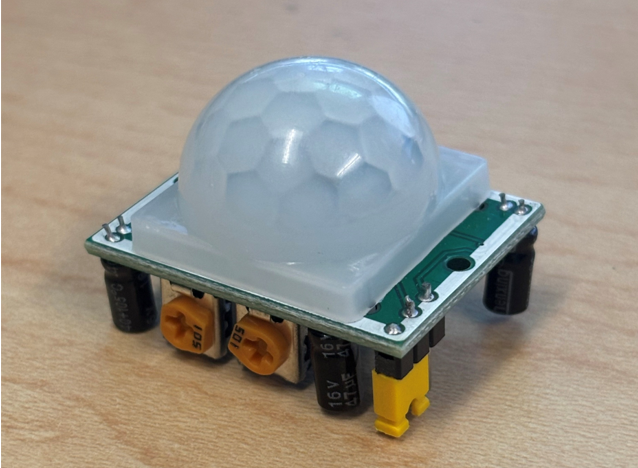
A PIR sensor comes with a small white dome shaped lens on top of the PCB. This lens, the Fresnel lens, helps focus light from any direction to the small pyroelectric sensor underneath. When motion occurs, half of this sensor detects a change in IR before the other, and the difference causes a signal change (from LOW to HIGH). These sensors also include a sensitivity and time delay adjustment potentiometer. Which allow you to change the range or distance the sensor can detect, and how long the sensor remains active (before switching back from HIGH to LOW). Below you can find an image labeling the potentiometers.
Wiring the Sensor
Important: Look up your specific sensors pinout and input voltage as they can differ. The pinout for the sensor we used in this demo was...
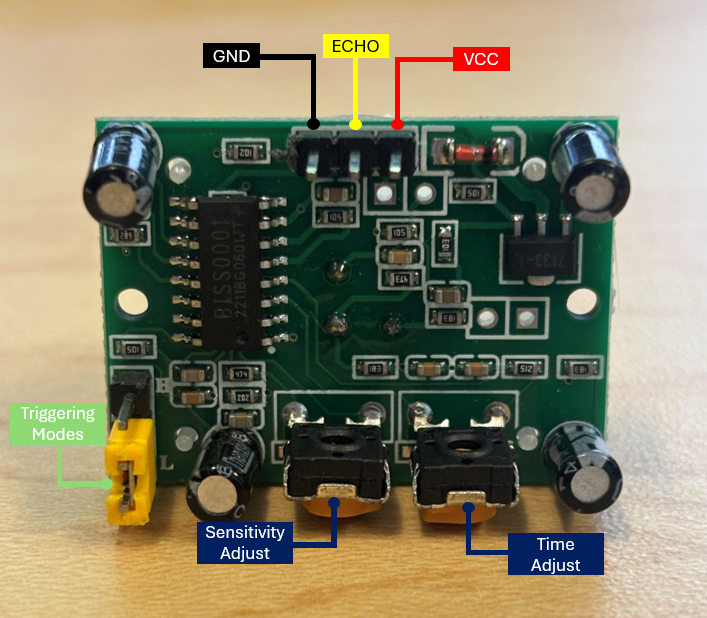
Example circuit setup:
- PIR sensor output connected to Arduino digital pin 2, VCC connected to 5V, and GND connected to GND.
- LED connected to Arduino digital pin 6 and 330 ohm resistor (resistor band color is different on picture).
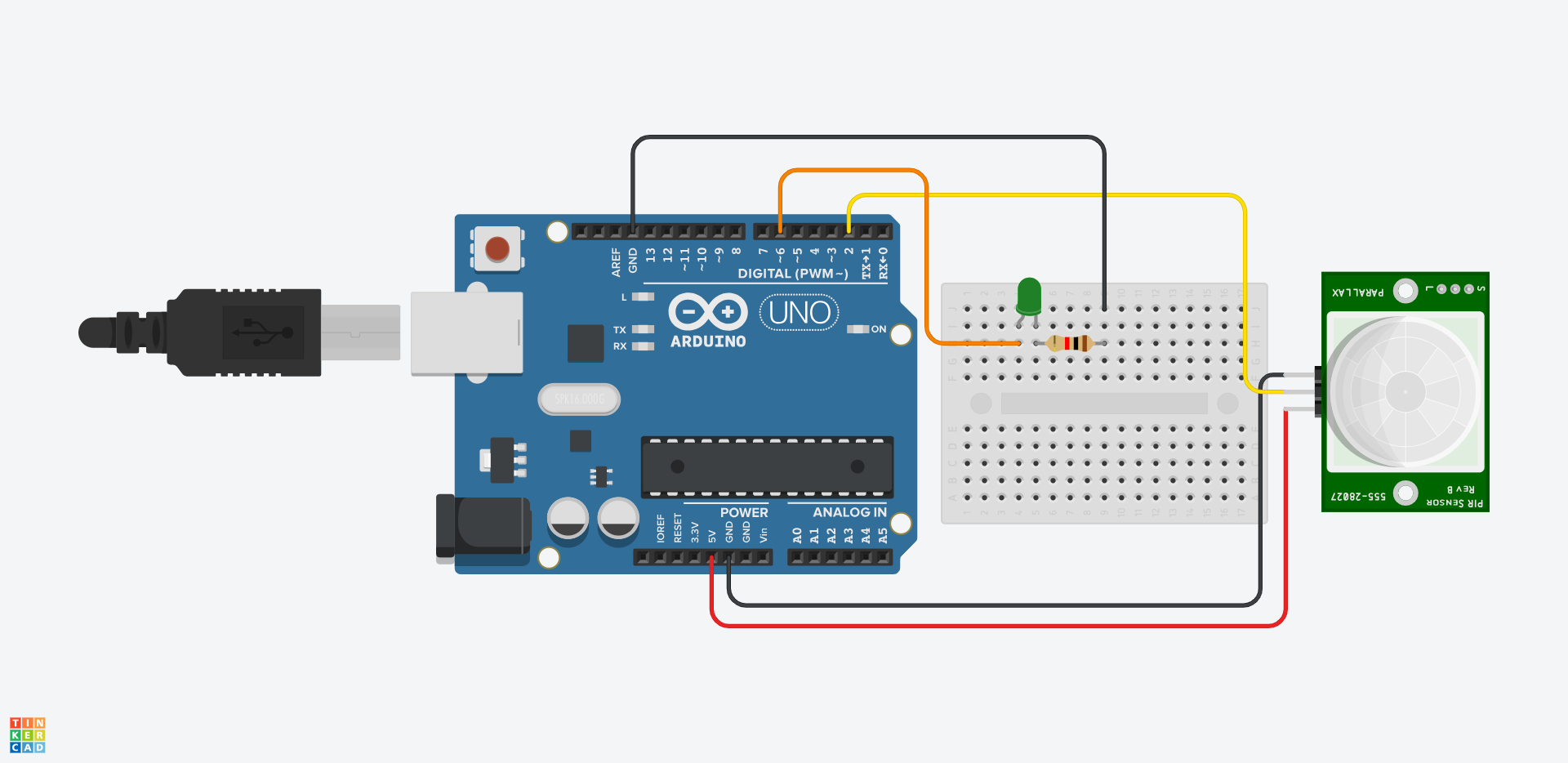
Troubleshooting
- If sensor reading always HIGH or ON
- Sensor may be warming up (10-60 seconds after being turned on)
- Reduce sensitivity with potentiometer
- Ensure stable power supply - If no output changes
- Verify correct wiring
- Use Serial Monitor to debug readings - If false triggering
- Avoid pointing sensor at heat source (like a vent)
- Ensure no vibration of sensor mount
Simple Code
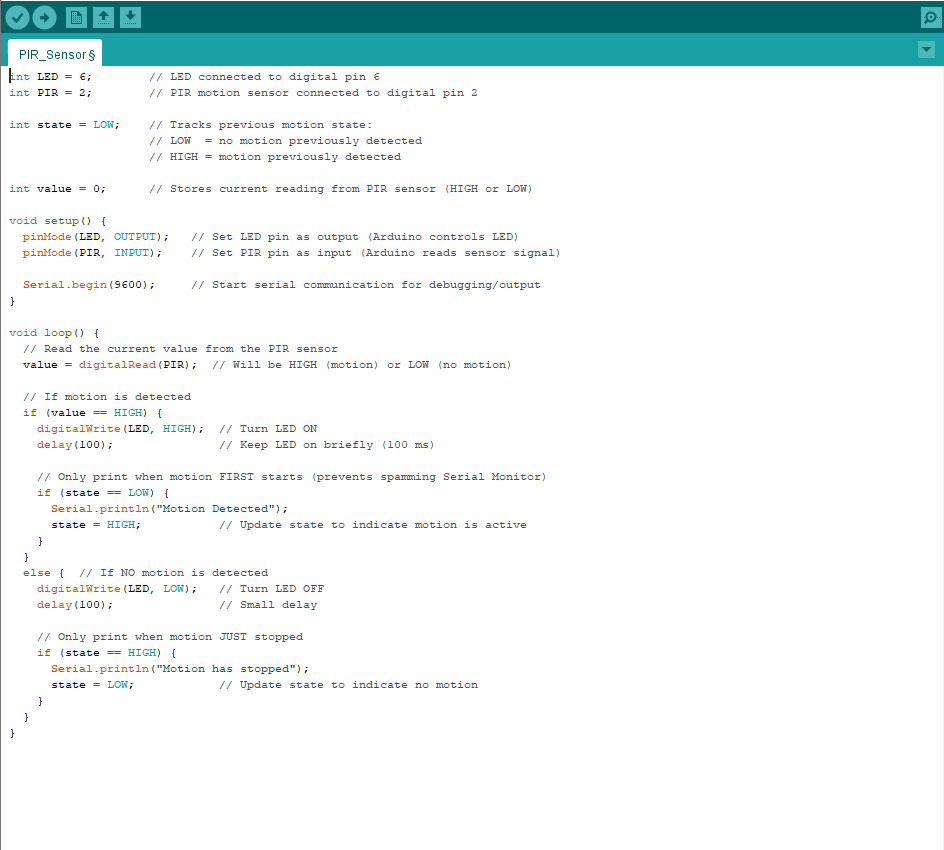
|
Ultrasonic Sensor
Overview
Ultrasonic Sensors are a common form of proximity and distance sensors used in a wide variety of different projects. These sensors feature both an emitter (trigger) which releases an ultrasonic sound wave, and a receiver (echo) which reads the ultrasonic sound wave as it returns.
Claire suggested edits:
In the Overview, provide the range and accuracy of these sensors. I'd get rid of the first sentence. Second sentence is great because it explains the working principle.
I actually had something written up about these sensors elsewhere, and I will paste my sentences here. Feel free to take 'em or leave 'em:
These sensors can detect objects within a range of 2 cm - 4 m with a ranging accuracy of up to 3mm. One thing to note is that they have a measure angle of 15 degrees, so they do well at measuring objects directly in front of the sensor. For most applications, this is favorable.

Helpful resource from Sparkfun with example code, and wiring diagram: https://www.sparkfun.com/ultrasonic-distance-sensor-hc-sr04.html
Students are welcome to come by and check out sensors from the Electronics Center. These are the sensors you can check out from the ITLL: link to inventory . If you do not see a sensor listed feel free to come in and chat with an Engineer about you project.
What is an Ultrasonic Sensor?
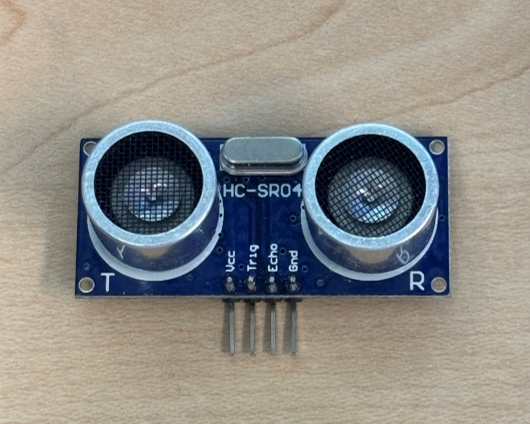
A PIR sensor comes with a small white dome shaped lens on top of the PCB. This lens, the Fresnel lens, helps focus light from any direction to the small pyroelectric sensor underneath. When motion occurs, half of this sensor detects a change in IR before the other, and the difference causes a signal change (from LOW to HIGH). These sensors also include a sensitivity and time delay adjustment potentiometer. Which allow you to change the range or distance the sensor can detect, and how long the sensor remains active (before switching back from HIGH to LOW). Below you can find an image labeling the potentiometers.
Wiring the Sensor
Important: Look up your specific sensors pinout and input voltage as they can differ. The pinout for the sensor we used in this demo was...
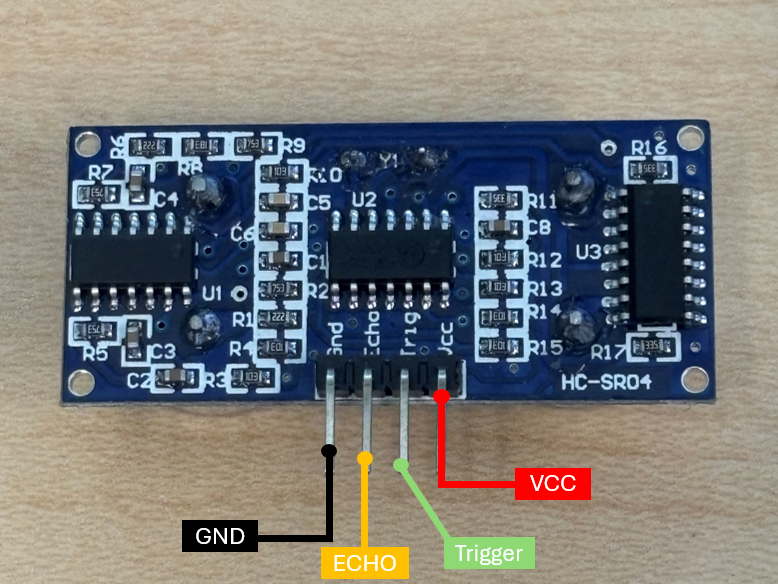
Example circuit setup:
- Ultrasonic sensor output (trig) connected to pin 3, input (echo) connected to pin 2, VCC connected to 5V, and GND (ground) connected to GND.
- The code uploaded to the Arduino (below) sets the trigger pin HIGH, emitting a wave, that then returns and is received by the echo pin. Using an equation that utilizes the speed of light we are able to determine the time it takes for the wave to return after being transmitted, giving us our distance.
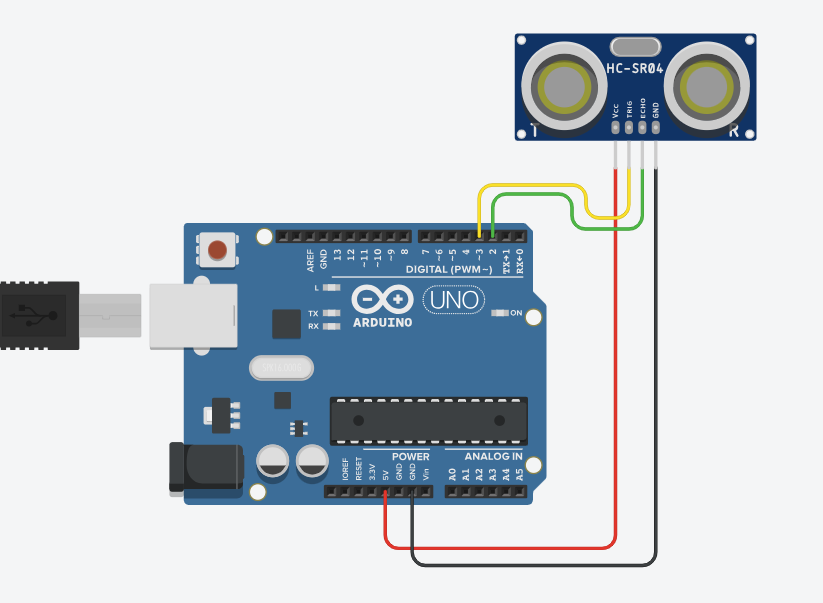
Troubleshooting
Claire edits:
- If sensor reading 0 only
- Run test code below
- Ensure pin definitions are correct and wires are plugged in to correct spots - If nothing shows up in serial monitor
- Make sure you include Serial.begin(9600);
- Ensure serial monitor has 9600 baud rate selected
Simple Code
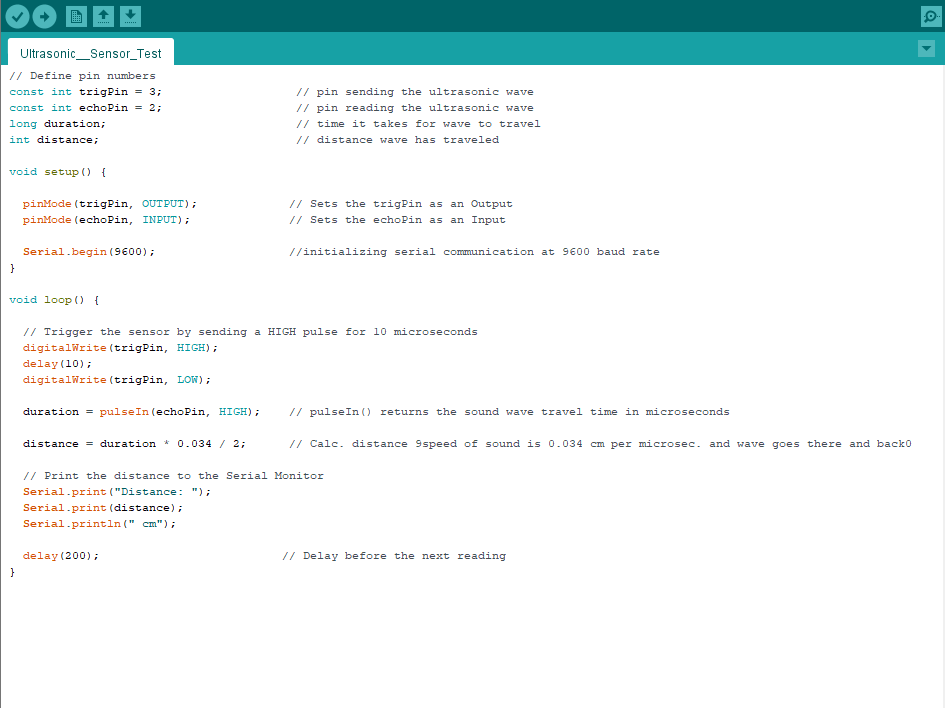
// Define pin numbers
const int trigPin = 3; // pin sending the ultrasonic wave
const int echoPin = 2; // pin reading the ultrasonic wave
long duration; // time it takes for wave to travel
int distance; // distance wave has traveled
void setup() {
pinMode(trigPin, OUTPUT); // Sets the trigPin as an Output
pinMode(echoPin, INPUT); // Sets the echoPin as an Input
Serial.begin(9600); //initializing serial communication at 9600 baud rate
}
void loop() {
// Trigger the sensor by sending a HIGH pulse for 10 microseconds
digitalWrite(trigPin, HIGH);
delay(10);
digitalWrite(trigPin, LOW);
duration = pulseIn(echoPin, HIGH); // pulseIn() returns the sound wave travel time in microseconds
distance = duration * 0.034 / 2; // Calc. distance 9speed of sound is 0.034 cm per microsec. and wave goes there and back0
// Print the distance to the Serial Monitor
Serial.print("Distance: ");
Serial.print(distance);
Serial.println(" cm");
delay(200); // Delay before the next reading
}Measuring distance/proximity
If you need to quantify distance:
SHARP 2Y0A02, IR sensor (λ = 850 ± 70nm)
At-a-glance useful details:
- Sensing range: 20 - 150 cm
- Power requirements: 4.5 - 5.5 V (typ current consumption = 33mA)
-
link to datasheet
- Output voltage is not linear with distance; see plot below (from datasheet, linked above)
-


Ultrasonic Sensor (HC-SR04)
These sensors can detect objects within a range of 2 cm - 4 m with a ranging accuracy of up to 3mm. One thing to note is that they have a measure angle of 15 degrees, so they do well at measuring objects directly in front of the sensor. For most applications, this is favorable.
Helpful resource from Sparkfun with example code, and wiring diagram: https://www.sparkfun.com/ultrasonic-distance-sensor-hc-sr04.html
If you just need to know if an object is present or not:
(e.g., detecting fan speed, motion detector, etc.)
Hall Sensor (AH1815, from Treston)
IR LED & transceiver
Two options:
- Single PCB with LED and transceiver
- LED and transceiver from Treston (BYOC or build your own circuit)
Good for:
Detecting a moving object less than few inches away from the sensor
Hall Sensor (AH1815, from Treston)
Overview
Hall sensors are available from the Treston. The presence of a magnetic field switches their output pin (pin 3) from HIGH to LOW.
Detection distance: ~1cm
Pictures illustrating short range of sensor
To test the range of the Hall sensor. I used my nametag magnet and held it far away from the sensor. I slowly brought the magnet close until I read a low signal on the digital pin to which I wired the output of this sensor (yellow jumper wire going to Arduino digital pin 8). The images below demonstrate the threshold distance close enough to trigger the sensor, as well as the fact that the sensor detects a field behind or in front of it.
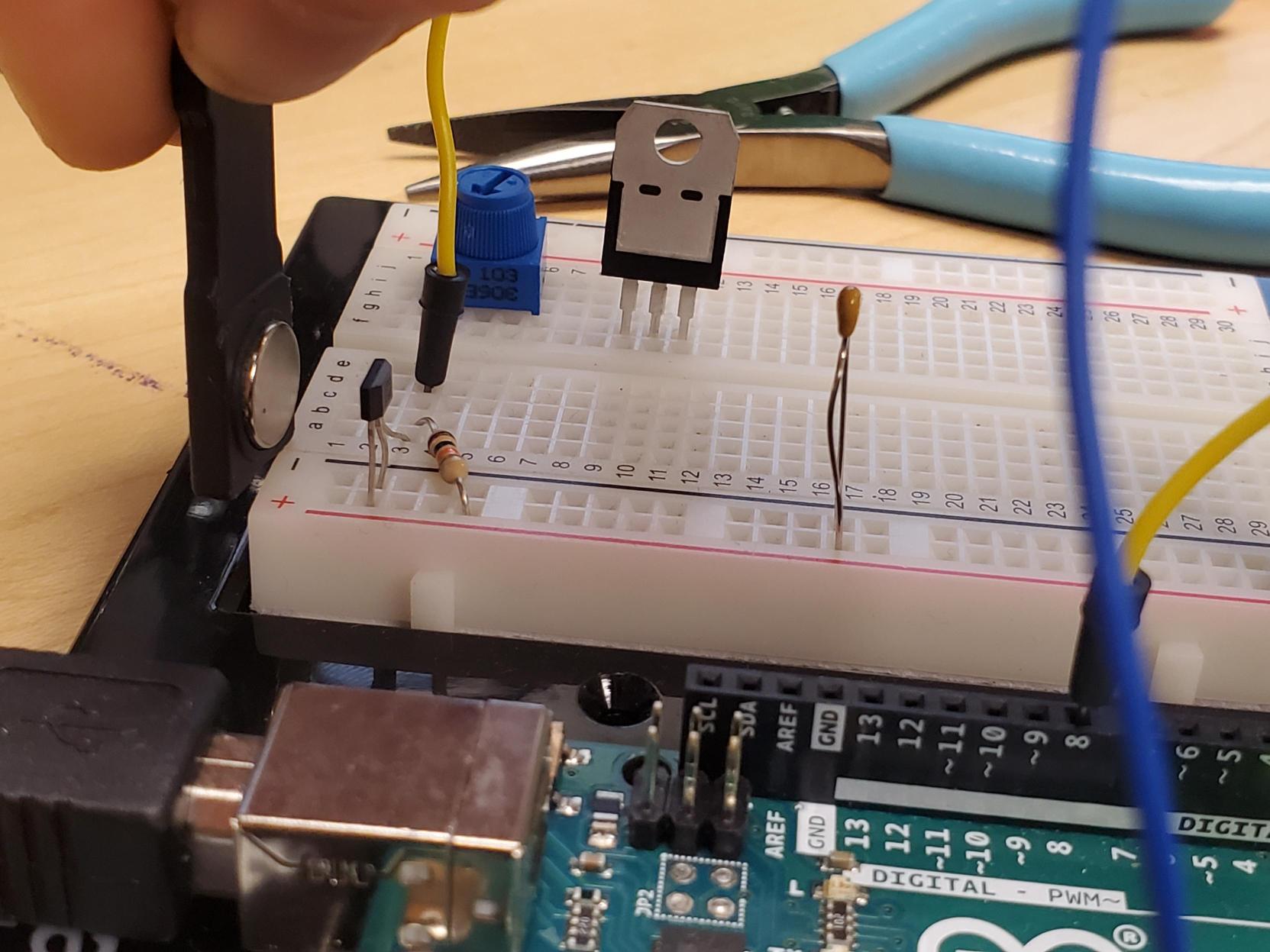
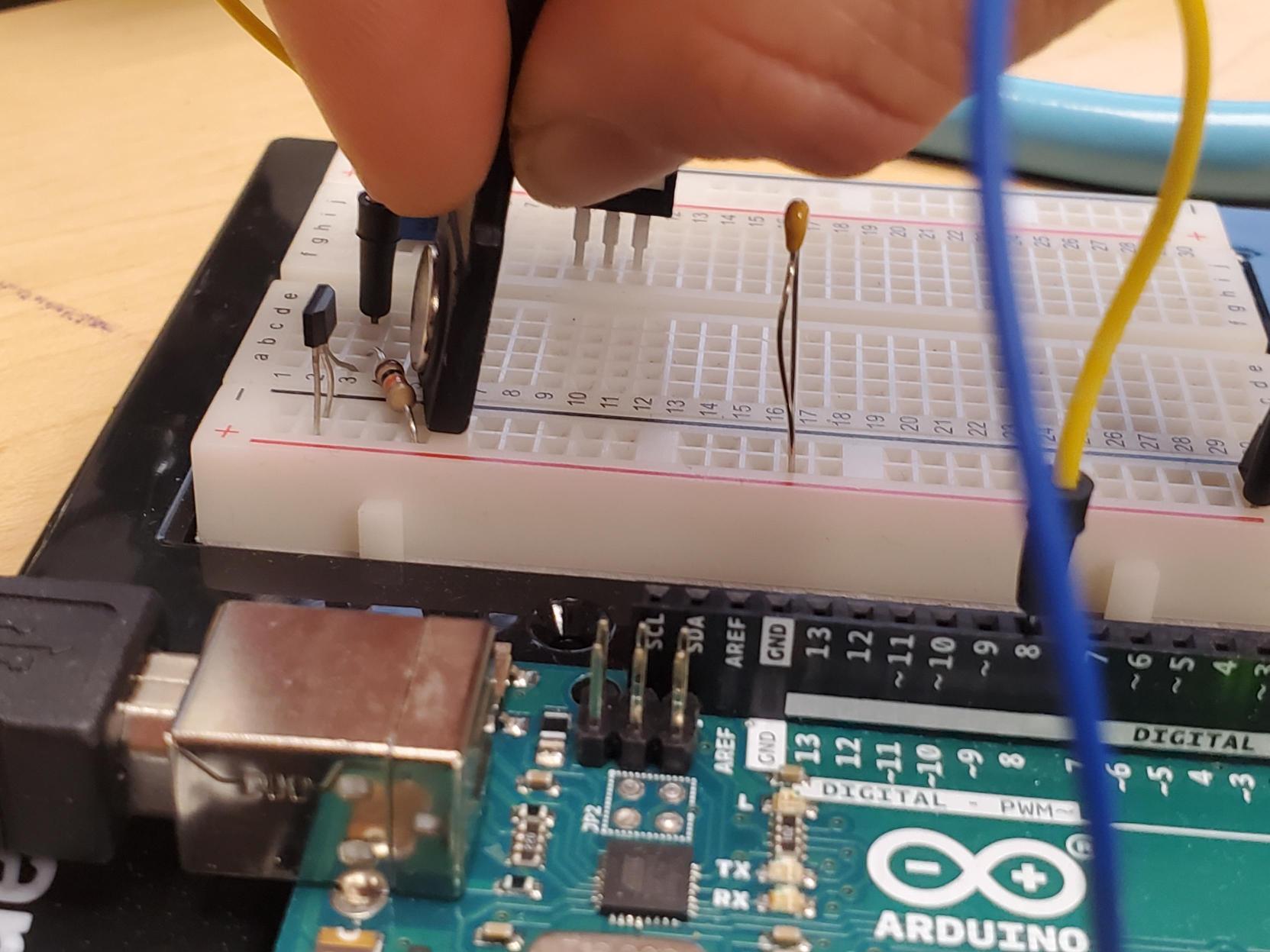
Magnetic field operating point: ~350 Gauss (a cheap kitchen magnet is around 100 Gauss, a strong magnet is 200-2,000 Gauss)
Pinout for the AH1815, note the orientation/non-flat face is up

How to use
You will need to add a pull-up resistor to the output pin. I'd recommend a 10k resistor.

Image above is from this component's data sheet
See if you can wire this circuit just based off of the image above!
Need help?
I will show you an image below of how I wired it onto a breadboard. Importantly, you could wire this differently, or solder on longer wires onto each pin of the Hall sensor, or solder this onto a protoboard.
Regardless of whether you are using a breadboard or soldering, you need to make sure that:
- Leftmost pin goes to power (2.5-5.5V input range, so you can use this with a 3.3V microcontroller)
- Middle pin goes to ground
- Rightmost pin goes to a digital pin on your microcontroller
- Add a 10kOhm resistor between power and rightmost (output) pin
- Add a 100 nF capacitor across power and ground to decrease noise
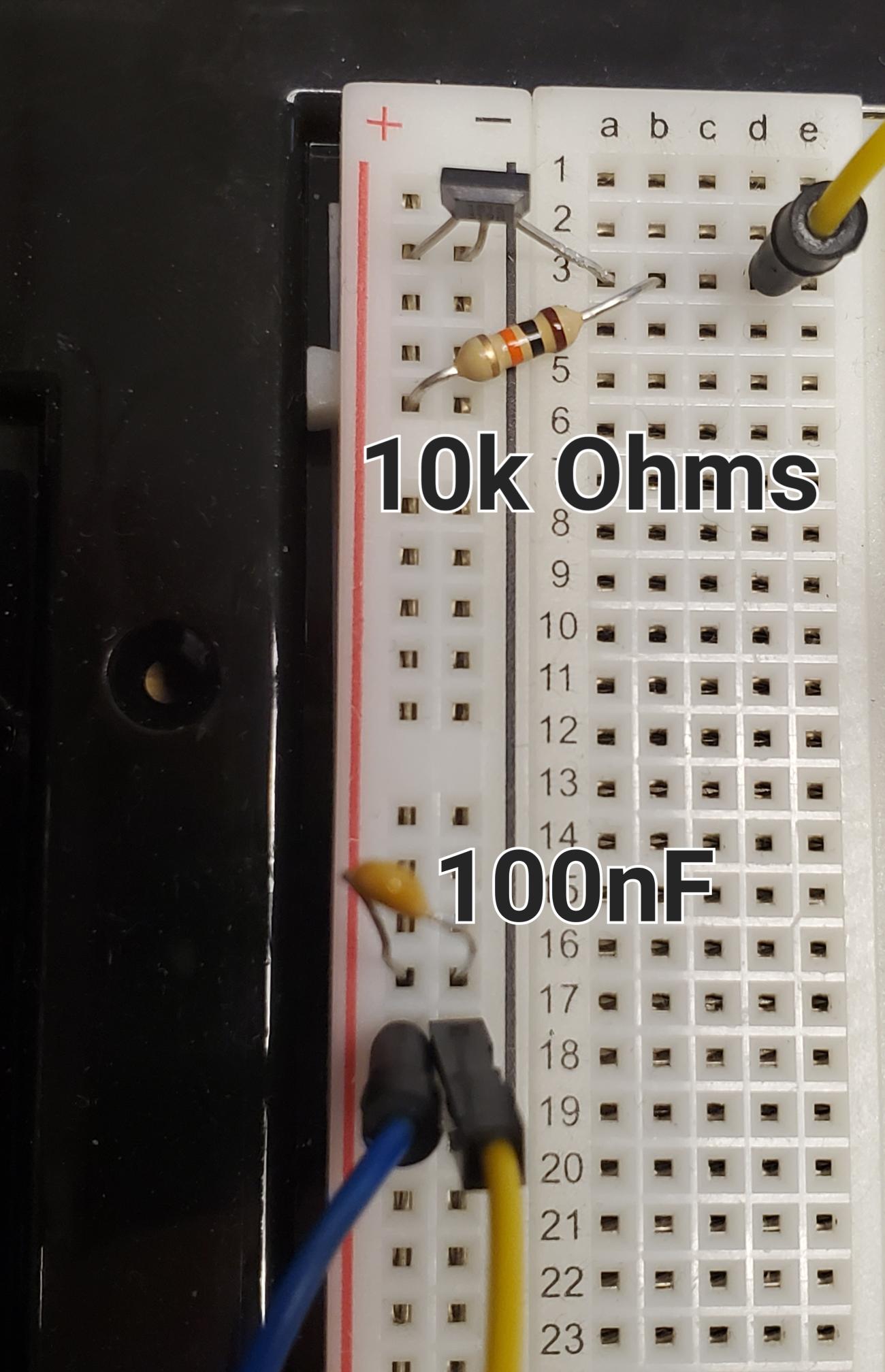
Sample Arduino code
Troubleshooting
1) There's no output when I run the code above
- Make sure you've opened the Serial monitor and the baud rate in the code matches that in the dropdown menu
- Click this:

- Click this:

2) The output bounces all over the place
- Verify that you have the pull-up resistor installed between power and output
- Verify that the value of the pull-up resistor is between 10k and 100kOhms
3) The output thinks there is a magnet there when there isn't
- Verify that a pull-up resistor is present
4) It's too slow
- Decrease the delay(100) to delay(10), etc.
Strain gauges
In this guide, I will walk you through setting up a strain gauge measurement with a NI-9237 DAQ (both strain gauges and NI-9237 DAQ are available for checkout) in the quarter bridge (1 active strain gauge) configuration. Other configurations are possible.
Data from the test setup below (bending the aluminum bar below with hand strength of an ESS test subject):
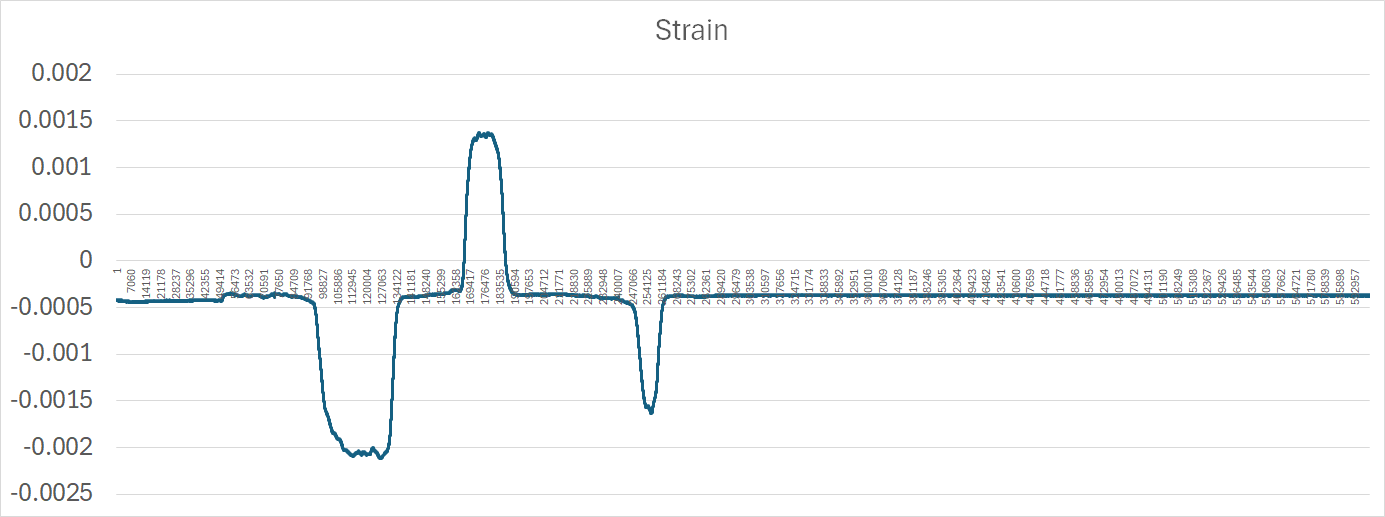
You will need:
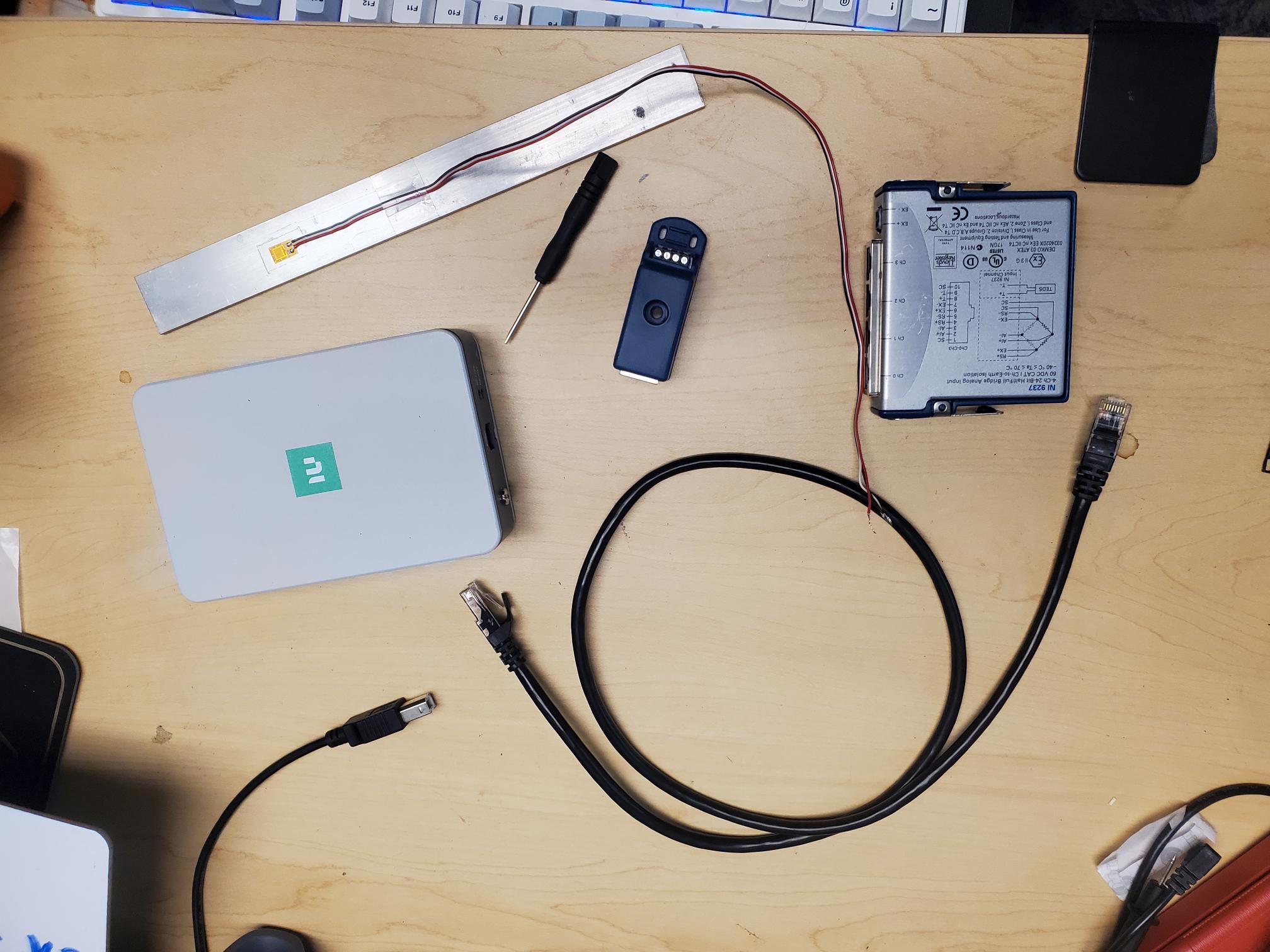
- 120 Ohm Strain gauge with soldered leads, bonded to a metal substrate (how to bond will not be covered in this tutorial)
- NI-9237 DAQ & chassis
- RJ-50 cable (looks like ethernet, but has 10 pins instead of 8. An ethernet is an RJ-45 cable)
- USB B-A cable
- wee screwdriver for installing strain gauge leads to NI-9944 screw terminal block
- NI-9944 (precision 120 Ohm resistor)*
*note : if you are not using a 120 Ohm strain gauge, use the appropriate terminal block that matches the nominal resistance value of your strain gauge
Hardware
Pin 0 on NI-9944 attaches to red lead of strain gauge attached to one side of strain gauge
Pin 1 and 2 attach to white and black leads, which are connected to the same point on the other side of the strain gauge
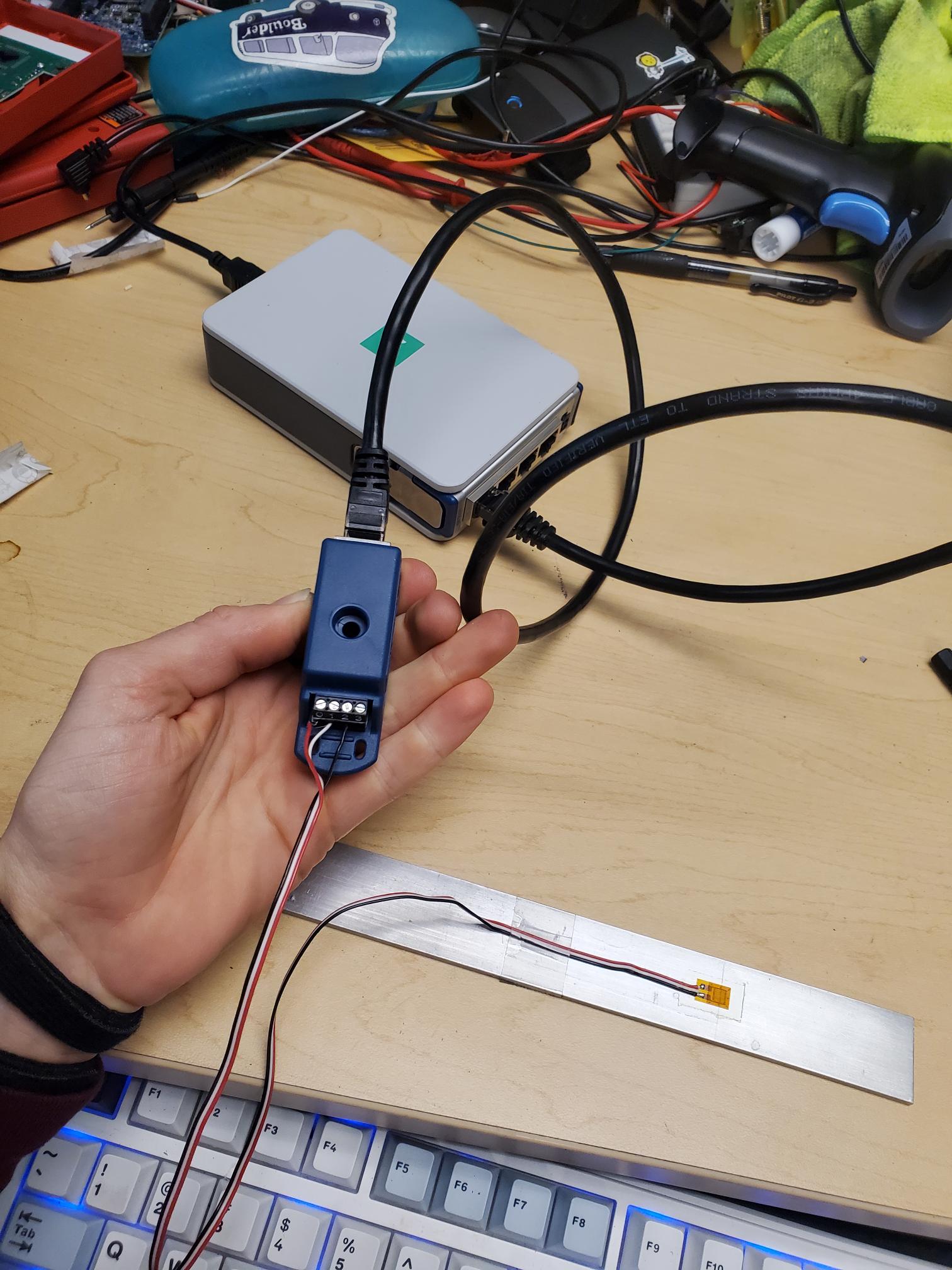
Software
Effectively we are just following this guide from NI. I would recommend using LabVIEW.
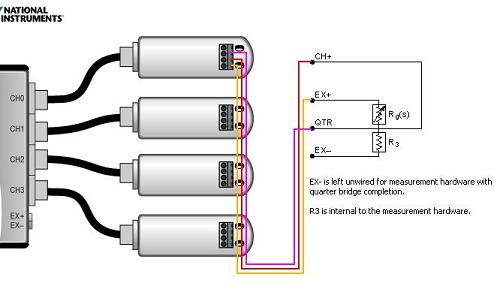
I will point out a couple of things below that might not be obvious from the guide:

Select "strain" (analog input) when you configure the DAQ assistant in LabVIEW. This will bring up the menu above.
- The scaled units generated are already in strain. How convenient! LabVIEW is solving the following equation for you (equation source):

Recall that the definition of strain is change in length divided by original length. So 1 microstrain = a change in length of 1 mm for a 1 km long bar. Wow - that's not a lot of strain! What is the strain if a 5.00 cm bar is compressed and now measures 4.95 cm?
- The answer to the question above is 1% (0.05cm/5.00cm)
- Gauge factor and gauge resistance are properties of your strain gauge. You can directly measure the gauge resistance using a multimeter in resistance measurement setting, and the gauge factor is something you will find on the packaging for your strain gauge. It relates the relative change in resistance for a given strain. It is typically around 2.
- Quarter bridge configuration means you are using 1 active strain gauge, and the other three stain gauges in your Wheatstone Bridge circuit are static gauges . For some tests, it might be better to use multiple strain gauges.
- In my own testing, I measure the lead resistance and if I can't get a reading, I leave it as zero. If your leads off of the strain gauges are really long, you might measure 1 ohm, in which case you would put "1" in the Lead Resistance box. The leads coming off of your strain gauge should all be the same length for accurate temperature cancelation. Specifically, by having leads on the top and bottom of your wheatstone bridge circuit, any resistance effects due to changing temperature should cancel out since you are adding identical "resistors" to the top and bottom of one of the voltage dividers in the wheastone bridge. See my article on wheatstone bridges if you are confused.