Get Started with the Web Platform
(on this page)
How to: Log in / Log out
How to: Use your account profile
How to: Set your communication preferences
How to: Log in / Log out
Log in
- On the ITLL Website at https://itll.colorado.edu, start by clicking on the main "Log In" button at the top-right of the screen.
- on large screens (laptop and desktop computers): click on the main "Log In" button at the top-right of the screen
- on small screens (phones and tablets): tap on the hamburger menu icon (shown by three stacked lines) at the top-right of the screen, and tap on "Log In" at the bottom of the dropdown list
- If you are not already actively logged into your CU-managed Microsoft account, you will be prompted to log into Microsoft Online, where you will need to enter your CU email address (IdentiKey + "@colorado.edu") and password.
- Once you are logged into Microsoft Online, you will be redirected back to the ITLL Website, where you will now be logged in - the button at the top-right will change to a "Log Out" button to indicate that you are currently logged in.

Log out
- On the ITLL Website at https://itll.colorado.edu, the "Log Out" button will be placed differently based on your device:
- on large screens (laptop and desktop computers): click on the "Log Out" button at the top-right of the screen
- on small screens (phones and tablets): click on the hamburger menu icon (shown by three stacked lines) at the top-right of the screen, and click on "Log Out" at the bottom of the dropdown list

How to: Use your account profile
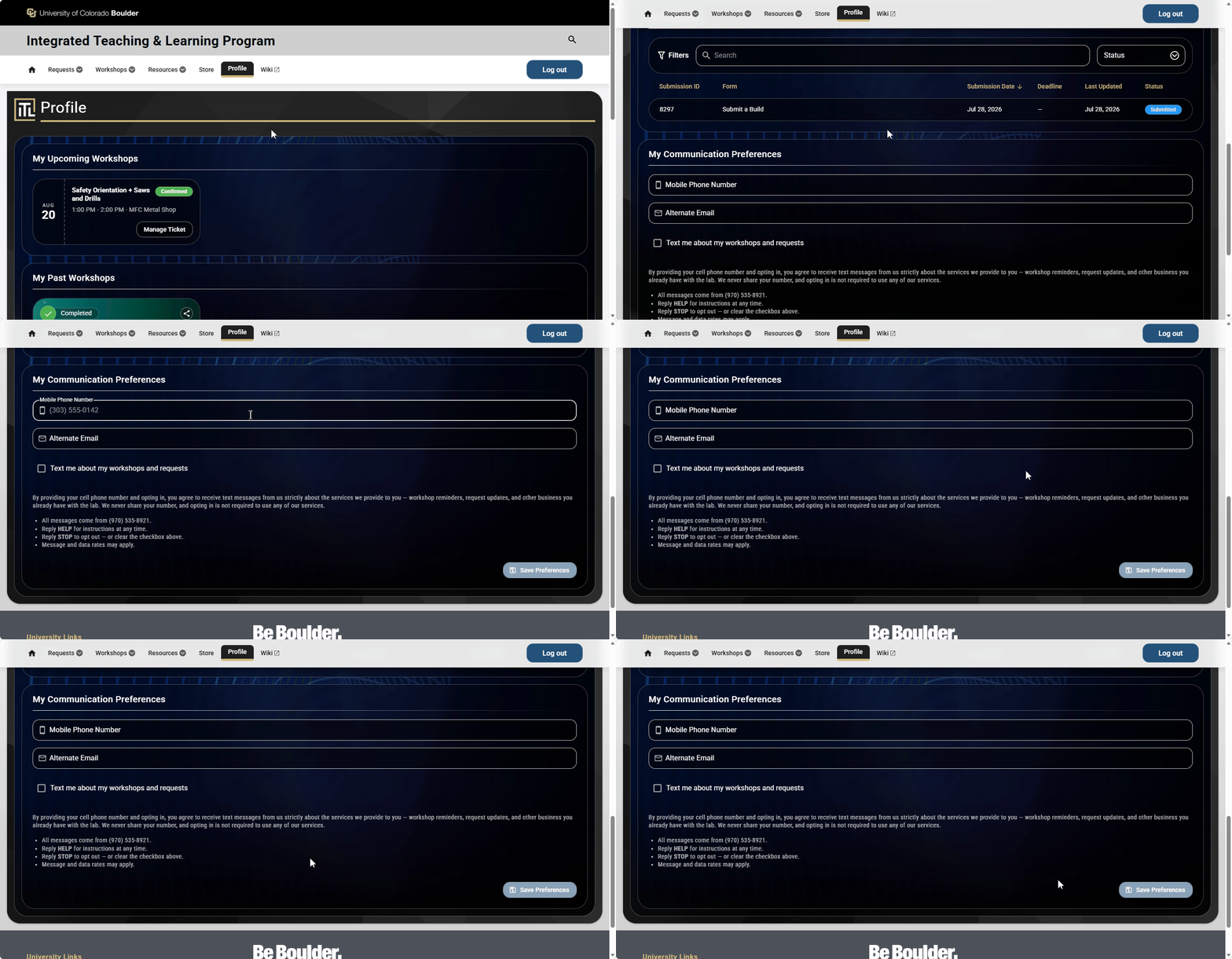
Once you are logged into the ITLL Website, you can find your Profile using the menu at the top (on desktop screens), or in the mobile hamburger menu (on mobile devices). The Profile is very limited since it keeps track of only a few items - workshops & events that you've signed up for (My Upcoming Workshops), workshops & events that you've previously attended (My Past Workshops), submission requests that you've made in one of multiple categories, and your communication preferences for being notified of events and messages (My Communication Preferences).
Due to the limited number of items that are tracked, no account management features are provided. Any account management you may need to do will be done through your CU-managed Microsoft account.

How to: Set your communication preferences
- Enter your Mobile Phone Number in the input field to be able to receive text messages of workshop reminders, communications from request submissions, and other website-specific notifications. You will only receive notifications for anything within the ITLL Website.
- Check the box for "Text me about my workshops and requests" if you want to receive these text message notifications; uncheck the box to disable receiving the notifications.
- Enter an Alternate Email if you want to receive email notifications at a secondary email address. Otherwise, you will receive all email notifications only at your CU-managed Microsoft account email address (IdentiKey + "@colorado.edu").