General
Overview of the ITLL Website
- ITLL Website Overview
- Key Terms & Concepts
- Website Access Prerequisites
- Navigation
- Getting Started
- Getting Help
ITLL Website Overview
The ITLL Website is an online platform containing makerspace learning and activities for the College of Engineering & Applied Sciences on the CU Boulder campus.
- Who should read this guide?
- This guide is written for students (or similar types of end-users) at the ITLL or one of the other makerspace sites affiliated with the University of Colorado including Aerospace Engineering and Idea Forge.
- This guide is written for students (or similar types of end-users) at the ITLL or one of the other makerspace sites affiliated with the University of Colorado including Aerospace Engineering and Idea Forge.
- Purpose of the platform
- The ITLL Website allows students to access makerspace-related training within the University of Colorado Boulder makerspace facilities on the East and West campus. Through the platform, students can sign up for workshops and other events (such as tours), and submit requests for 3D printing, PCB production, manufacturing (metal & wood), and software licenses.
- How the platform supports end-users
- Complete training
- A wide range of workshops and training is available in areas such as Arduino, CAD, electronics, manufacturing, materials testing, programming, and prototyping.
- Earn certifications
- The platform records when students complete workshops, allowing faculty to see whether a student has met a prerequisite for another workshop.
- Access documentation
- This documentation that you are currently reading is part of the primary written documentation for end-users, and includes instructions for usage. Additional documentation is available elsewhere on the ITL Lab Wiki (links are provided within the ITLL Website).
- Track progress
- The platform allows students to track their own progress as they complete workshops and events through individual profiles.
- Complete training
Key Terms & Concepts
Below are common resources and items that you may see while using the ITLL Website.
- Events
Events in the ITLL Website can be a Workshop, Tour, or Room Reservation.
- Not all Events are necessarily Public (publicly viewable by everyone on the scheduling Calendar), and you may sometimes receive invitations to either Unlisted or Private scheduled events when appropriate.
- Event Categories are used to classify all of the Events available. For the ITLL, Event Categories for Workshops primarily include these areas of interest:
- Arduino
- CAD
- ECAD
- Electronics
- Tour
- Manufacturing
- Materials Testing
- Programming
- Prototyping
- Arduino
- Not all Events are necessarily Public (publicly viewable by everyone on the scheduling Calendar), and you may sometimes receive invitations to either Unlisted or Private scheduled events when appropriate.
- Files
You will sometimes be expected to upload files in specific formats when submitting requests. These can include JPG/JPEG, PNG, or PDF for Poster Printing, STL files for 3D printing (a common format used by many 3D modeling applications), or ZIP (compressed package files that you can easily create yourself on the latest versions of Windows, macOS, and Linux). - Kiosk Check-In Centers
There are multiple physical kiosk stands placed throughout the building that provide convenient Buff OneCard access for those who have a card. Currently in the ITLL, these include kiosk stands for the Manufacturing Center, Electronics Center, Project Depot, and EFab Center. - Prerequisites
As the name implies, prerequisites are other events or workshops that you must complete in order to sign up for a different event or workshop. For example, some workshops will require that you have completed the ITLL Tour. Other workshops may require that you have taken a Level 1 workshop before you can sign up for a Level 2 in the workshop series. - Store
The Store in the ITLL Website provides items and supplies that you can purchase for courses or personal use, such as an Acrylic Sheet, Wood Sheet, or Circuits Kit. - User Balances
Students have access to their own individual User Balances to purchase items in the Store. When needed, Staff or Faculty may be able to set or adjust your User Balance for you as well. You can use either this provided user balance, or your own credit or debit card, to make payments in the Store.
Website Access Prerequisites
General prerequisites to access the ITLL Website
- University account requirements
- IdentiKey: You must have a CU student account with an IdentiKey. IdentiKeys can be activated on the IdentiKey Manager website at https://identikey.colorado.edu/
- Single Sign-On (SSO)
- The website uses the same Microsoft-based Single Sign-On that the rest of the CU Boulder campus uses through OIT (Office of Information Technology). Once you have your CU-provided Microsoft account, you will be able to log in using the campus SSO. You can learn more about how CU Boulder uses SSO on OIT's SSO page.
- Browser requirements
- The website supports the latest Google Chrome, Microsoft Edge, Apple Safari, and Mozilla Firefox browsers.
- Multi-factor authentication (CU Secure Wi-Fi)
- Some of CU Boulder's resources, including the ITLL Website, may require Multi-Factor Authentication (MFA). You will need to download the Microsoft Authenticator mobile app on your Apple iOS-based iPhone or Android-based phone to be able log into these resources. Get Authenticator for iOS or Authenticator for Android.
Need Help? If you need assistance with an IdentiKey, you can contact the IT Service Center at 303-735-4357 or oithelp@colorado.edu, or view hours and additional information on the OIT website at https://oit.colorado.edu/
The ITLL Website can be accessed through either the CU Secure Wi-Fi or CU Guest Wi-Fi.
Navigation
Learning the parts of the UI
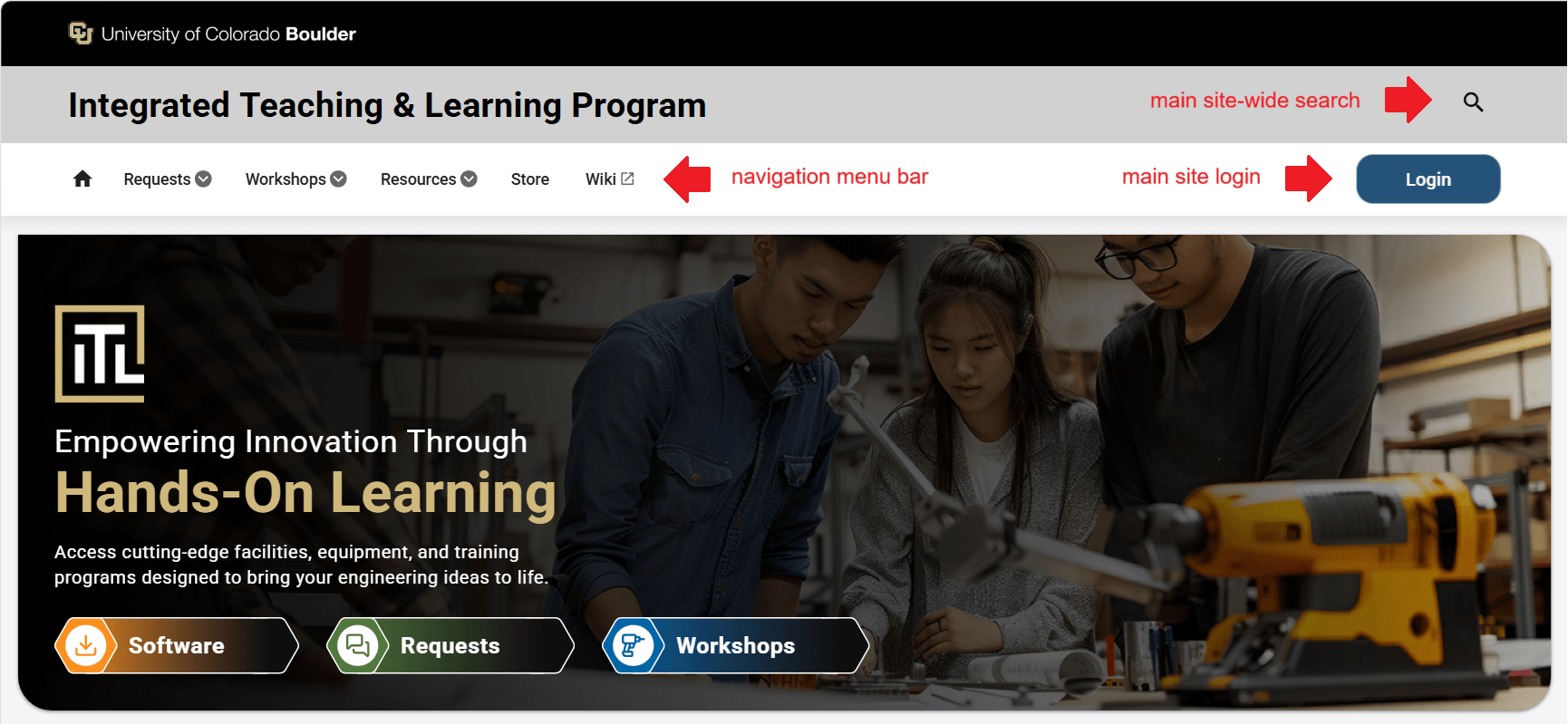
Before you log in, the main parts of the screen at the top include the main site-wide search, navigation menu bar, and main site login, as pictured below.
- Mobile display version of platform (phones & tablets)

- Desktop display version of platform (laptop & desktop computers)
Getting Started
How to log in and getting around the navigation
- Logging in
- Use the main Login button on the homepage to log in. It will attempt to use SSO through your CU Boulder-managed Microsoft account first by default. If that fails for any reason, you will be prompted to enter your IdentiKey and password.
- Account Profiles
- Student users have access to an individual profile page where they can see their Upcoming Workshops, Past Workshops, and Requests.
- Navigation Menus
- Start from the Requests menu to:
- submit a new request (Requests > Make a Request)
- see the status of your current requests (Requests > My Requests)
- Start from the Workshops menu to:
- browse the workshop catalog (Workshops > Register for Workshops)
- see your upcoming workshops (Workshops > My Upcoming Workshops)
- see your past workshops (Workshops > My Past Workshops)Navigation Menus
- Start from the Resources menu to:
- view available software applications on lab computers or via CEAS Cloud Computing (Resources > Software)
- view FAQ for SolidWorks (Resources> SolidWorks FAQ)
- view building info including hours, related links, and contact info (Resources > Hours & Location)
- view the directory of building staff and personnel (Resources > Staff Directory)
- find student jobs (Resources > Undergraduate Student Job Opportunities)
- submit a help ticket to IT (Resources > Submit IT Ticket)
- Open the Store to buy parts and supplies
- Open the Profile to see your upcoming and past workshops, requests, and communication preferences
- Open the Wiki to access documentation about the ITLL Website and information about resources
- Start from the Requests menu to:
Getting Help
How to get help with the ITLL Website
- General Support
- For general help and support with how to use the ITLL Website, please refer to the documentation for Common Student Tasks available as part of this Book.
- Reporting Issues
- Please report any issues by submitting a new ticket to the ITLP IT Helpdesk. Someone will respond to resolve your ticket as quickly as possible.
- The IT Helpdesk is powered by a platform called Jitbit. For help using Jitbit, refer to their Helpdesk Documentation which contains info on how to use their platform, such as submitting tickets.
- Please report any issues by submitting a new ticket to the ITLP IT Helpdesk. Someone will respond to resolve your ticket as quickly as possible.