seeed studio ESP32-S3
Simple ESP32-S3 tutorial - turn on LED's from your web browser
Overview
The seeed studio ESP32-S3 is a small Wi-Fi and Bluetooth enabled microcontroller that is about the size of a thumbprint!
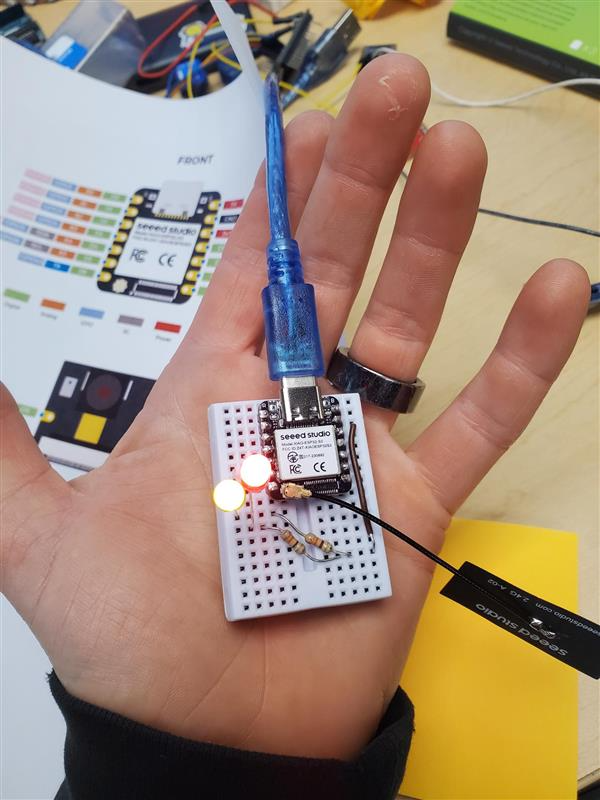
To get started
seeed studio has good documentation to get you up and running: https://wiki.seeedstudio.com/xiao_esp32s3_getting_started/#for-seeed-studio-xiao-esp32-s3
- Do not panic if you notice the red LED goes out after a while on the ESP32 - it is programmed to turn on when powered, and turn off after 30 seconds
The first thing I wanted to do was to communicate via WiFi with this board.
To do so, I basically followed this online tutorial.
I will point out some useful tips and tricks I learned along the way that might be useful to you:
- Be really careful when installing/removing the antenna. It is poorly mounted, and easy to tear off. I tore it off, and Lauren had to perform some very delicate surgery to re-adhere one side of the antenna pad.
- A note on range - I used my cell phone as a hot spot for the above tutorial.
- the max range I could achieve without an antenna was just to the other side of my office, about 12 feet
- with antenna, I achieve communication between the EC and EFC. Lag time was about 1/2 a second.
- I think the ESP32-S3 wants 2.5 GHz, not 5 GHz. It would be interesting to test with 5 GHz. My phone hotspot was 2.4 GHz.
- the network credentials are those of an existing wireless network, not the "XIAO_...". That's for if you want to use the ESP32 as an access point (AP). Note - my credentials below won't work for you - I changed the password ;)
-

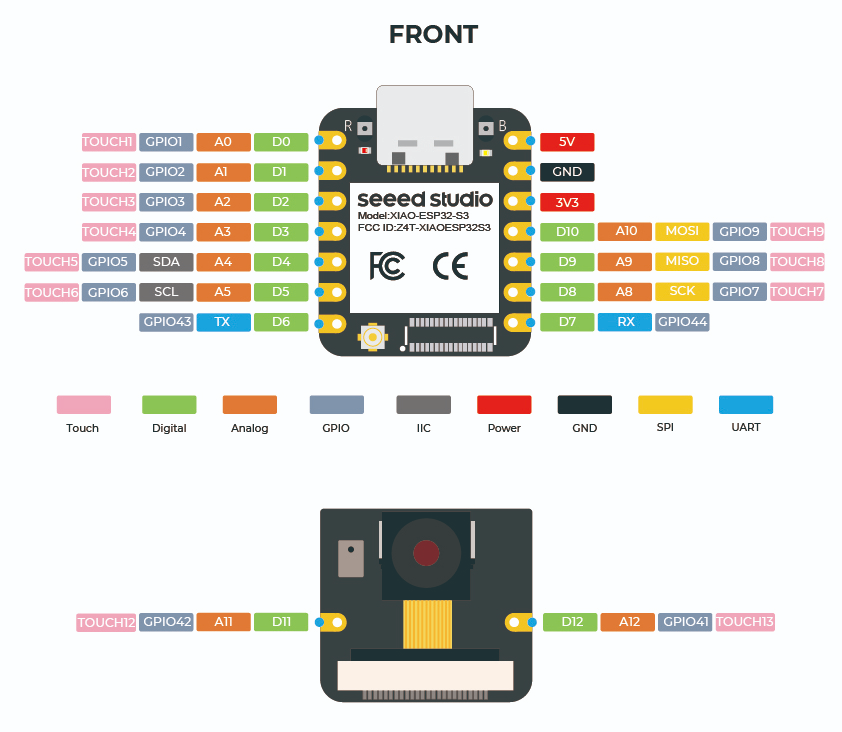
- You will need to change the GPIO pins from the tutorial code. Note that "5" refers to GPIO5, not D5.

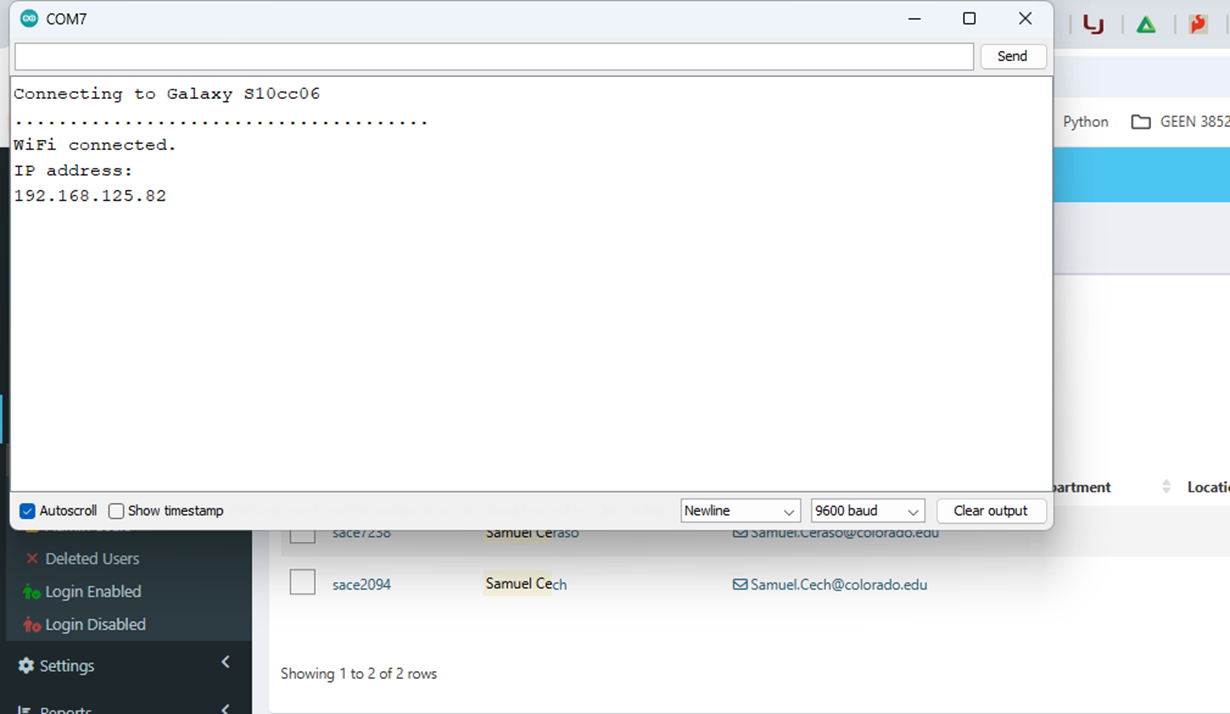
- When you run the code, it should look like this (with the name of your network instead of "Galaxy..")
-

- Note that I switched to 9600 baud rate from default 15200; I found either way to work. I switched to 9600 while troubleshooting connectivity issues, which leads me to my final point...
- I had a LOT of issues communicating with the ESP32-S3.
- Start by just hitting the reset button. This solved 90% of my connection issues (examples of issues I encountered include the board showing up in "Port" correctly, but code fails to load, or I get a "COM busy" error despite Serial Monitor being closed and nothing plugged in to TX/RX, or the code uploads successfully, but it doesn't actually execute).
- If the reset button doesn't solve your issues, try the following:
- Unplug ESP32
- Carefully hold down bootloader button (top right button labeled "B"), and while keeping the button pressed, plug it in to the computer. You may release the button once it's plugged in.
- Switch to ARD 1.x IDE. I seemed to have an easier time with ARD 1.x vs ARD 2.x IDE.
- The port should show "ESP32 Family Device" in parentheses. Sometimes mine would show COM7, but lack the bit in parentheses, and the code would unequivocally fail to upload every time. Hitting the reset or bootloading solved the issue.

-
On a side note - the bottom of the ESP32- S3 has battery pads for soldering a 3.7V LiPo battery. Do not exceed 3.7V - I tested with 6V to mimic 2 coin cell batteries some students wanted to use, and I fried the board irrevocably.
- Enjoy! Let me (Claire, claire.porter@colorado.edu) know if you have any questions or things you want to see added to this guide.