# 3D Printing FAQ
#### **Key People for Support**
**Kat Penzkover**, 3D Printing Engineer - Project Depot
**Sa'Von Thompson**, 3D Printing Technician - ITLL 1B12
**Engineering Support Student Staff** - LaunchPoint
How and When are the ITLL printers available?
The Prusa MK4S printers are self-service and available during [building operating hours](https://itll.colorado.edu/), after you've taken a [Workshop](https://itll.colorado.edu/signup/upcomingworkshops). The Prusa XL and Markforged printers are accessed by submitting a [Fabrication Request](https://itll.colorado.edu/requests/navigate).
I've taken the workshop and still see "No Printers Available"?
You will need a clean log-in after taking the workshop to be able to see the printers. Try logging-out and logging back in. If that doesn't work, please see the 3DP engineer.
Can I use my own filament?
The short answer is No, filament is pre-loaded onto the ITLL printers. However, with the addition of the PrusaXL to our suite of available printers, you can chat with the 3DP Engineer to see if your filament would be a good option for printing on the XL.
There is not enough filament to complete my project, can you change the roll?
No, these printers are equipped with filament sensors which will automatically alert the ITLL staff that the filament needs to be replaced and will pause the print and re-start where it left off after new filament is installed.
How do I export files from OnShape or Solidworks for 3D printing?
Be sure to export your file as an **.stl** and make sure that the units are **millimeters**.
[Link to Onshape Documentation](https://cad.onshape.com/help/Content/exporting-files.htm)
[Link to Solidworks Documentation](https://help.solidworks.com/2020/English/SolidWorks/sldworks/t_exporting_3D_print_files_impexp.htm)
Can I reserve a printer?
Our printers are strictly first-come, first-served. You can see when printers are going to come available by checking the 'time' column when you press print. **Hot Tip:** there is always a printer available at 8am.
[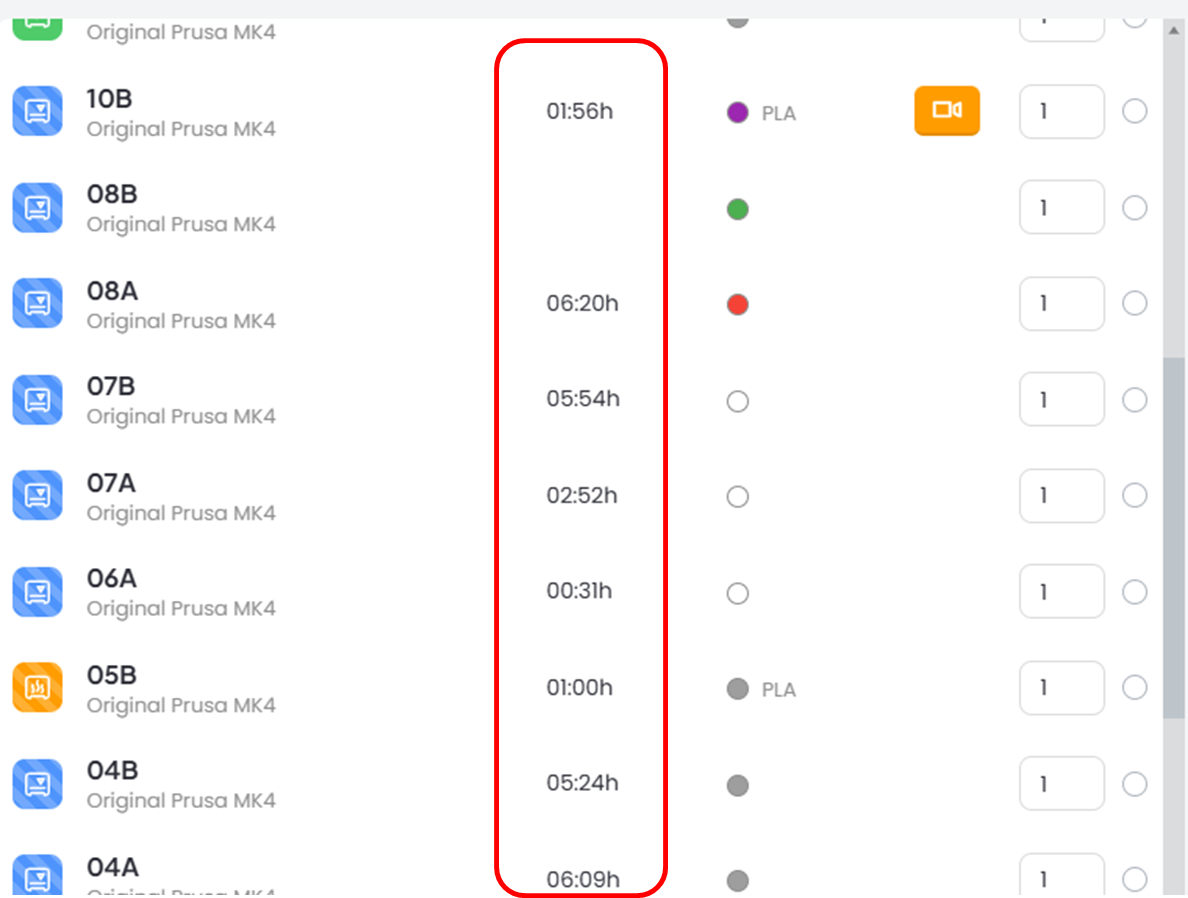](https://itll-wiki.colorado.edu/bookstack/uploads/images/gallery/2024-12/tPfQYJHnG9CsjDV0-image.png)
Can I print with materials other than PLA and TPU?
Not by yourself. However, you can submit a fabrication request to print in PETG or schedule a meeting with the 3DP Engineer if you are interested in other filaments and/or multi-filament printing.
How do I print with TPU on the self-service printers?
Make sure that you slice your file using the TPU settings and then use printer 10A which is dedicated to TPU.
Who can I talk to about my 3D Print?
The ESS students at Launch Point should be your first choice for making sure you are optimizing your design for 3D printing. You can always make an appt with the 3DP Engineer as well before printing to chat about your design and how best to manufacture it.
How do I add credit to my 3DPrinterOS account?
After your initial balance is depleted, you can use the ITLL website to re-load your account. Be aware, it may take 24 hours for the balance to show up in your account so plan ahead. If you have paid for a 3DPOS Balance and do not see it reflected in your account, you can ask the ESS to update your account balance.
[https://itll.colorado.edu/](https://itll.colorado.edu/)
Go to: **Payments -> Make a Payment -> 3D Printer OS Balance**
NOTE: Once credited to your account, credit must be used for 3D printing and can not be refunded.
Can I get a refund on my failed print?
Yes and No. We do not give refunds for **all** failed prints. We have accounted for a few 'learning' prints into the initial credit we give. However, if the machine has an unexplained layer shift while printing or there is a power outage during your print, we will be happy to refund any balance used.
Email the 3DP engineer with your name, printer that was being used and any other info to help them find the print in the system.
How and Why would I use the Markforged or Prusa XL?
The Markforged printers use a filament called Onyx which is a carbon inlaid nylon. This filament is used for high strength parts like gears, handles and higher temperature applications.
The Prusa XL can be used for larger prints that will not fit on the Prusa MK4S printers and also for Multi-filament printing (think TPU integrated into PLA prints...)
To use either of these printers, you will need to submit a **Fabrication Request** through the Requests -> Make a Request
Please add as many details to the Fabrication Request as you can so that the 3DP Engineer can complete your request.
Be sure to check your email for questions about your part and/or a payment link. Only when payment is submitted, will the part be started.
Why is my print not sticking to the bed?
There are a few things you can do to your file to help it have the best possible success. First, make sure your part is "on-bed" and not floating in space. Make sure the bed is freshly cleaned with isopropyl alcohol. Add a brim to help it stick especially if you have sharp corners, lots of detail and/or lots of support on the first layer. It's possible that it is time to swap hot ends. After you have made sure that the issue is not with your file, you can talk with an ESS student to see if swapping out the nozzle would be appropriate.
[](https://itll-wiki.colorado.edu/bookstack/uploads/images/gallery/2025-11/AcoQHDdmPvuC4G5w-image.png)
NEW OLD
Where else can I print?
On Campus: Each campus makerspace has their own policies and procedure. Be sure to contact them to see if and how you can gain access to their spaces.
**Here are some nearby:**
[Idea Forge](https://www.colorado.edu/ideaforge/facilities/rapid-prototyping-lab)
[Aerospace Building](https://www.colorado.edu/aerospace/)
[ATLAS BTU Lab](https://sites.google.com/view/btu-lab/home)
**Off Campus:**
[Boulder Public Library](https://boulderlibrary.org/bldg61/3d-printing/)
[SolidState Depot](https://www.ssdmakerspace.org/) (student discounts available)
[Denver 3D Print Co.](https://denver3dprintco.com/)
[Denver 3D Print](https://www.denver3dprint.com/)
[ExBuild](https://itll-wiki.colorado.edu/bookstack/ExBuild%20(for%20higher%20definition%20printing)) (for higher definition printing)
Paper about PLA Recycling
[ISAM2026\_Conference\_Paper\_Penzkover.pdf](https://itll-wiki.colorado.edu/bookstack/attachments/183)